


AIFF is Apple’s uncompressed audio standard. It stores pristine, CD-quality audio, yet the tradeoff is a massive file size. Since it’s developed by Apple, it also finds poor compatibility outside the Apple ecosystem.
You may want to convert your AIFF files to a different format such as MP3 or WAV to play the audio more easily. On the other hand, you may still need to create an AIFF version of your music or even video files to be able to use on your Apple device natively. Either way, you need a proper audio converter to help you.
Below, I’ll introduce the best audio converter currently available for Windows, and show you how to convert AIFF to various other formats, as well as convert other files to AIFF. Let’s get started!
These similar file extensions can be confusing, but here is the quick break down:
Good news: The conversion method below works the same for all three extensions.
For reliable and efficient processing, WonderFox HD Video Converter Factory Pro is highly recommended for Windows users. This professional audio and video tool can convert between all major formats. Specifically, it can help you convert AIFF, AIF, and AIFC to formats like MP3, WAV, FLAC, Ogg, M4A, and more. Additionally, it can also convert your music or movie files to AIFF format with optimal audio quality.
The whole process takes only a few mouse clicks, even if you have no technical skills. For users with specific needs, however, you’ll also find flexible output settings, allowing you to adjust the audio bitrate, channels, sample rate, and volume to produce desired results. As a bonus, you can also cut and join audio files before converting.
The software supports batch conversion so you can process multiple files at a time, which is a great time saver. Let’s free download free download the software and start conversion next.
 Download for Free
Download for Free
Download for Free
Install Install and open the audio converter software, then select the Converter tool.
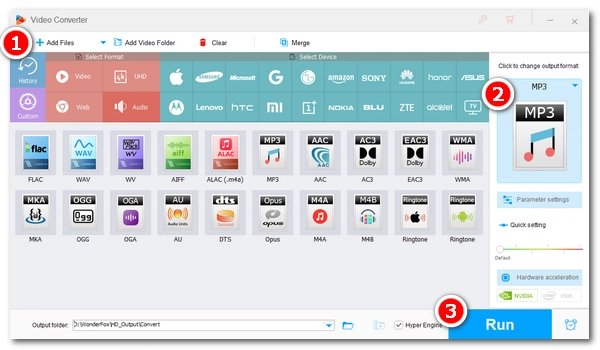
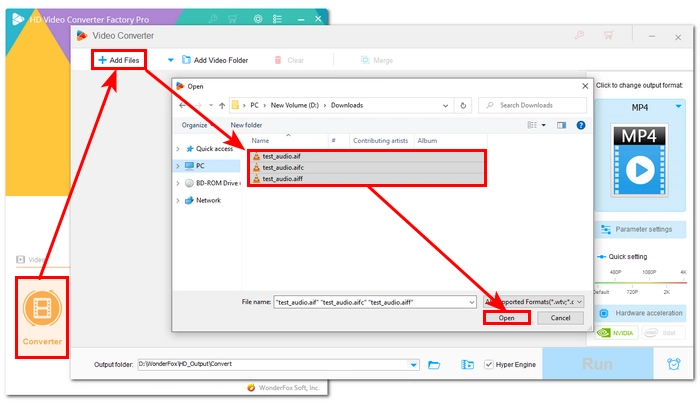
Click +Add Files to browse for your .aiff, .aif, or .aifc files from your computer and click Open to add them to the program. Alternatively, you can simply drag and drop the files into the Converter window.
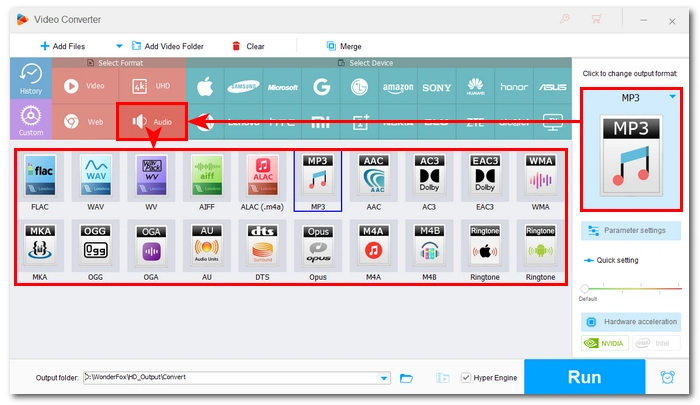
Click the Output Format section on the right side of the interface. Go to the Audio tab and select your desired format.
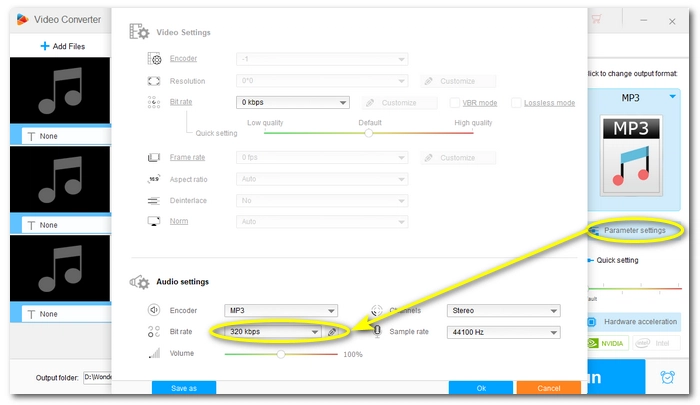
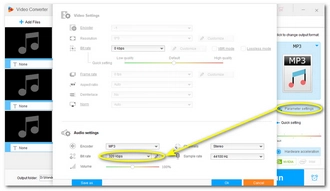
You can open Parameter settings to adjust the audio parameters as needed. For example, when converting to MP3, you can set the bitrate to 320kbps to maintain the highest possible audio quality.
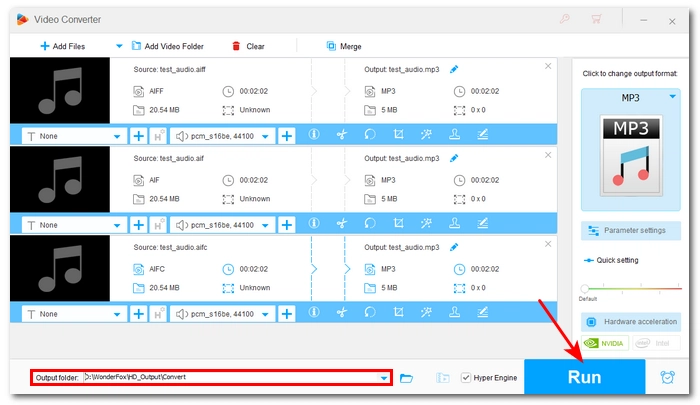
Choose where you want the new files to go by clicking the ▼ icon at the bottom, then hit Run. It’ll take just a few seconds per file.
Once the conversion is done, your files will be standard MP3, WAV, or the specific files you chose.
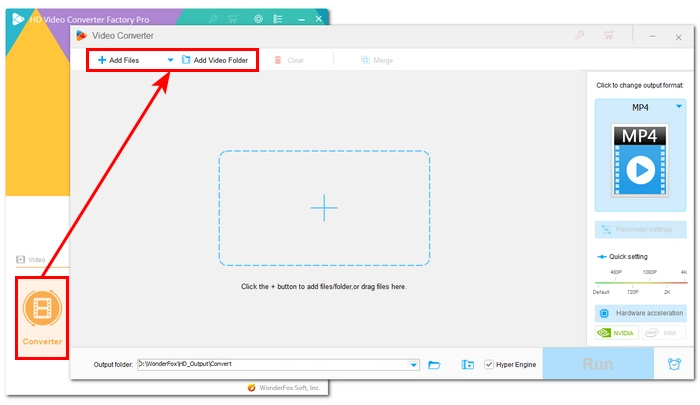
Download Download and install the audio converter first. After installation, launch the software and enter the Converter module.
Click +Add Files to import the files you want to convert, or you can click Add Video Folder if you have a whole folder of files.
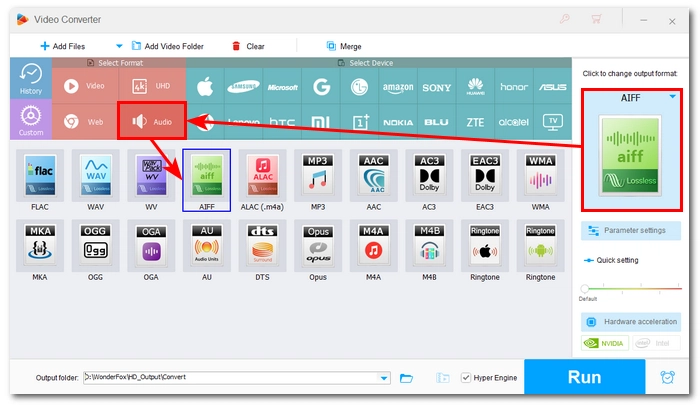
Open the output format section on the right. Under the Audio tab, select the AIFF format.
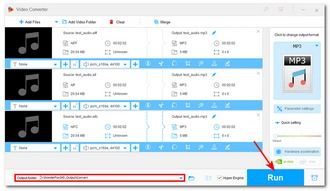
Click the ▼ button at the bottom of the Converter interface and choose a destination folder. Finally, click Run to convert files right away.
💡 Before conversion, you can use the cutting tool below each imported file to cut the file length, or use the Merge function at the top to make a complete audio when multiple files are imported.
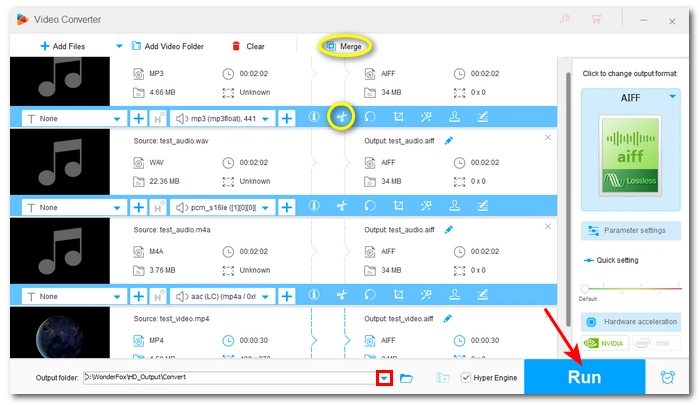
Converting audio such as MP3, WAV, and M4A, or video like MP4 to AIFF can all help you gain native compatibility on Apple devices and services.
Converting AIFF or AIFC to MP3 is the best way to reach universal playback of the file and reduce the file size at the same time for easier sharing and storage.
Converting AIFF or AIFC to WAV is a good way to preserve the original lossless audio quality while reaching wider compatibility, such as on Windows.
Converting AIFF to FLAC lets you turn your files to a compressed lossless format, so the file size will significantly decrease but the quality remains lossless.
Converting AIFF to M4A is ideal for converting music archives to play efficiently on iPhones or inside Apple Music.
Converting AIFF to Ogg if you need the audio for web development, gaming engines, or open-source software platforms.
No. Since both WAV and AIFF are lossless formats, converting WAV to AIFF preserves the original audio data without losing sound quality.
No, it will only keep the same quality. But it’s useful if you want the audio to work within the Apple ecosystem.
By default, Windows Media Player often fails to play .aifc files because it lacks the necessary decoder. Converting the file is the most effective solution.
Yes. Tools like WonderFox HD Video Converter Factory Pro allow you to do it easily and quickly. Check steps here >>
Yes. In HD Video Converter Factory Pro, you can drag an entire folder of AIFF files into the converter and process them all into your wanted format at once.

I write about multimedia topics, including video and audio conversion, compression, editing, and downloading. I joined WonderFox in 2020, and my goal is to help readers solve everyday tech problems more easily. In this guide, you can learn how to easily convert AIFF, AIF, and AIFC files to other audio formats, as well as convert other video and audio to AIFF format. Hope you find it useful!


I write about multimedia topics, including video and audio conversion, compression, editing, and downloading. I joined WonderFox in 2020, and my goal is to help readers solve everyday tech problems more easily. In this guide, you can learn how to easily convert AIFF, AIF, and AIFC files to other audio formats, as well as convert other video and audio to AIFF format. Hope you find it useful!
 Download for Free
Download for Free
Download for Free

Terms and Conditions | Privacy Policy | License Agreement | Copyright © 2009-2022 WonderFox Soft, Inc.All Rights Reserved