
Need to play an old DivX video on a phone, TV, browser, or media player? Or want to make a DivX-encoded AVI for a DivX-certified device? This guide shows how to convert DivX-encoded videos to MP4, AVI, MKV, MOV, and more, and how to convert common videos back to DivX AVI on Windows.
A Practical DivX Converter: HD Video Converter Factory Pro
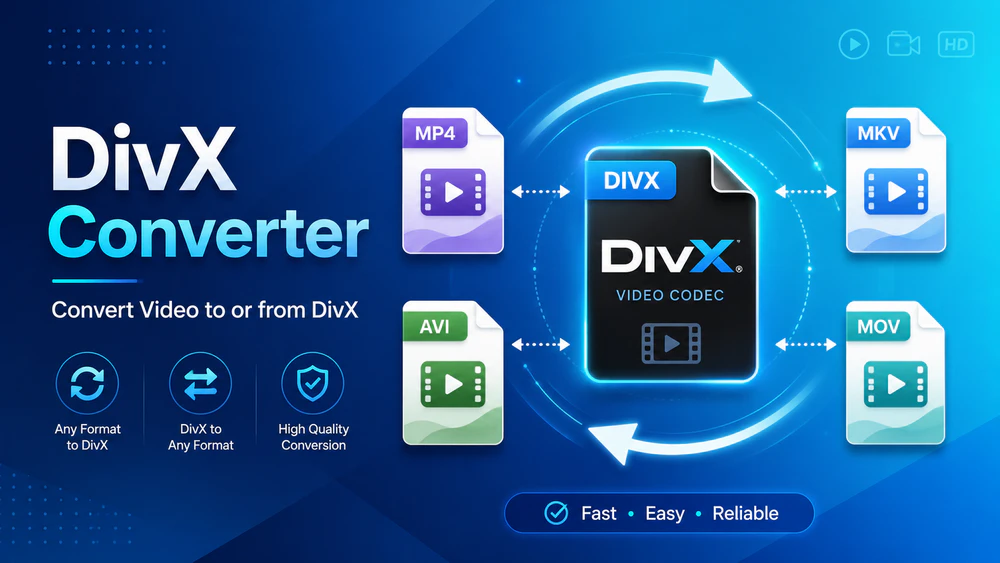

DivX is not simply a file extension. In everyday use, it usually refers to a video encoded with the DivX codec, especially the classic MPEG-4 Part 2 DivX video used in many AVI files. You may also see files with a .divx extension. This is closely related to AVI, but it is still a container file that stores compressed video and audio streams.
That is why DivX conversion is not the same as renaming a file. If your player, TV, phone, browser, or editing software cannot decode the DivX video stream, you need to transcode it to a more compatible codec and container, such as H.264 MP4. On the other hand, if you need an old DivX-certified DVD player, TV, or media device to recognize a video, converting MP4, MKV, MOV, or other files to DivX-encoded AVI can also be useful.
This guide covers both directions, so you do not need separate tutorials for DivX to MP4 or video to DivX AVI conversions.
If you only want smooth playback on modern devices, MP4 with H.264 video is usually the safer choice. Choose DivX AVI only when the receiving device or workflow specifically requires it.
WonderFox HD Video Converter Factory Pro is a beginner-friendly DivX converter for Windows. It can read DivX-encoded videos and export them to MP4, AVI, MKV, MOV, and many other formats. It can also do the reverse: import common videos and create DivX-encoded AVI files by selecting AVI as the container and DivX as the video encoder.
It is also helpful when the problem is not only the video format. For example, you can reduce a high bitrate, change the resolution, switch audio codec, fix a wrong aspect ratio, trim unwanted parts, merge clips, or compress a large file in the same workflow.
Download and install HD Video Converter Factory Pro. Then follow the steps below.
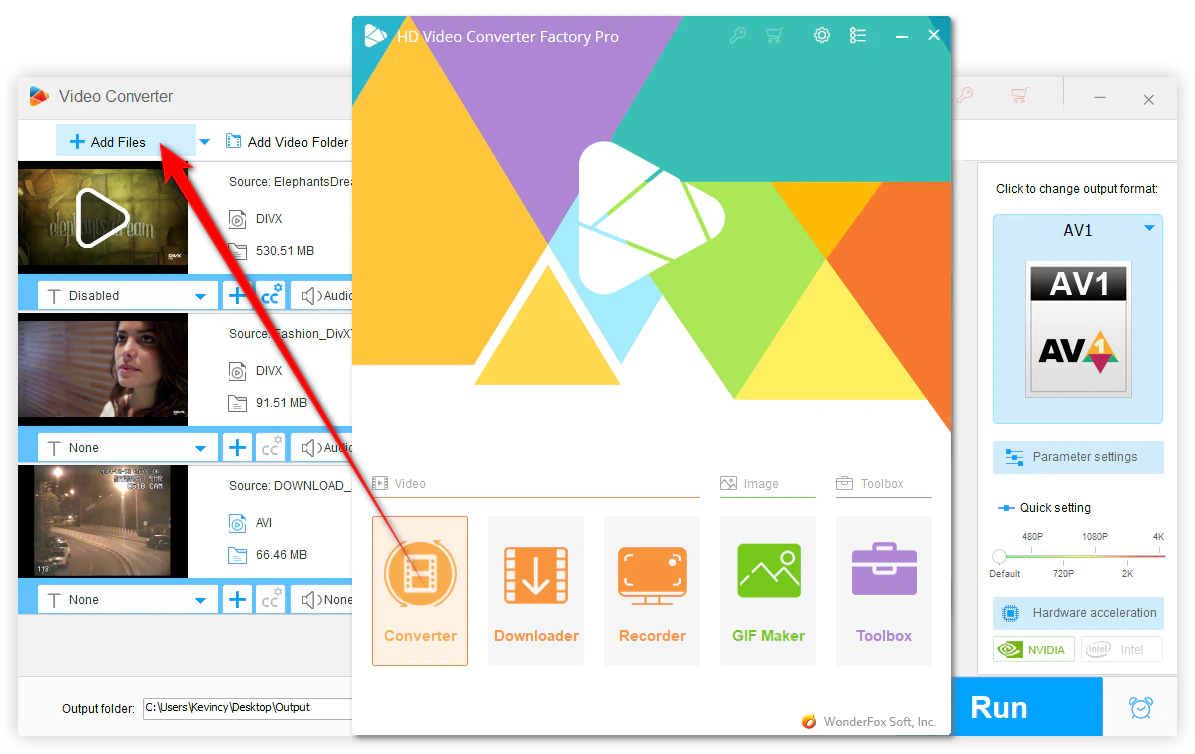
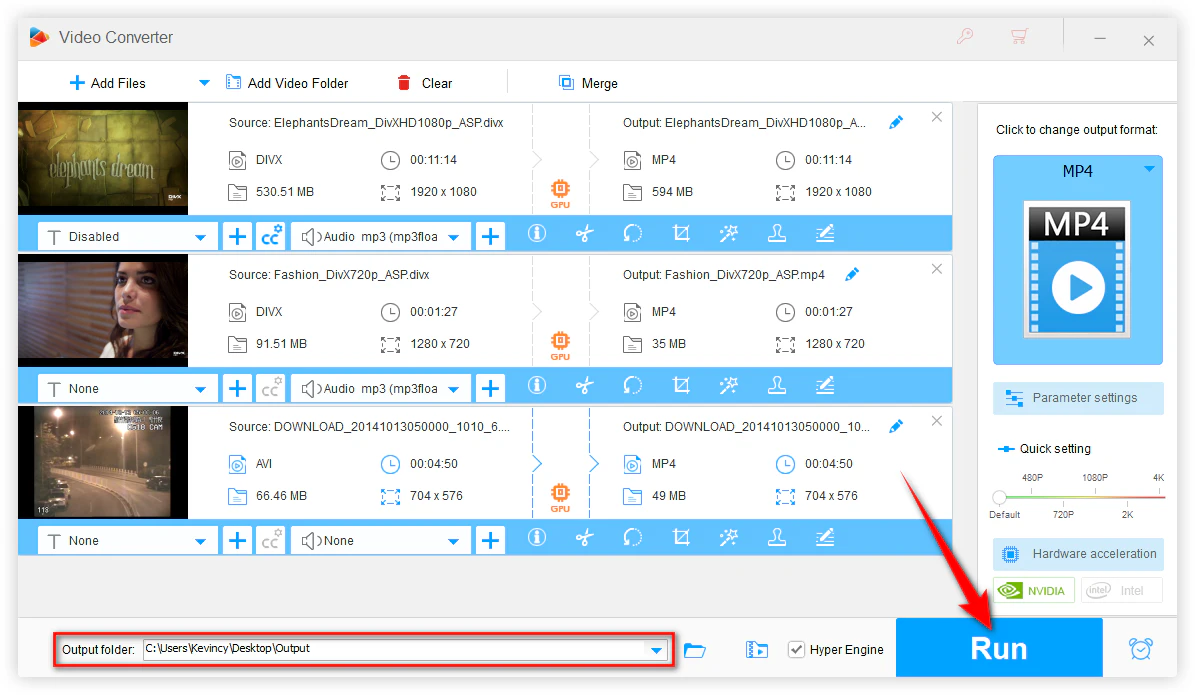
Launch the program and open Converter. Click Add Files to import your DivX-encoded videos, or drag and drop them into the workspace. You can also click Add Video Folder to load many files at once.
If you want to create DivX AVI, import the source videos you want to convert, such as MP4, MKV, MOV, WMV, MTS, or VOB.
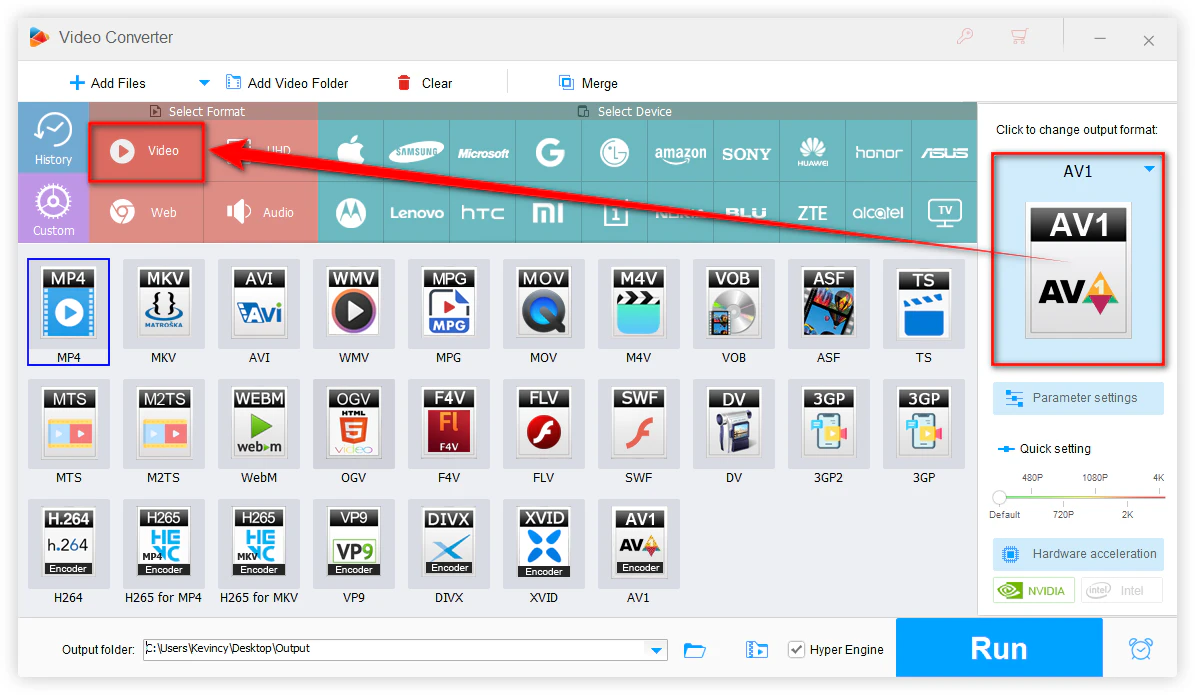
Click the format image on the right side to open the output format library. Go to the Video tab and choose the format you need.
For most DivX-to-MP4 cases, the default H.264 MP4 profile is a practical choice.
Skip this step if you are converting DivX to MP4 or another modern format.
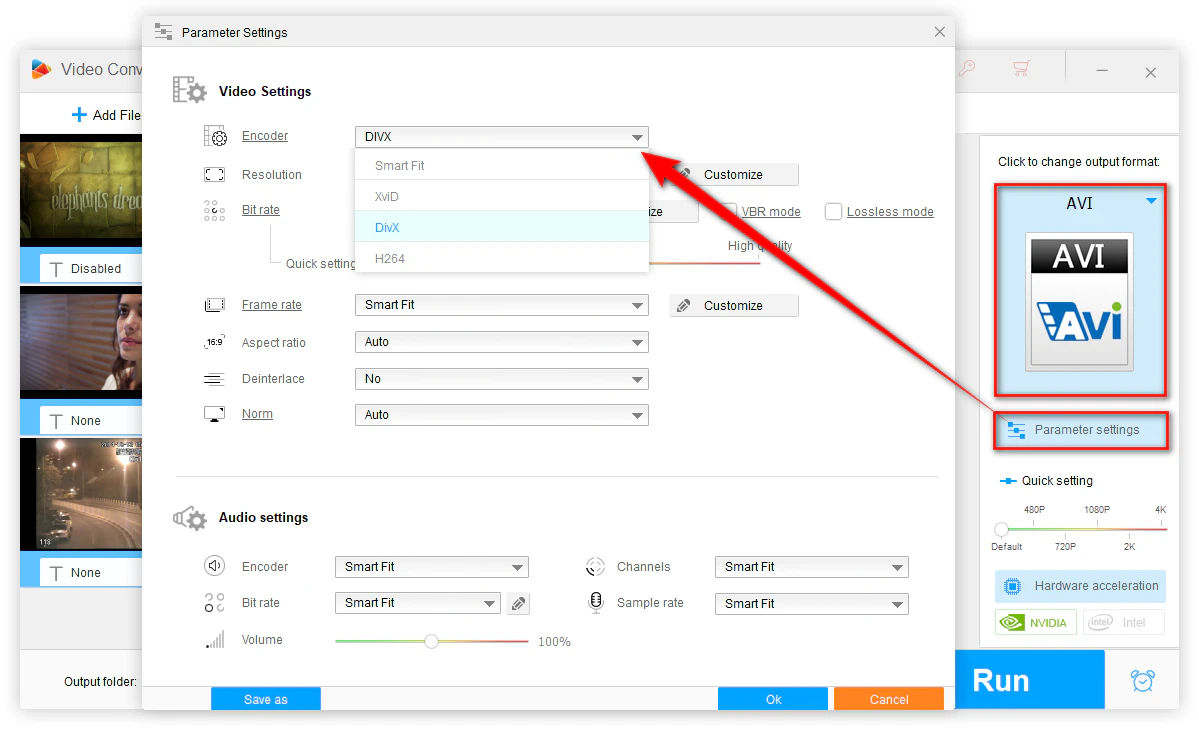
To convert MP4, MKV, MOV, or other videos to DivX, first choose AVI as the output profile. Then open Parameter settings, find the video encoder option, and select DivX.
Here you can also adjust resolution, bitrate, frame rate, aspect ratio, audio codec, sample rate, and channel settings if your device has strict playback requirements.
For old DivX-certified devices, avoid very high resolutions and bitrates. A simpler AVI file with DivX video and MP3 audio is often more compatible than a large high-resolution file with advanced settings.
Click the bottom triangle button to set an output folder. Then click Run to start the conversion. When it is done, open the output folder and test the converted video on your target device or player.
If the result still does not play on an old device, go back to Parameter settings and lower the resolution, bitrate, or frame rate. Device limits are often the real reason an AVI file fails to play.
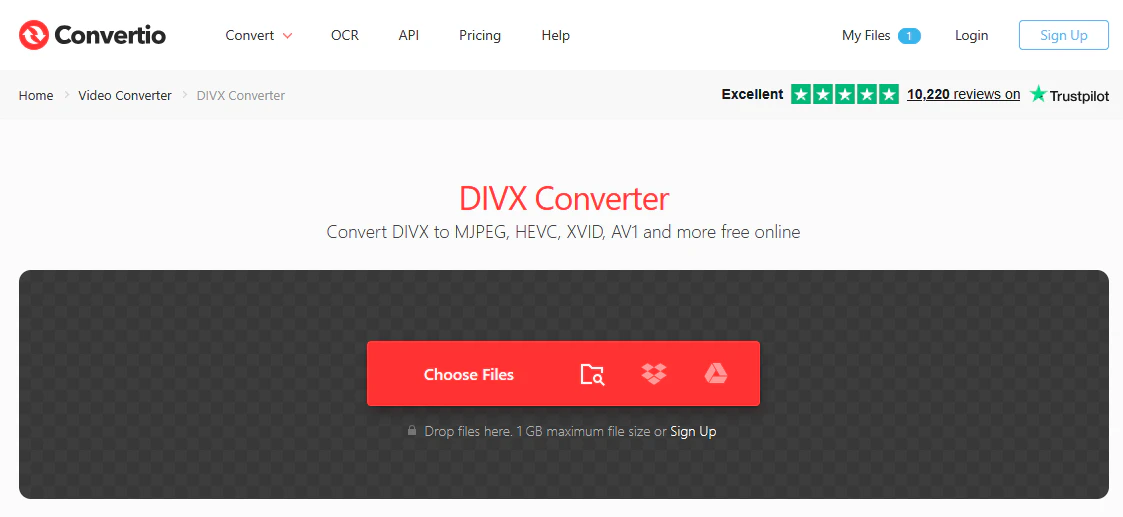
If you only need to process one or two relatively small files and do not want to install software, Convertio offers a convenient browser-based alternative. It can convert DIVX files to MKV, MP4, MOV, WebM, and many other formats. It also works in the opposite direction, allowing you to convert MP4, MKV, MOV, WMV, MPG, and other videos to DIVX.
Step 1. Open the Convertio DIVX Converter and click Choose Files to upload a video from your computer, phone, Google Drive, or Dropbox.
Step 2. To convert a DIVX file, choose a needed format as the output. To create a DIVX video, upload another supported video format and select DIVX as the output.
Step 3. Click the gear icon when you need to adjust the video quality, resolution, frame rate, aspect ratio, or other settings. Then click Convert and download the processed file when it is ready.
💡 Convertio currently allows free conversions of files up to 1 GB, subject to daily conversion-credit and concurrent-task limits. Online processing also depends on upload speed. For long videos, large batches, unstable connections, or private files, the desktop converter above is usually more practical because the source files remain on your computer.

Note: DivX and Xvid are both associated with MPEG-4 Part 2 video and AVI playback, but they are not the same encoder. If your device says it supports DivX, choose DivX output first. If it accepts Xvid better, choose Xvid AVI instead.
When you are unsure, convert a short sample and test it before processing a full batch.
No. DivX is a video codec/encoding technology, while AVI is a container format. A file can be an AVI container with DivX video inside, but AVI can also contain Xvid, H.264, Motion JPEG, and other video streams. This is why some AVI files play and others do not.
Yes. In HD Video Converter Factory Pro, import your video, choose AVI as the output format, open Parameter settings, and set the video encoder to DivX. Then start the conversion.
Most codec conversion is lossy because the video is decoded and re-encoded. The quality loss can be small if you use a proper bitrate, keep the original resolution and frame rate when possible, and avoid repeated conversions. If you only need to fix a container issue, try a copy/remux method first, but it will not solve codec incompatibility.
VLC can convert some DivX videos to common formats, and HandBrake is a good free option for converting many input videos to MP4, MKV, or WebM. However, they are not ideal if your goal is to create a DivX-encoded AVI with simple profile and codec controls. For that purpose, a dedicated converter with AVI encoder settings is easier.
Yes. FFmpeg is powerful and flexible, especially for advanced users who are comfortable with command lines. For beginners, a graphical converter is usually easier because it lets you choose AVI, DivX, bitrate, resolution, and audio settings from menus.
The device may have limits on resolution, bitrate, frame rate, audio codec, file size, or storage format. Try using DivX video in AVI, MP3 audio, a lower resolution, and a moderate bitrate. Also check whether the device requires USB drives to be formatted in FAT32 or another file system.
A good DivX converter should handle both directions: converting DivX-encoded videos to MP4, AVI, MKV, MOV, and other formats for easier playback, and converting common videos to DivX-encoded AVI for older DivX-compatible devices. HD Video Converter Factory Pro makes both tasks straightforward: add your files, choose the output format, adjust DivX codec settings when needed, and run the conversion.
For most modern devices, use MP4. For older DivX-certified hardware, use AVI with DivX video and compatible audio settings. That simple choice can save a lot of trial and error.
WonderFox
HD Video Converter Factory Pro
 Download for FreeDownload for Free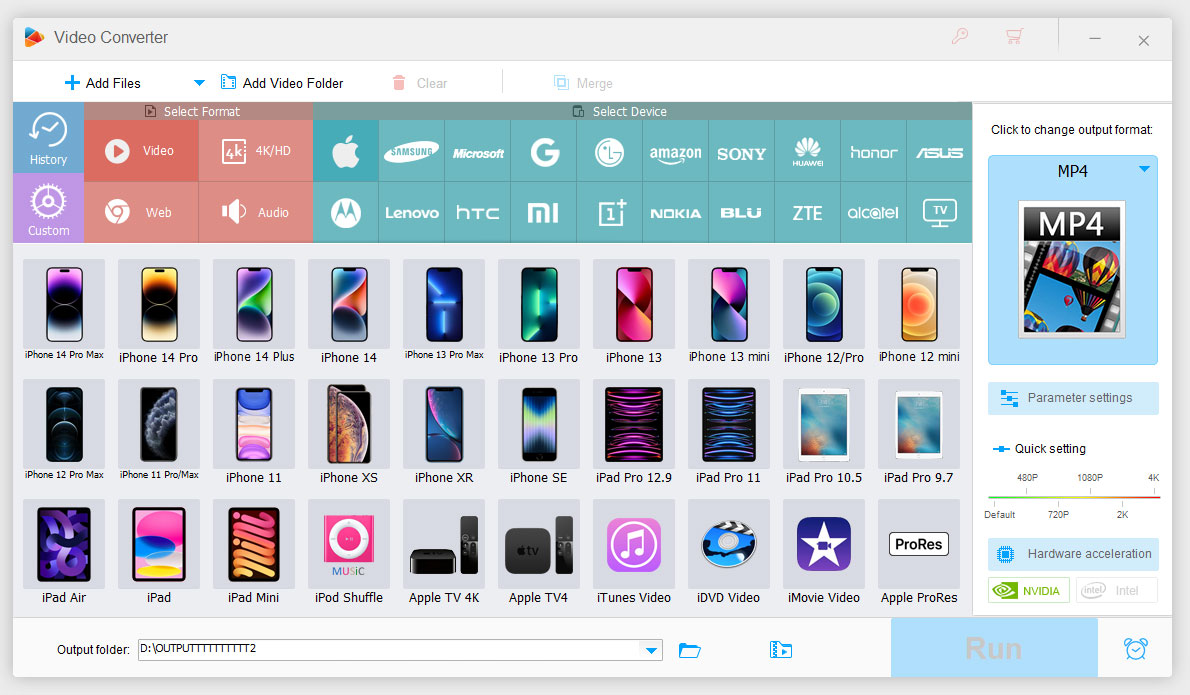

Kevincy joined the WonderFox team in 2014 and has been a senior columnist ever since. With over two decades of experience in the video editing industry, he shares tutorials, tips, and how-to guides on video/audio processing and personal DVD backups. Family-oriented and passionate about helping others, he is dedicated to making video and audio processing easier for readers.


Kevincy joined the WonderFox team in 2014 and has been a senior columnist ever since. With over two decades of experience in the video editing industry, he shares tutorials, tips, and how-to guides on video/audio processing and personal DVD backups. Family-oriented and passionate about helping others, he is dedicated to making video and audio processing easier for readers.

Terms and Conditions | Privacy Policy | License Agreement | Copyright © 2009-2026 WonderFox Soft, Inc. All Rights Reserved.



 Download for Free