
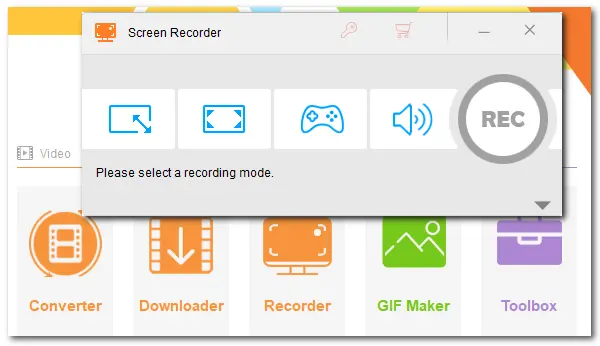


Yes, you can. SuperBox is a popular streaming device that allows you to watch news, sports, TV shows, or movies. You can also record your preferred TV shows and other content on SuperBox. But, SuperBox doesn't offer built-in screen or video recording features, so you need alternative methods. Don't worry! This post offers two ways to help you record on SuperBox.
You can use a DVR (digital video recorder), which is a device that can record videos in a digital format onto your storage devices. If you have a DVR, this is a good option. If you don't have one, you will need to purchase a DVR or consider the second solution.
A third-party screen recorder can also help you record videos on SuperBox. Compared to DVRs, it is more straightforward to use.
The following sections explain both methods.
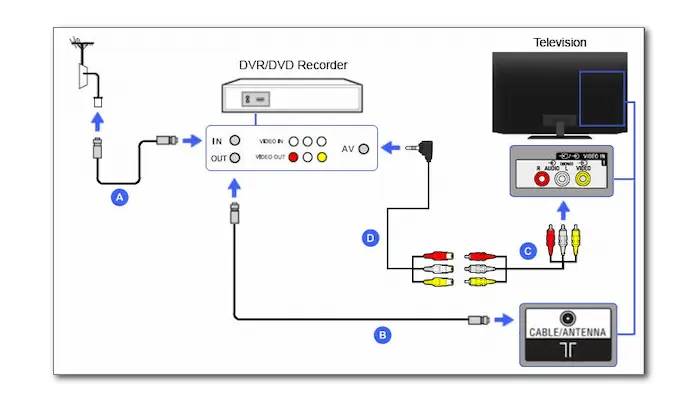
When using a DVR to record shows from SuperBox, you first need a compatible DVR and must connect it to your SuperBox device. Then, you can use it to record TV shows and other content on the SuperBox.
Step 1: Connect your DVR to your SuperBox TV with an RF modulator. Make sure they are set to the same channel.
Step 2: Ensure the RF modulator is connected to the correct port on your DVR.
Step 3: Plug the TV power cord into the DVR, then plug the DVR power cord into the wall outlet.
Step 4: Turn on your TV and find the show you want to record. Then press "Record" to start the recording process.

🔔 Due to the various versions and models of SuperBox, the operational steps may differ slightly. It is advisable to refer to the user manual or contact customer support for specific instructions related to your model.

 Download for Free
Download for Free
Download for Free
If you don't have a DVR or find it difficult to use DVR to record on SuperBox, you can use a professional video recording application to capture content from SuperBox more easily.
WonderFox HD Video Converter Factory Pro is an HD screen recorder that can easily capture videos from SuperBox, Apple TV, Firestick, and other devices. With this tool, you can record videos on SuperBox in high quality at up to 4K 60 frames per second. The user-friendly interface allows you to start recording quickly with just a few simple clicks.
Download for Free
Download for Free
Let's see how to record on SuperBox with WonderFox HD Video Converter Factory Pro.
Step 1: Configure your PC to recognize the SuperBox and select the input source (HDMI or AV) on your PC. Then, find the video you want to record.
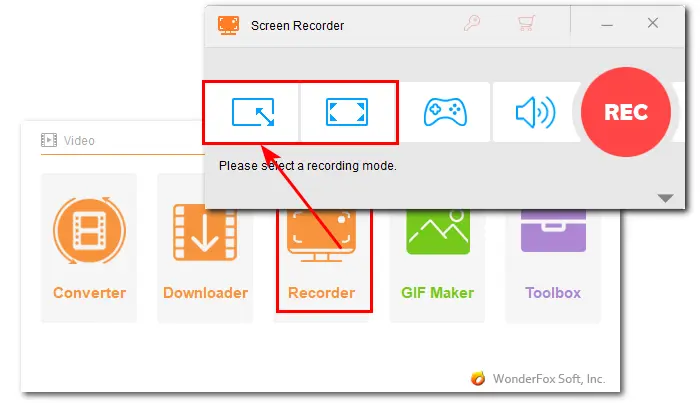
Step 2: Launch WonderFox HD Video Converter Factory Pro and open the "Recorder" module.
Step 3: Choose a recording mode from "Custom" or "Full Screen" and confirm the recording region.
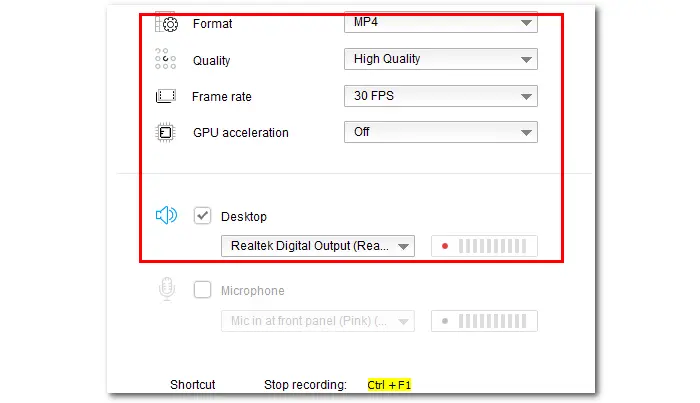
Step 4: Adjust the recording format, quality, and frame rate according to your needs, or leave them at the default settings. Then, uncheck the "Microphone" box if you don't want to record external sounds.
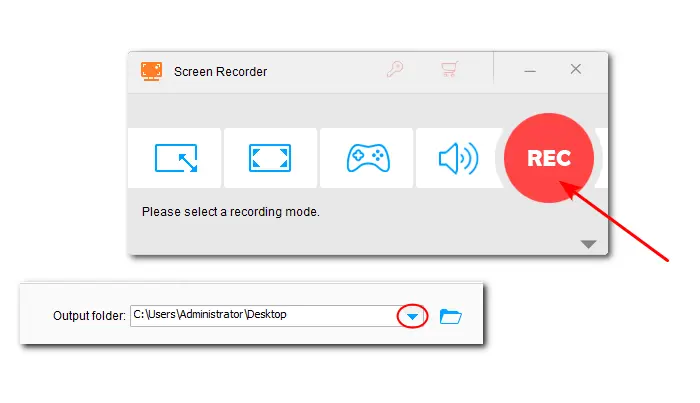
Step 5: Click the ▼ button at the bottom to specify an output path.
Step 6: Hit the "REC" button to start recording. Once finished, you can press "Ctrl + F1" to stop recording.
This post details two methods for recording on SuperBox. If you need to capture videos from SuperBox, you can find the appropriate solution in this post. For simplicity, we recommend using WonderFox HD Video Converter Factory Pro. This software allows you to not only record TV shows but also capture videos from streaming services.
Hope you can find this article helpful. Thanks for your reading. Have a nice day!
 Download for Free
Download for Free
Download for Free
SuperBox as a device is legal in the US. However, the legality of the content you stream depends on the source and whether you have proper access rights.
No. But you can try the provided solutions in this post to record shows from SuperBox for convenient playback. Moreover, SuperBox offers a pre-installed Playback feature that allows you to access the TV news and Sports up to the last 7 days, so you don’t miss important news or events.

Terms and Conditions | Privacy Policy | License Agreement | Copyright © 2009-2026 WonderFox Soft, Inc. All Rights Reserved.