
Discover easy, free ways to share videos without sound on social media in just minutes.
Try the best free audio remover: WonderFox Free HD Video Converter Factory


One of the great things about video is that it shows visuals while also delivering accompanying audio.
Today, it’s easy to record a video and share it on social media or send it through messaging apps. But, you may sometimes want to send a video without sound, for privacy, to remove background noise, or to avoid copyright issues. So, can we remove the audio from a video before posting it? How can we do it effectively? Don't worry. This article will provide the answer.
Yes. The first thing we need to make clear is that we can send or post a video without sound. Many apps allow you to mute the sound before sharing the video, including Instagram, TikTok, and WhatsApp. Here are the steps to share a video without sound on each platform separately.
Yet, there isn’t a built-in way to post a video on Facebook or Twitter without sound. You must rely on a third-party video editor to remove the sound from the video before sharing. Read for more details in the next part.
WonderFox Free HD Video Converter Factory is a feature-rich PC tool that comes in handy when built-in mute options aren’t available. Its video editor provides all the necessary tools to optimize your videos, including removing audio from them. It offers two ways to do this: one is to disable the audio track, which is good for removing sound from a single video, and the other is to reduce the volume of all videos imported into the program to 0. Either way is free and very simple. You can now remove audio from your video before posting it by following the steps below.
Step 1: Download and install Download and install the software on your PC. Then launch it and click Converter.
Step 2: In the new window, click + Add Files in the upper-left corner to import the video you want to share. You can also drag and drop the file directly into the program.
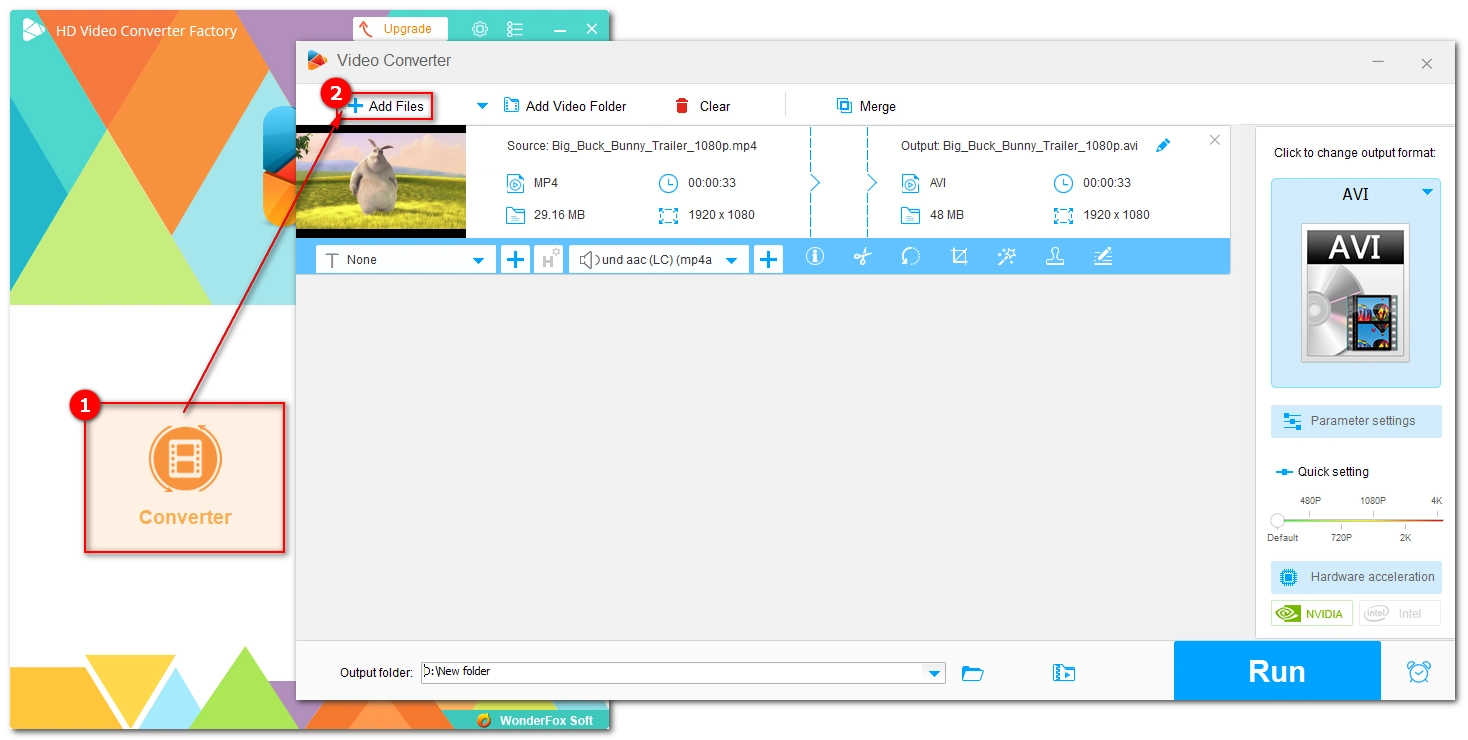
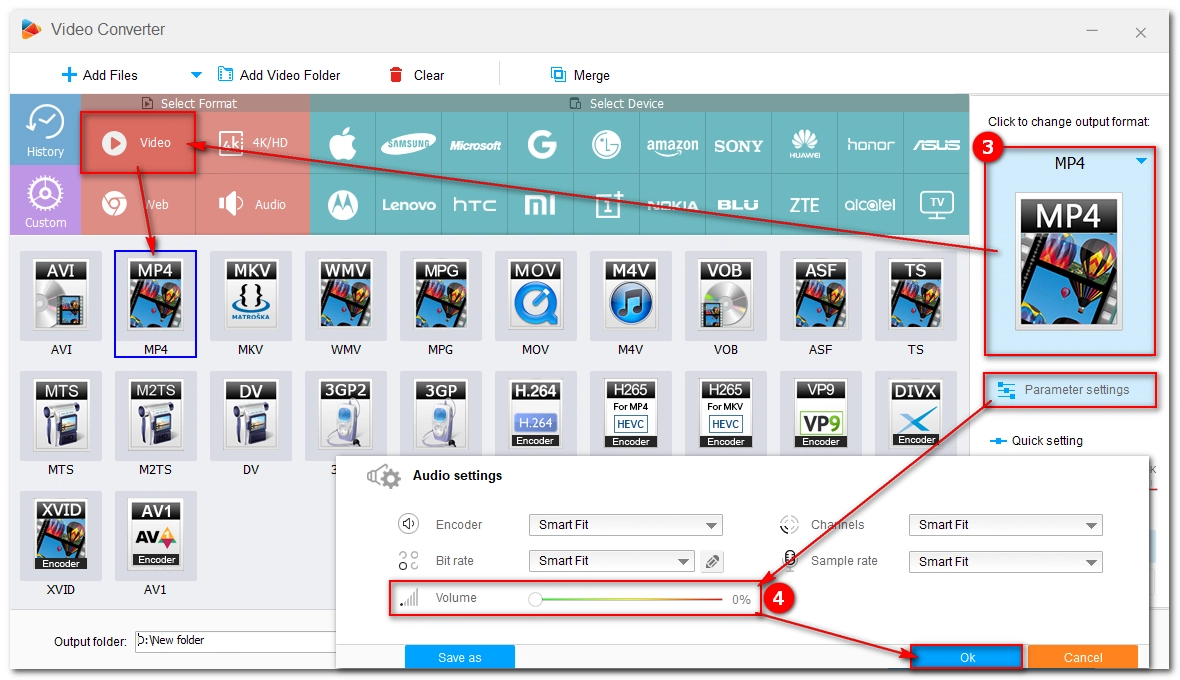
Step 3: Expand the output format list on the right. Click the Video tab and select a video format, preferably the same format as the original or MP4.
Step 4: Open Parameter settings. Then change the volume to 0% at the bottom. Click OK to save the changes. This will mute the audio for all imported videos at once.
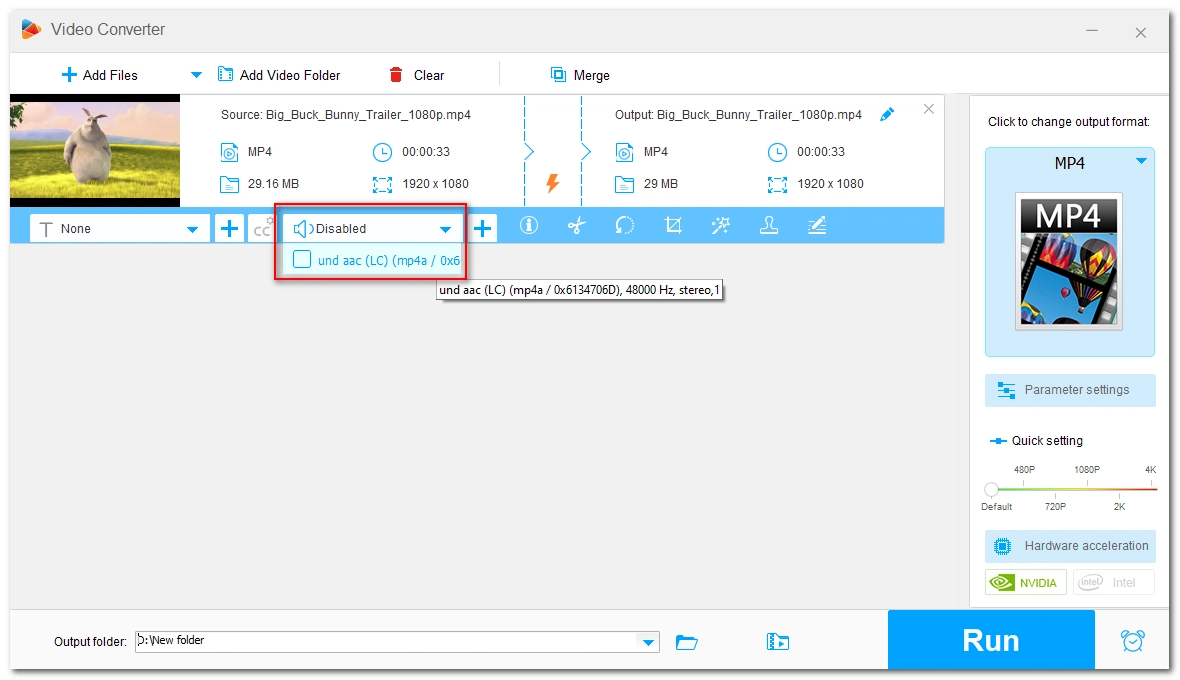
Alternatively, you can click the Audio Track option and uncheck the audio track to disable audio for a single video.
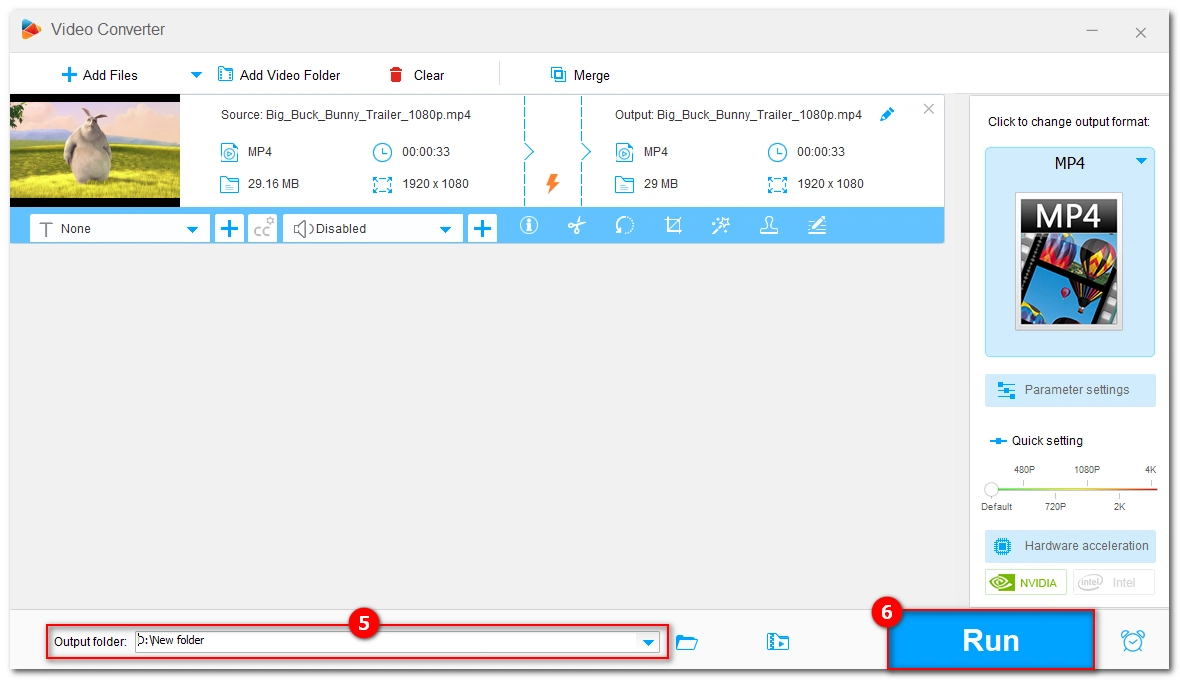
Step 5: Click the down arrow button at the bottom to set the output folder.
Step 6: Click Run to export the file without sound. This will take some time depending on the file size and the selected format. If you want to accelerate the process, you can try the upgraded version of the software, which helps you remove audio from video without re-encoding, hence super-fast speed and no video quality loss.
After conversion, you can upload the video without sound to any platform.

💡 If you want to post video without sound from mobile devices or Mac, see these guides:
It's easy to remove audio from videos before posting them within the social app. However, when the mute function isn't available, you must use a third party video editor like WonderFox Free HD Video Converter Factory.
That’s all for this guide. I hope it’s helpful. Thanks for reading. Have a nice day!
WonderFox
DVD Ripper Pro
Explore WonderFox DVD Ripper Pro, a trusted tool for effortlessly converting any DVD – homemade or commercial – into popular formats like MP4, MKV, MP3, and others. Edit and compress your DVD videos efficiently for optimal results. Download now for seamless conversion.
 Download for FreeDownload for Free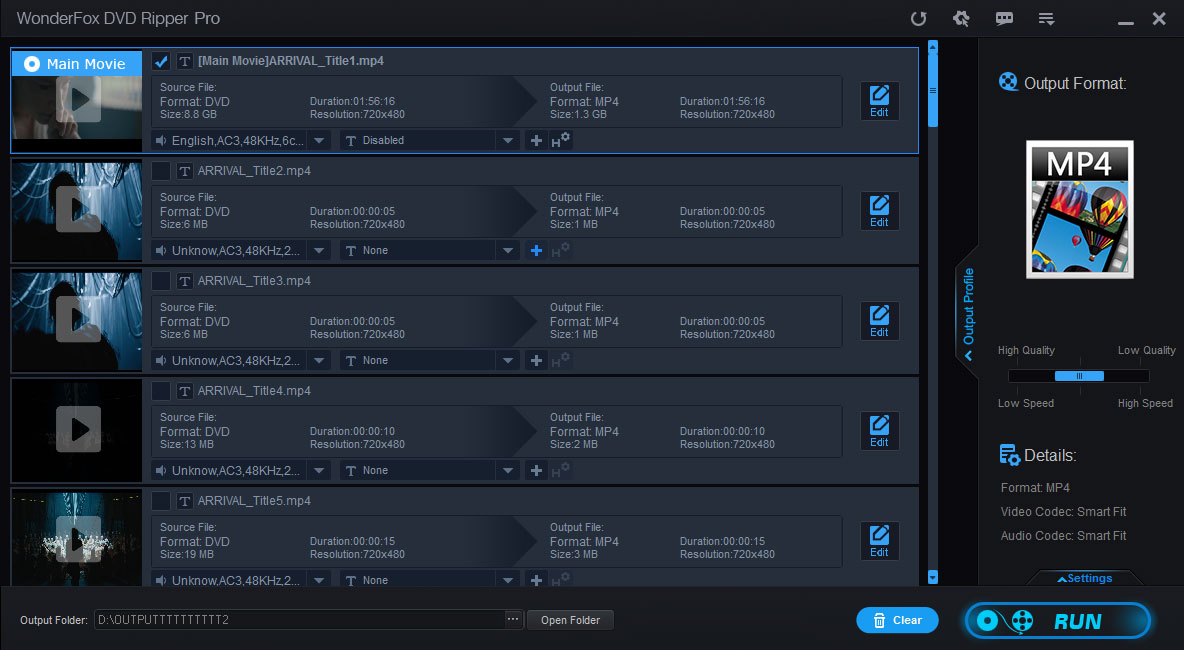



Terms and Conditions | Privacy Policy | License Agreement | Copyright © 2009-2026 WonderFox Soft, Inc. All Rights Reserved.



 Download for Free
