
Best Video & Audio Processor: HD Video Converter Factory Pro

CAF, short for Core Audio Format, is an audio container format developed by Apple. It is mainly used in macOS, iOS, and other Apple-related audio workflows to store recordings, sound effects, music loops, and other audio data.
Compared with older audio containers, CAF can handle large audio files and supports many types of audio data. However, because it is more common in Apple’s ecosystem, CAF files may not always play properly on Windows media players, Android phones, editing programs, or other non-Apple devices.
In that case, the easiest solution is to convert CAF to a more compatible audio format, such as MP3, M4A, WAV, FLAC, AAC, or OGG.
If you want a simple way to convert CAF files on Windows, WonderFox HD Video Converter Factory Pro can help. It is an easy-to-use video and audio converter that supports a wide range of audio formats and allows you to convert CAF to MP3, M4A, WAV, FLAC, AAC, OGG, AIFF, and more.
With this CAF audio converter, you can:
Now, let’s see how to convert CAF audio files step by step.
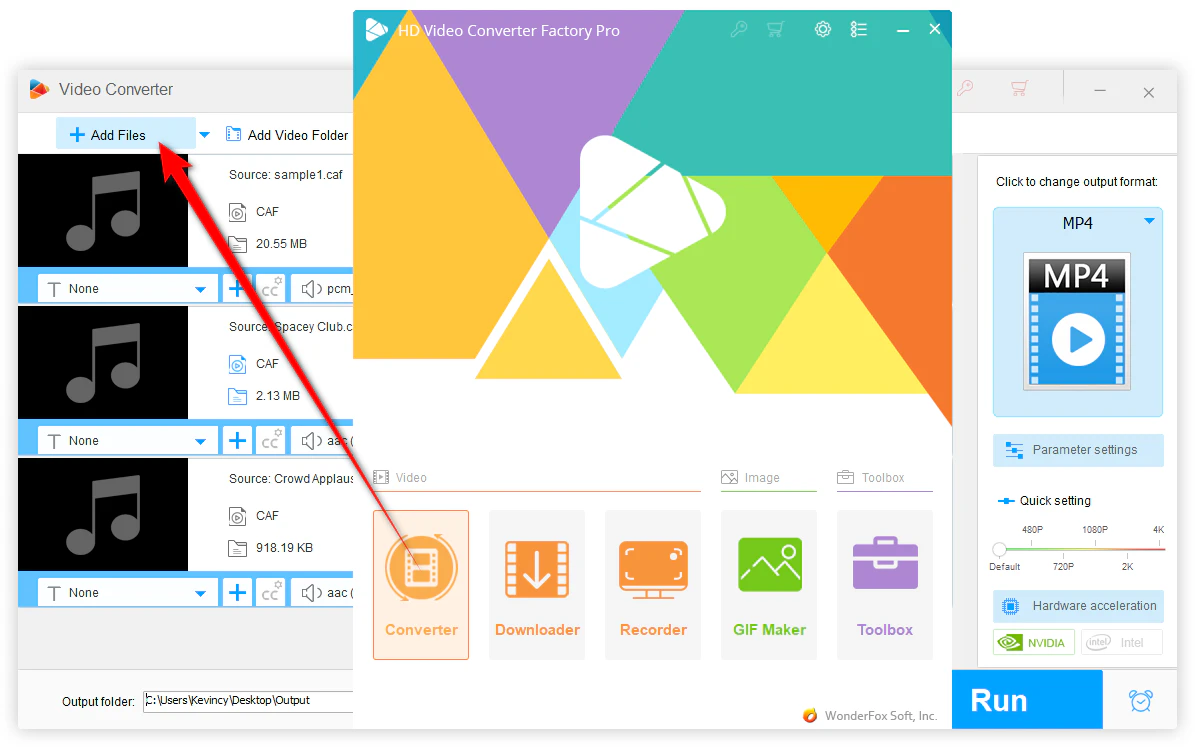
DownloadDownload, install, and launch WonderFox HD Video Converter Factory Pro on your Windows PC. Open the Converter module from the main interface.
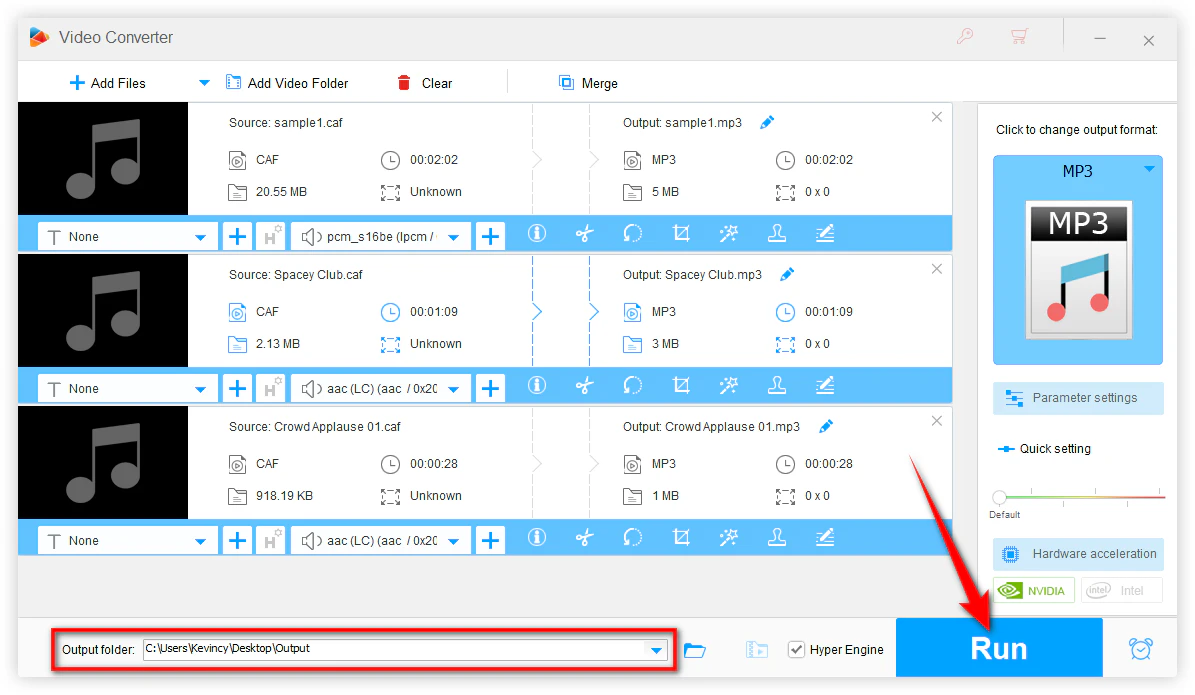
Click Add Files to import your CAF audio files. You can also drag and drop the files directly into the program. Batch audio conversion is supported, so you can add multiple CAF files at once.
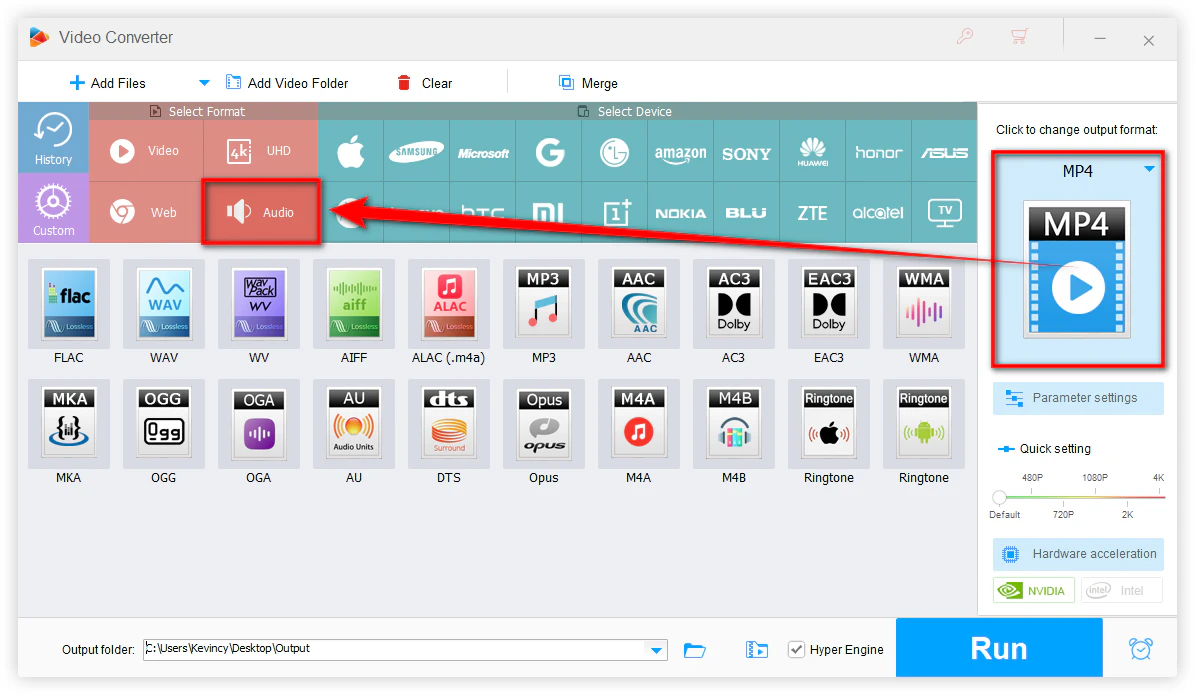
Click the format image on the right side of the interface to open the output format library.
Go to the Audio tab and choose the format you need. For example:
For most users, MP3 is the safest output format because it works with almost all players, devices, and platforms.
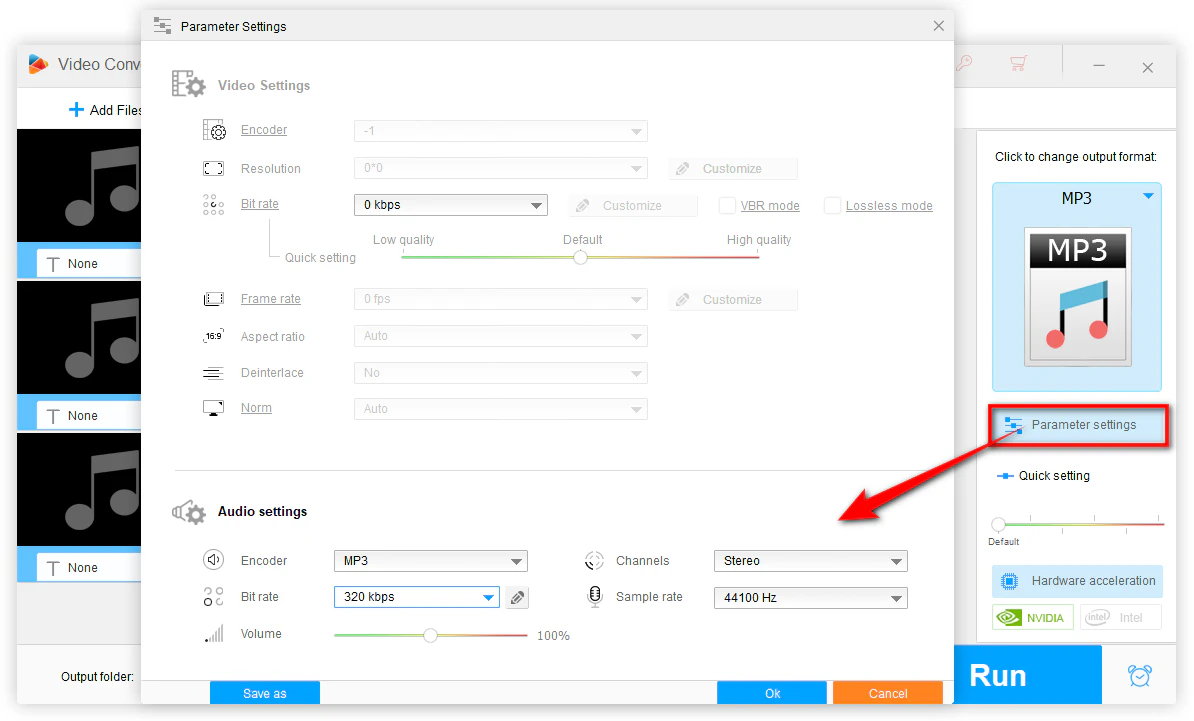
The default settings are suitable for most conversion tasks. But if you want to control the output audio quality or file size, click Parameter settings. Here you can change:
If you are not sure what to change, simply keep the default settings.
Click the bottom inverted triangle button to set an output folder.
Finally, click Run to start converting CAF files to your selected format. Once the conversion is finished, you can open the output folder and play, edit, transfer, or share the converted audio files freely.
CAF is only a container. The audio inside it may be AAC, ALAC, LPCM, or another codec. If possible, check the file information before choosing the output format. This helps you avoid unnecessary conversion, quality loss, or oversized output files.
If the CAF file contains lossy audio, converting it to WAV, FLAC, or ALAC will not improve the sound quality. It may only increase the file size. Use lossless formats mainly for uncompressed or lossless source audio, or when you need a format that is easier to edit.
For normal playback and sharing, MP3 and M4A are usually more practical. MP3 offers the widest compatibility, while M4A is a good choice for Apple devices and efficient compression.
If your audio editor does not work well with CAF, converting CAF to WAV can make the file easier to import and edit. Just remember that WAV is not a magic quality enhancer; it is mainly useful for compatibility and editing workflows.
A: Windows does not natively support every CAF file. Some players may open certain CAF files, while others may fail because of the codec inside the container. If your CAF file cannot play on Windows, converting it to MP3, WAV, or M4A is usually the easiest fix.
A: Yes. Online converters such as CloudConvert, Convertio, or FreeConvert may convert CAF files without installing software. This is convenient for one or two small files. However, online tools often have file size limits, upload/download delays, ads, and privacy concerns. For multiple or large CAF files, desktop software is usually more stable.
A: On Mac, you can try an audio converter such as MediaHuman Audio Converter, fre:ac, or use command-line tools like FFmpeg if you are comfortable with commands.
A: It depends on the output format and settings. Converting CAF to a lossy format like MP3 or AAC/M4A may reduce quality slightly, especially at low bitrates. Converting CAF to WAV, FLAC, or ALAC can better preserve audio quality, though WAV files are usually much larger.
That’s all about how to convert CAF files on Windows. Since CAF is a container format, there is no one-size-fits-all output choice. MP3 is great for compatibility, M4A works well for Apple devices and efficient compression, and WAV is useful when you need an editing-friendly format.
But do not convert CAF to WAV or FLAC simply because they are “higher quality” formats. If the original audio is already lossy, the conversion will not bring back the missing audio data.
If you want an easy CAF converter for Windows, WonderFox HD Video Converter Factory Pro is worth a try. It helps you convert CAF to MP3, M4A, WAV, and more without complicated settings.
WonderFox
HD Video Converter Factory Pro
 Download for FreeDownload for Free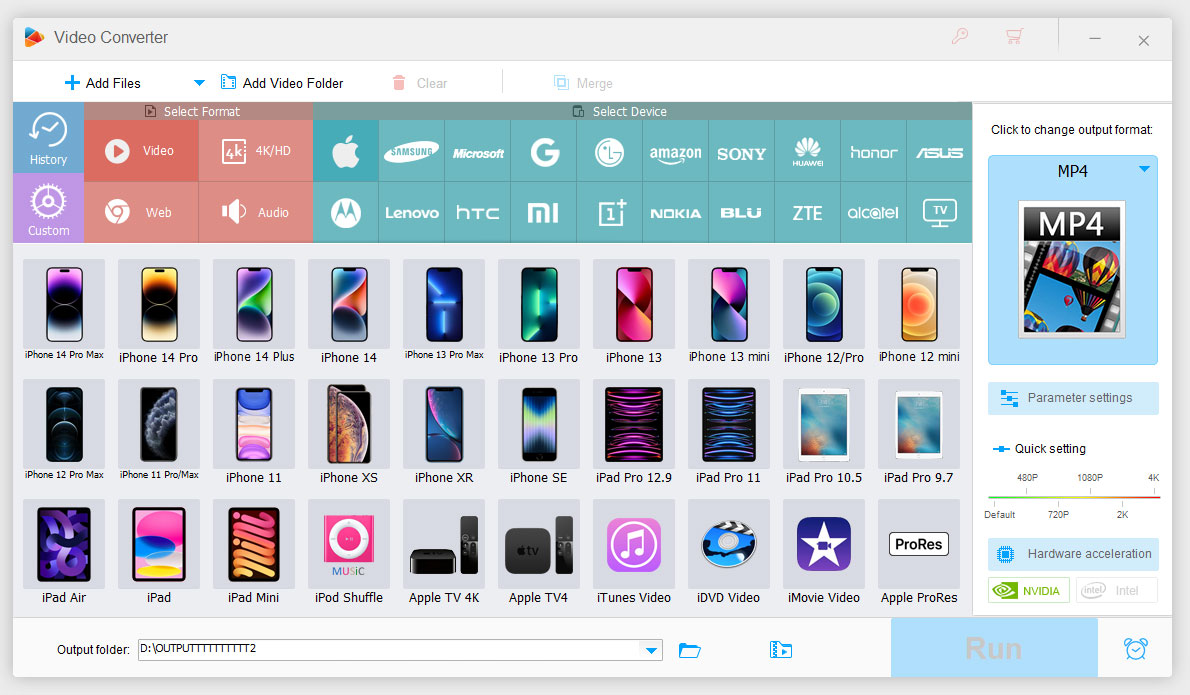


Terms and Conditions | Privacy Policy | License Agreement | Copyright © 2009-2026 WonderFox Soft, Inc. All Rights Reserved.



 Download for Free