


Video files like MP4, WebM, MOV, FLV are often loaded with great soundtracks, speeches or background music. One of the best solutions to extract audio from these videos without losing sound quality is to convert them to FLAC (Free Lossless Audio Codec).
In the following, you'll learn exactly how to convert any video to FLAC on a Windows machine. Without further ado, let's start!
So Why Convert Video to FLAC ❓
• To keep original sound quality: FLAC is a lossless audio format that can preserve every sound detail, which is perfect for extracting original soundtrack from movies.
• To gain universal compatibility: FLAC is an open-source format supported by a wide selection of media players and devices.
• To edit with ease: FLAC can be opened and edited in most audio editing software out of the box.
For fast, stable, and high-quality video-to-FLAC extraction, WonderFox HD Video Converter Factory Pro is the top-recommended solution. This powerful tool can convert virtually any video, including MP4, WebM, MOV, FLV, MKV, and AVI, to lossless FLAC in just a few clicks. Plus, you can process dozens of large files at a time, which can really save time and effort.
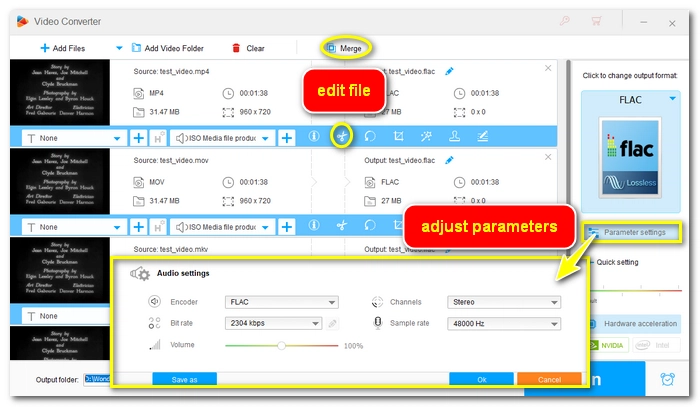
Before extraction, you can also adjust the audio sample rate, bitrate, audio channels and volume to your needs. If you only need part of the audio or wish to combine several clips together, the built-in trimmer and merger tools are great helpers.
You can free downloadfree download the software now and follow the steps below to convert your videos to FLAC.
WonderFox HD Video Converter Factory Pro can help you convert video files to FLAC audio in batches with no hassle. It's simple, fast, and efficient. Try it now!
 Download for Free
Download for Free
Download for Free
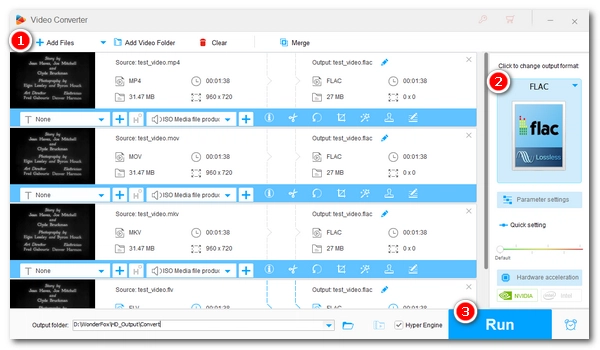
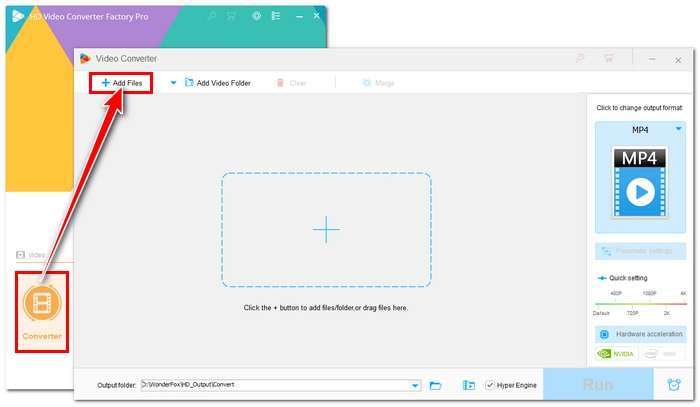
Launch WonderFox HD Video Converter Factory Pro and select Converter from the main interface. Click the Add Files button or directly drag and drop your videos (MP4, WebM, MOV, FLV, etc.) into the converter.
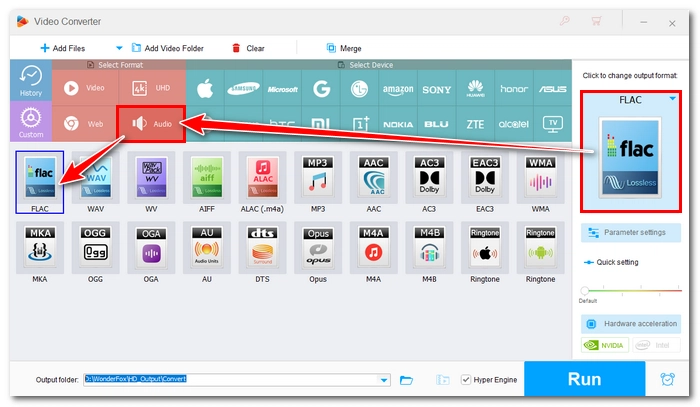
Click the format icon on the right side of the interface to open the output format library. Go to the Audio tab and select FLAC as the output format.
You can click Parameter settings below the format icon. Here, you can customize the audio channels, bitrate, sample rate, and volume to meet your specific needs. Don't forget to click OK if you've made any changes.
You can also use the Trim tool to crop unwanted parts of the soundtrack or the Merge tool (available when there is more than one file added) to join files into one single piece.
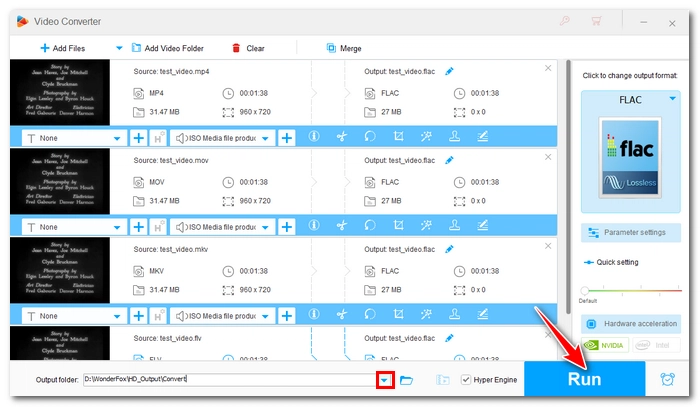
Click the ▼ icon at the bottom to set an output folder, then click the big Run button to start converting your videos to FLAC.
If you need to convert a few small video clips and prefer not to install software, consider using an online tool like CloudConvert, which can work right in your browser.
CloudConvert is a popular online file converter that supports various types of file conversions, including video to FLAC. And unlike many other online tools, CloudConvert lets you upload relatively bigger files up to 1 GB. But the tradeoff is the slower processing speed, because it'll take extra time for the upload and relies heavily on your internet connection. Besides, you're allowed to convert at most 10 files per day. So, it'll be a convenient option only if you just want to make a few small file conversions.
⚠️ Privacy Alert: Do not upload personal files because the process takes place on third-party servers.
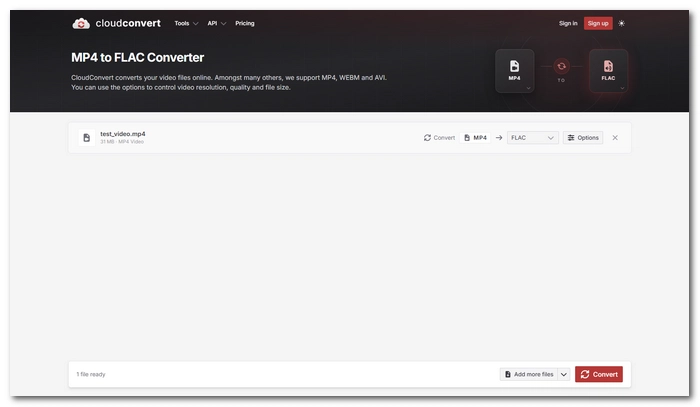
Step 1: Visit CloudConvert's MP4 to FLAC Converter: https://cloudconvert.com/mp4-to-flac.
Step 2: Click Select File to upload a video or simply drag a file here. You can upload MP4, MOV, WebM, FLV, and many more. It accepts up to 5 files at a time.
Step 3: The output format is already set to FLAC, but you can click Options to adjust the parameters according to your needs. You can also enter the Start time and End time to trim the video.
Step 4: Click Convert to begin the conversion.
Step 5: After conversion, download the converted file to your device.
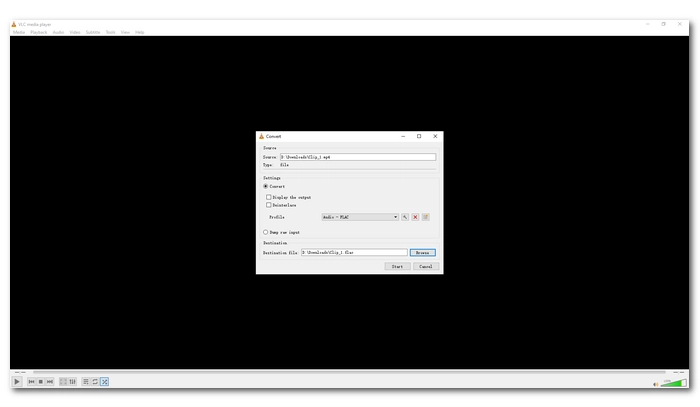
This method is especially for users who have already installed VLC media player on their computers. What you might not know is that VLC also includes a basic media converter besides being a media player. While not so intuitive, it gets the job done eventually.
Here's how to use VLC to convert a video to FLAC format:
Step 1: Open VLC. Go to Media > Convert / Save.
Step 2: Click +Add to import your video file, then click Convert / Save.
Step 3: In the Profile dropdown, select Audio – FLAC. You can continue to edit the selected profile by clicking the wrench icon next to the profile.
Step 4: Click Browse to choose a destination folder and rename the file. Make sure it ends in .flac.
Step 5: Click Start to begin the conversion. You'll see the progress bar moving. When it reaches the end, the converted file is generated in the folder you just set.
| WonderFox HD Video Converter Pro | CloudConvert | VLC Media Player | |
|---|---|---|---|
| Best For | Quickly converting multiple files with high quality | Converting a few small video files | If you already have VLC installed on your computer |
| Conversion Speed | Super-fast | Relatively slower (Dependent on the network connection) | Average |
| Batch Support | Yes, unlimited | Yes, 5 at a time | Yes, but error-prone |
| Max File Size Limit | No Limit | 1 GB | No Limit |
| Audio Editing | Trimmer and merger | Basic trimming | None |
| Ease of Use | Very Simple | Very Simple | Slightly Complex |
| Try it now >>Try it now >> | Try it now >> | Try it now >> |
Verdict: The right tool makes all the difference when it comes to converting video files like MP4, WebM, MOV and FLV to FLAC on Windows. Online tools are handy for small, one-off files. But for privacy security, desktop programs are better. And for those who are already using the app, VLC is suitable, and for users who are looking for high efficiency, WonderFox HD Video Converter Factory Pro is undoubtedly the best solution.
If the source video has lossy audio (e.g., AAC in MP4 or Opus in WebM), converting to FLAC won't improve the sound quality, but will keep the exact audio fidelity contained in the source video.
Yes. Both Windows 10 and Windows 11 natively support FLAC audio playback without needing third-party codecs.
If you want to preserve the highest audio quality, then yes, FLAC is better than MP3. But if you want smaller files, MP3 is the better choice.

I write about multimedia topics, including video and audio conversion, compression, editing, and downloading. I joined WonderFox in 2020, and my goal is to help readers solve everyday tech problems more easily. This article will teach you the most effective ways to convert any video to FLAC on Windows 11/10/8/7, using a professional video-to-FLAC converter as well as online and free alternatives.


I write about multimedia topics, including video and audio conversion, compression, editing, and downloading. I joined WonderFox in 2020, and my goal is to help readers solve everyday tech problems more easily. This article will teach you the most effective ways to convert any video to FLAC on Windows 11/10/8/7, using a professional video-to-FLAC converter as well as online and free alternatives.
 Download for Free
Download for Free
Download for Free

Terms and Conditions | Privacy Policy | License Agreement | Copyright © 2009-2026 WonderFox Soft, Inc.All Rights Reserved