

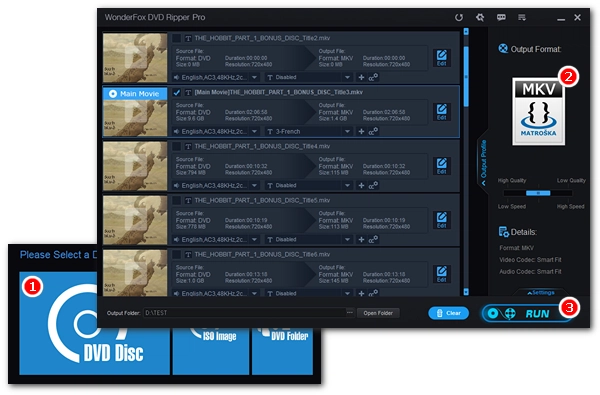


Digitizing DVDs is a trend today. While most people transform their DVD movies to MP4, many prefer to convert DVD to MKV, a flexible format capable of storing multiple audio and subtitle tracks alongside video streams. But how to convert DVD to MKV efficiently? Don't worry. We've got the best DVD to MKV converter to help you. Read on to learn the best way to convert DVD to MKV in Windows and many useful conversion tips.
Download the best DVD to MKV converter in advance: https://www.videoconverterfactory.com/download/dvd-ripper.exe dvd-ripper.exe
For the most effective DVD-to-MKV conversion, you're recommended to use WonderFox DVD Ripper Pro. It's one of the best DVD ripping software on Windows, which offers the easiest trouble-free way to convert DVD to MKV with original quality preserved. Meanwhile, it allows you to convert DVD to MKV with subtitles and keep the desired audio tracks without error. With hardware acceleration enabled, this program can also provide a lightning-fast conversion speed, helping you finish a 2-hour DVD movie conversion in less than 5 minutes.
Don't worry if your DVD comes with copy protection because this software is equipped with advanced decryption technology that can circumvent almost all DVD encryptions, including region code, 99 titles, CSS, Disney X-Project DRM, and more. Besides the MKV output, you can also convert DVD to MP4, AVI, MOV, MPG, WAV, iPhone, iPad, and various other hot formats and devices for smooth playback.
Enjoy more features with the software:
🔔 Note: The software does not support CDs, HD-DVDs, and Blu-rays.
Get the software to convert your DVD to MKV now.

With WonderFox DVD Ripper Pro, you can convert any DVD to MKV trouble-free. It's simple, fast, and efficient. Have a try now!
 Download for Free
Download for Free
Download for Free
Please install install the best DVD to MKV ripper on your PC first.
* The unregistered version has a 15-minute conversion limit that can only be removed after purchasing a license. You can try its features before deciding whether to purchase.
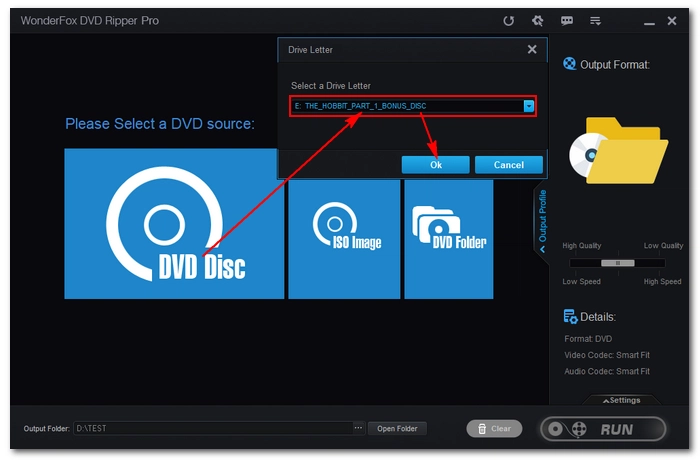
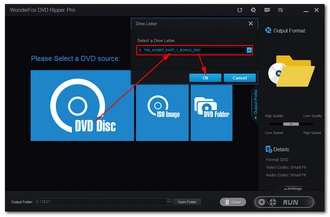
Insert your DVD into your computer and launch the DVD software. On the home interface, choose the DVD disc, select the drive letter of your DVD, then click OK to import the DVD videos. After the DVD is loaded, the DVD main title/main movie will be automatically selected. You can manually check other titles.
💡 If you want to convert DVD ISO to MKV or DVD Folder to MKV, select the corresponding source. If the software fails to import the DVD, try enabling Enhanced Decryption for safe and smooth ripping (note that the process may take longer).
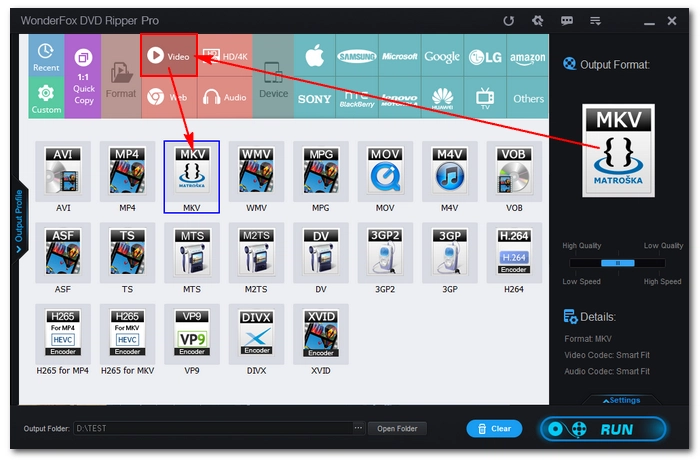
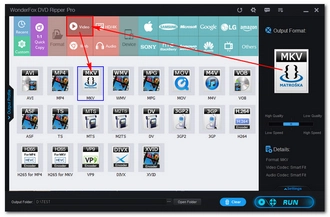
Go to the right side of the program interface. Click on the format image to unfold the output format list. Next, head to the Video section and select MKV as the output format.
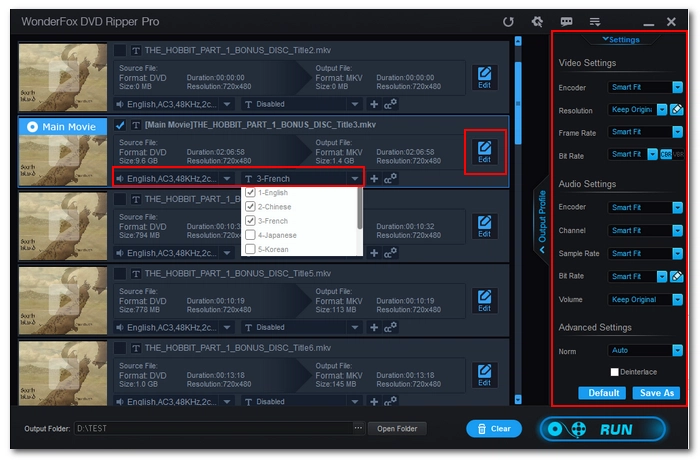
You can open Settings in the lower-right corner of the program and specify the encoder, bitrate, quality, etc. as needed. For example, if you want to reduce the DVD size while keeping the original quality, you can use H265/HEVC encoder for the video; but for best compatibility across devices, H264 is recommended. Also, to avoid audio playback issues on certain devices, it's better to keep AAC as the audio encoder.
If you're not familiar with these settings, simply leave them as Smart-Fit and the program will select common settings based on the format you choose.
When converting DVD to MKV, you can keep multiple subtitle or audio tracks you want. Just expand the Audio and Subtitle dropdown options and select the desired language tracks.
Additionally, you can click Edit to trim, crop, and rotate the video if you want.
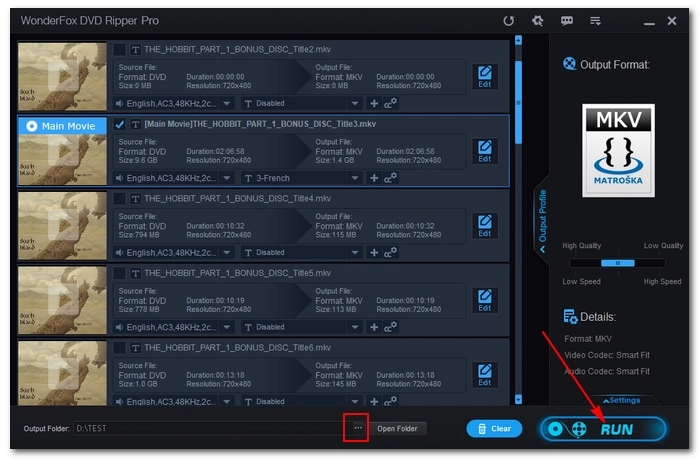
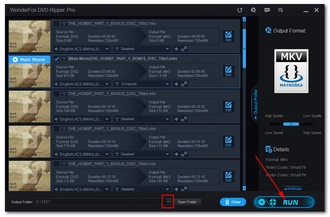
Click the three-dot icon at the bottom to set an output destination. Make sure that the output folder has enough space to hold the converted file.
Finally, hit RUN to rip the DVD to MKV at once.
💡 By default, hardware/GPU acceleration is enabled, and if your computer supports it, you can enjoy much faster conversion speed than normal conversion, such as 3 minutes to convert a 2-hour-long DVD to MKV (H264/AC-3).
Disclaimer: WonderFox does not advocate any illegal duplication and distribution of DVDs and all information provided in this article is presented for general informational purposes and personal fair use only. Please refer to the DVD copyright laws in your country before you rip any DVDs.
WonderFox DVD Ripper Pro is excellent for handling protected DVDs, helping you obtain high-quality, small-sized movie copies. But, if you have a bunch of homemade DVDs on hand, you can try using HandBrake.
This is a free, open-source, and cross-platform tool available on Windows and Mac. While not as user-friendly as WonderFox, it can still effectively convert and compress unprotected DVDs to MKV format.
If you're interested, here's a workflow you can follow:
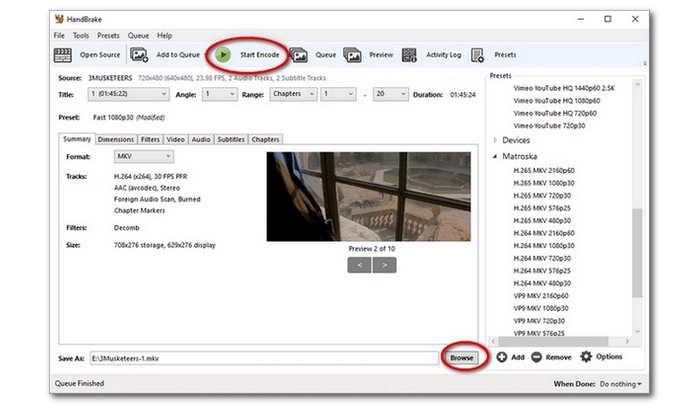
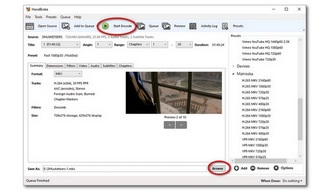
Step 1: Download HandBrake from https://handbrake.fr/.
Step 2: Start HandBrake. Under the Search Selection menu, choose the DVD source.
Step 3: Head to the Title drop-down box and select the right title.
Note that HandBrake does not automatically select a main title. You need to select a title manually. Typically, the longest file is the main title.
Step 4: Under Summary, select MKV as the format.
There is a rich set of customization options that let you crop or resize the video, add subtitles, select or add desired audio tracks, and modify other video settings.
Step 5: Click Browse at the bottom of the screen and specify the output path.
Step 6: Move to the top menu bar and click the green Start Encode button to begin the conversion. There will be a progress bar at the bottom that displays the remaining time. When it comes to the end, check the converted MKV videos in the designated folder.
If you simply wish to extract the DVD contents into an MKV container, you can use MakeMKV, which can preserve all audio, video, subtitle tracks, audio tracks, and meta information of the DVD. In other words, you get a 1:1 copy of your DVD in the MKV format. The only trade-off is that the exported MKV files will be massive, as the program does not re-compress the data, so ensure you have ample free local storage space before converting with this software.
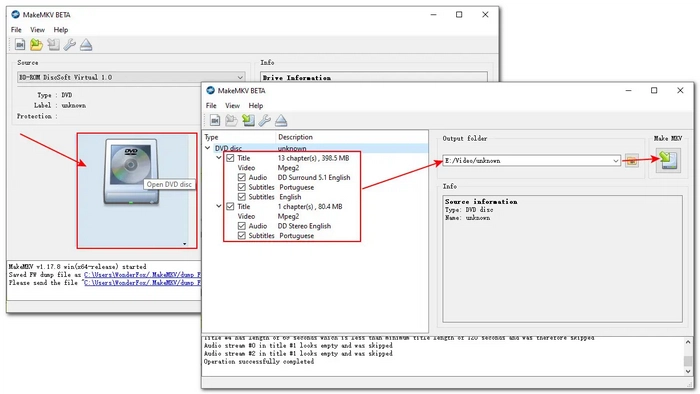
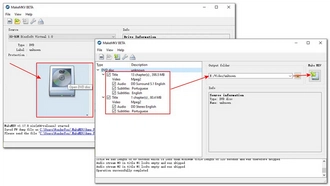
Step 1: Download MakeMKV from https://www.makemkv.com/download/.
Step 2: Insert a DVD into your computer and launch MakeMKV. It will auto-detect your disc. You can check the disc information in the Info box.
Step 3: Click the big disc icon to scan the whole DVD. After scanning, it will display all titles, and you can select the desired titles or chapters to convert. Similar to HandBrake, MakeMKV does not detect the Main title for you, and you can manually select the one with the largest size.
💡 To keep only desired audio and subtitles, you can expand the Title dropdown option and choose your preferred language track.
Step 4: Choose a save location and click Make MKV to begin the extraction.
VLC is more than a media player. It can also serve as a handy DVD tool for converting DVDs to digital MKV, MP4, and other mainstream video formats. While it comes with libdvdcss.dll to decode CSS-encoded DVDs, it's error-prone to convert such DVDs, as you may encounter issues like missing or out-of-sync audio. It's more practical for unprotected DVDs and is worth a try if you already have VLC installed on your system.
Since it's not a standard DVD converter, it takes a few extra steps to complete the DVD-to-MKV conversion in VLC:
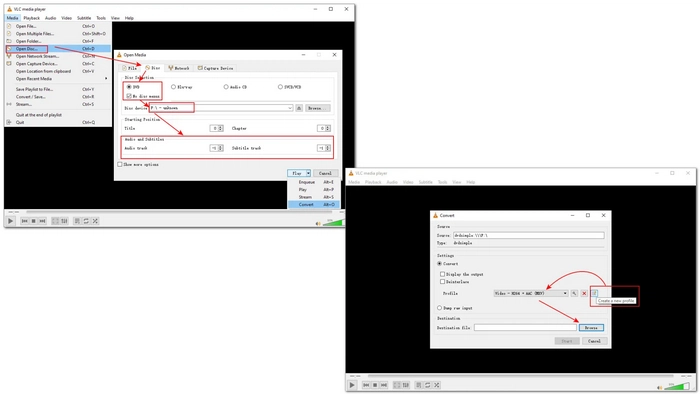
Step 1: Insert your disc.
Step 2: Open VLC. Click Media > Convert/Save.
Step 3: Go to Disc and select DVD. Click Browse to add your DVD source to VLC. Then select the needed titles, audio, and subtitle tracks. Click Convert/Save.
Step 4: VLC doesn't have an MKV preset by default. You need to create one. Click Create a new profile and select MKV under Encapsulation. Then go to the Video codec, Audio codec, and Subtitles to set parameters based on your actual needs. Once done, create a name for this profile such as "Video–H.264 + AAC (MKV)", and then click Create to save it.
Step 5: Expand the Profile dropdown and find the newly created profile and select it.
Step 6: Click the Browse button to set an output destination.
Step 7: Press the Start button to start the conversion. Check the conversion progress via the playback bar.
FFmpeg is an open-source command-line tool used to process video and audio data via commands and scripts. It can also help you encode DVD data into the MKV format. But the process can be daunting for beginners, as it requires entering commands at each step. But once FFmpeg is correctly configured on your system, the rest is plain sailing:
🔔 FFmpeg is highly customizable but supports only unencrypted discs.
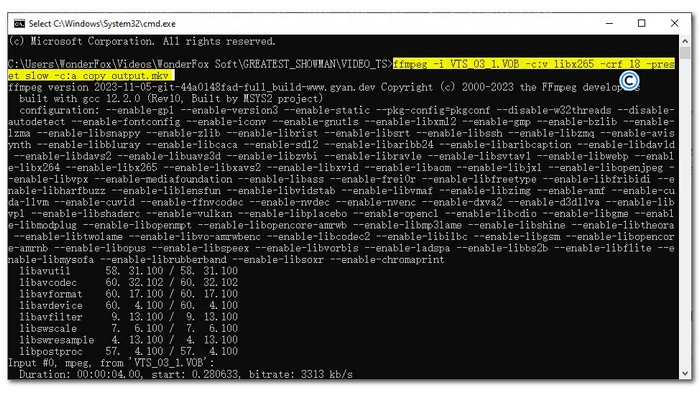
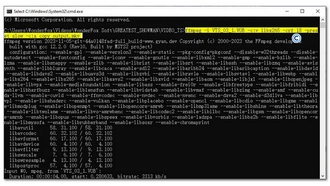
Step 1: Insert your DVD into the computer's disc drive and go to its VIDEO_TS folder.
Step 2: Select the VOB files you want to convert, then type 'cmd' in the file path and run a command like this:
ffmpeg -i VTS_01_1.VOB -c:v libx265 -crf 18 -preset slow -c:a copy output.mkv
or
ffmpeg -i VTS_01_1.VOB -c:v libx264 -crf 18 -preset slow -c:a aac -b:a 192k output.mkv
Press Enter to start the conversion. You can find the exported MKV video in the same folder that stores the source VOB files.
Wait! What if your disc is a data disc? Well, that's completely different. You don't need specialized DVD software (in fact, such software only works with standard DVD format discs). For a data disc, you simply insert it into your computer, copy the files to a local folder, and then use a video converter to convert the files directly.
You can use some free tools, such as Free HD Video Converter Factory (also from WonderFox, suitable for beginners), the aforementioned HandBrake and VLC (for intermediate users), and the command-line based FFmpeg (for advanced users).
WonderFox DVD Ripper Pro is the best DVD to MKV software I want to share with you. It's easy and fast to complete the DVD conversion you desire, and for more complex tasks, such as customizing the DVD settings, the software can also help you with no issues. You can download the best software to convert DVD to MKV now and explore more features for yourself:
Download for Free
Download for Free
That said, you can try HandBrake, VLC, or FFmpeg to convert your homemade DVDs to MKV for free, or MakeMKV to extract 1:1 DVD content. In addition, you can use a video converter to directly convert files from a data DVD to your desired format. I hope you find this article helpful. Thanks for reading!
It depends on where you live and what kind of DVD you want to rip. In the US, ripping DVDs is not allowed. However, you should be alright if you only back up your homemade DVDs or digitize DVDs for personal use.
With WonderFox DVD Ripper Pro, you can also rip DVD to MP4, DVD to AVI, DVD to MP3, DVD to WAV, and other major formats without any effort.
Yes. You can rip copy-protected DVDs to MKV using WonderFox DVD Ripper Pro. It comes with a DVD decrypter that can decrypt protections such as DVD CSS, CPRM, Multi-angle, RCE, Sony ARccOS, UOP, Disney X-Project DRM and Cinavia Protection.
WonderFox DVD Ripper Pro lets you import DVD ISO files by selecting the ISO source. Then you can choose the MKV format and adjust output settings if needed to finish the conversion.
To convert DVD to MKV video for free, you can use open-source software like HandBrake, VLC, FFmpeg, or MakeMKV. But these tools are usually limited to copying homemade DVDs. For commercial, copyrighted ones, you'll need a dedicated tool with decryption capabilities like WonderFox DVD Ripper Pro.
MKV is only a container format. Most often, it's the codec used inside determine whether it can be played on your media player or device. Before ripping, make sure you select H264 as the video encoder and AAC as the audio encoder for optimal compatibility. Or you can choose MP4 as the output format.

I write about multimedia topics, including video and audio conversion, compression, editing, and downloading. I joined WonderFox in 2020, and my goal is to help readers solve everyday tech problems more easily. In this guide, I have shown you the best DVD to MKV converter to help you convert DVDs, including encrypted ones, to MKV effortlessly. Plus, you can convert homemade DVDs using HandBrake, MakeMKV, VLC, or FFmpeg, and convert data DVDs to MKV directly with a video converter. Hope you enjoyed this!


I write about multimedia topics, including video and audio conversion, compression, editing, and downloading. I joined WonderFox in 2020, and my goal is to help readers solve everyday tech problems more easily. In this guide, I have shown you the best DVD to MKV converter to help you convert DVDs, including encrypted ones, to MKV effortlessly. Plus, you can convert homemade DVDs using HandBrake, MakeMKV, VLC, or FFmpeg, and convert data DVDs to MKV directly with a video converter. Hope you enjoyed this!
 Download for Free
Download for Free
Download for Free

Terms and Conditions | Privacy Policy | License Agreement | Copyright © 2009-2026 WonderFox Soft, Inc.All Rights Reserved