


Many people are interested in digitizing their DVD collection to preserve old discs with original quality or achieve playback on more devices and platforms. With the following guide, you can learn an easy and efficient way to rip a DVD, even those store-bought ones, on Windows in just three steps. Plus, you'll get more advanced tips to rip DVD with forced subtitles, optimized settings for specific devices, as well as editing the movie before exporting. We also cover alternative methods like VLC and more to help you rip DVDs across devices. Without further ado, let's begin.
Having the right DVD ripping tool can make the DVD digitizing process very easy. The basic rule for choosing a good DVD ripper is that the program should bypass copy protections easily, support your target format, and preserve original video quality.
On Windows, WonderFox DVD Ripper Pro is a powerful solution to rip all types of DVDs, whether homemade or store-bought, and encode them into mainstream video and audio formats, including MP4, MKV, WMV, AVI, MOV, MPG, MP3, WAV, and more. It also provides ready-made presets for major devices (iPhones, Androids, TVs, consoles) to ensure perfect playback compatibility.
It has a simple interface, and you're able to rip a complete DVD in just a few clicks. Next, let's see how to use the program to rip a DVD on Windows.
WonderFox DVD Ripper Pro can easily rip any DVD to all popular formats including MP4, MKV, MP3, WAV, H264, H265, Android, iPhone, etc. without a hitch. Download it to rip your DVD collections fast and trouble-free!
 Download for Free
Download for Free
Download for Free
Before you start, free download free download the DVD ripper software.
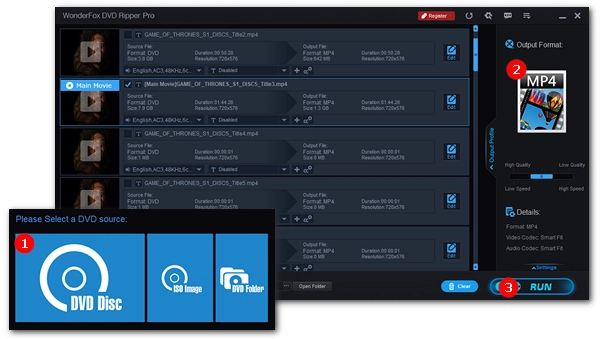
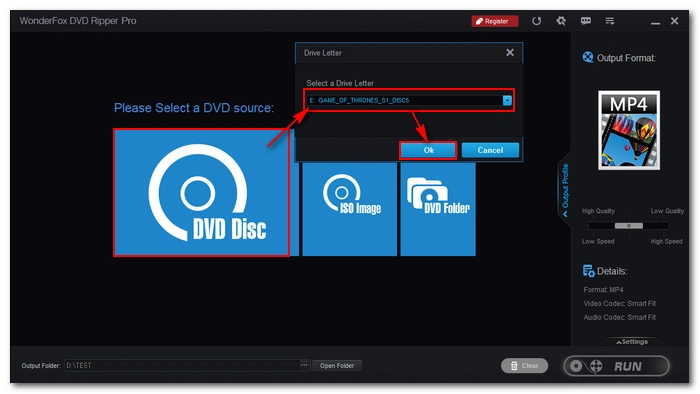
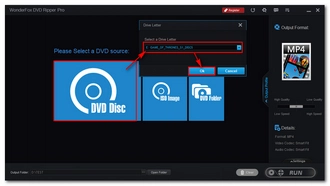
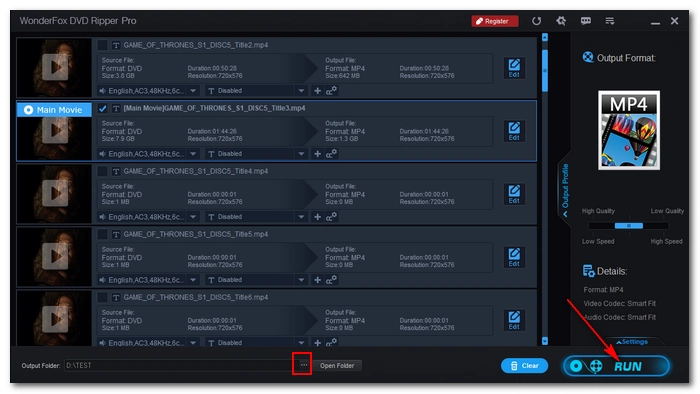
Insert your DVD into your computer's disc drive or an external DVD drive. Launch WonderFox DVD Ripper Pro, click DVD Disc, and select the DVD drive letter to import the DVD you just inserted. The program will automatically analyze the disc structure, bypass any copy protections, and auto-select the main movie title (skipping menus, trailers, and extra features). You can manually select other titles if you like.
💡 Enable Enhanced Decryption to bypass tough DVD copy protections with ease.
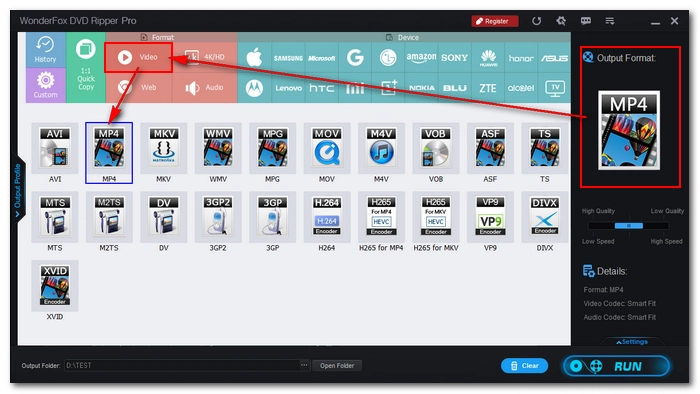
On the right side of the interface, click the format icon to open the output format list. You'll find multiple categories here: Video, HD/4K, Web, Audio, Device, and 1:1 Quick Copy. Choose the profile that suits your needs. See the full list of profiles provided >>
💡 Not sure what to choose? Select MP4 under the Video tab. It offers the best balance between video quality and compatibility for playing your files on iPhones, Androids, TVs, and more. Alternatively, you can select M4V for native Apple ecosystem support, choose MPEG-2 for DVR setups like TiVo, or even output to legacy formats like SWF if needed. For more details, check out this guide: Best Format to Rip DVD.
Click the three dots button at the bottom to set your output folder (make sure it has enough free space). Finally, click Run to begin ripping your DVD on Windows.
Once complete, a window will pop up. Click Open Folder to find your ripped file, which is now ready to play in Windows Media Player, VLC, or transfer to your phone!
Besides converting DVD to common formats, you can losslessly archive your DVDs as ISO images or DVD folders for 1:1 content preservation. Also, because DVD videos are essentially MPEG-2 files, you can quickly convert a DVD to MPG without re-encoding/transcoding the entire video. The process can preserve original video quality and achieve high speeds at the same time. Typically, it takes less than 5 minutes for ripping a 2-hour-long DVD movie to MPG.
To rip DVD losslessly in the program, open the Output Format section, go to 1:1 Quick Copy, and select the needed profile: ISO, DVD Folder, or MPG.
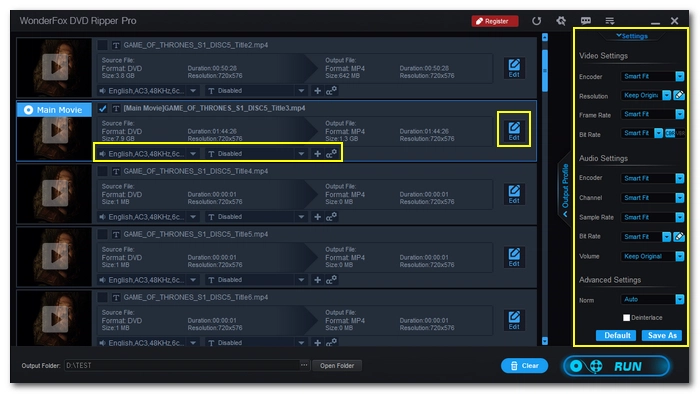
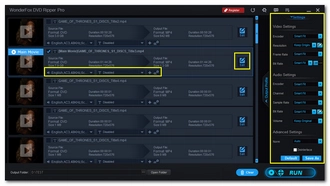
For those who like more control over their conversion, WonderFox DVD Ripper Pro provides plenty of custom settings:
 Download for Free
Download for Free
Download for Free
Of course, WonderFox DVD Ripper Pro is not the only solution to rip a DVD on Windows. In case you need a different method, you can explore the following options.
Freemake Video Converter is a versatile and integrated multimedia conversion tool coming with a basic DVD ripping capability. This DVD format converter can also help you rip DVD to common video, audio, and device presets. It's easy to operate, but note that the free version adds a watermark to the output videos, which you need to pay to remove.
Quick Steps:
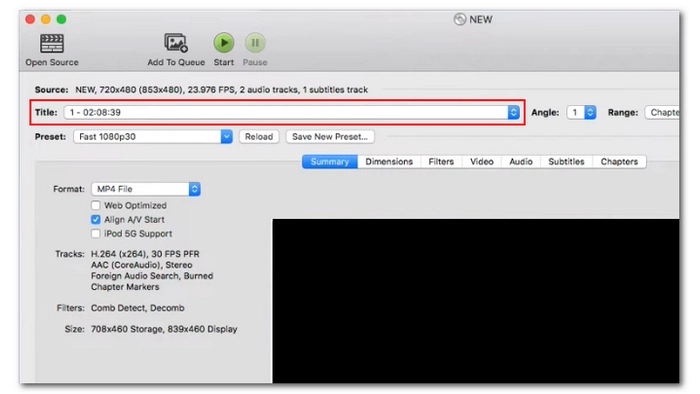
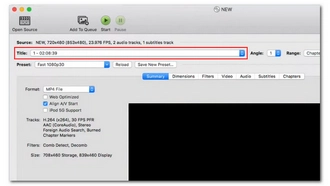
If all you need is to rip your personal homemade DVDs, HandBrake is an excellent option as well. This is a free, open-source, and cross-platform video transcoder that supports converting unprotected videos and discs to MP4, MKV, and WebM files. Keep in mind that it's not a standard DVD ripper, and it does not have a beginner-friendly interface. But with its wealth of buttons, you can flexibly control the output video bitrates, resolutions, and sizes.
Quick Steps:
Another way for lossless DVD rip is by using MakeMKV. This program is designed to make exact copies of DVDs into the MKV format (preserving all original video, audio, and subtitle streams), hence the resulting files typically have a massive file size. This also means you may need a secondary tool to compress the DVD rip if you want to carry it on your mobile device.
Unlike HandBrake, MakeMKV can handle disc decryption to rip some commercial DVDs. The cherry on top is that it also supports Blurays.
Quick Steps:
If you already have VLC installed on your computer, you can make use of this app to rip a DVD to standard video or audio files. But as VLC is primarily a media player, it lacks the ability to deal with many DVDs, especially those commercial discs.
Quick Steps:
MediaCoder primarily serves as an audio and video transcoding tool, but many users might not realize its capability to handle DVD ripping (for unprotected DVDs). It can read from your DVD disc and allows you to adjust the output birates and other settings. Note, however, that it does not have an intuitive user interface, so it's more suitable for advanced tech users.
Quick Steps:
| WonderFox WonderFox | Freemake | HandBrake | MakeMKV | VLC | MediaCoder | |
|---|---|---|---|---|---|---|
| Best For | Simple, fast, high-quality DVD decrypting and ripping on Windows | Casual DVD ripping needs | Ripping homemade DVDs to MP4 | 1:1 lossless disc copy to MKV format | Users already using VLC for media conversion | Advanced users needing fine-tuning settings |
| Cost | Free trial; $29.95/lifetime | Free trial (watermarked); $59.95/lifetime | Free | Free in beta; $60/lifetime | Free | Free |
| Lossless DVD Rip Support | Yes (ISO, DVD Folder, MPG) | No | No | Yes (MKV container) | No | No |
| DVD Decryption Support | Yes (CSS, Disney X-Project, Region Codes, etc.) | Limited | No | Yes | No | No |
| Output Formats | 500+ presets (MP4, MKV, AVI, MOV, MP3, WAV, Devices and more) | Common formats (MP4, AVI, WMV, MP3) | MP4, MKV, WebM | MKV only | Major video and audio formats (MP4, MKV, MOV, MP3, etc.) | Common formats (MP4, AVI, WMV, MP3) |
| Ease of Use | Very easy (3-step workflow) | Very easy | A bit complex | Easy | A bit complex | Complex |
| Ripping Speed | Fast (GPU-accelerated) | Average | Average | Fast (Remux) | Average | Average |
Ripping self-made DVDs is legal, but policies differ for commercial DVDs. Unauthorized copying of protected DVDs is prohibited in the US and Canada. However, there is no explicit grant or denial of a right to copy DVDs for personal fair use.
Generally, you need two tools to rip DVDs:
It depends on the purpose for which you want to rip DVDs. For instance, you can choose ISO for creating a backup with all data, but note that it results in a large file. For copying only the main movie, select MP4 or MKV, which support high-quality videos and multiple audio/subtitle tracks.
Ripping the DVD won't damage the disc. The data will remain intact on the disc.
Depending on your ripping environment, it can take anywhere from a few minutes to several hours to rip a DVD. However, using a professional DVD ripper on a high-end PC can finish the process in just 30 minutes.
No, Windows Media Player cannot rip DVDs. Though it can convert Audio CDs to digital audio formats, all editions of Windows Media Player don't support ripping DVD discs.
Disclaimer: WonderFox does not advocate any illegal duplication and distribution of DVDs. Please refer to the DVD copyright laws in your country before you rip any DVDs.

I write about multimedia topics, including video and audio conversion, compression, editing, and downloading. I joined WonderFox in 2020, and my goal is to help readers solve everyday tech problems more easily. In this guide, I've shown you the easiest and most reliable way to rip a DVD on Windows, plus more ripping methods for your choice. Hope you find it useful!


I write about multimedia topics, including video and audio conversion, compression, editing, and downloading. I joined WonderFox in 2020, and my goal is to help readers solve everyday tech problems more easily. In this guide, I've shown you the easiest and most reliable way to rip a DVD on Windows, plus more ripping methods for your choice. Hope you find it useful!

Terms and Conditions | Privacy Policy | License Agreement | Copyright © 2009-2026 WonderFox Soft, Inc.All Rights Reserved