

Loom is a cloud-based video messaging platform from Atlassian. It records your screen, camera, and audio, uploads the result to an online workspace, and creates a link you can share immediately. The service is designed more for quick communication and collaboration than for producing heavily edited videos.
Loom is a good fit for: remote teams, customer support, sales outreach, educators, product demos, bug reports, and anyone who frequently replaces a meeting or long email with a short video.
You may prefer an alternative if: you need unlimited free recordings, local-only storage, Linux desktop recording, audio-only capture on a computer, advanced timeline editing, live streaming, or flexible local output formats.
Loom is available through its Windows and Mac desktop apps, Chrome extension, and mobile apps. The minimum requirements can change, so check Loom’s official compatibility page before installing. As of this update, the main requirements are:
| Platform | Current Minimum Requirements |
|---|---|
| Windows desktop app | Windows 10 or later; Intel 6th Gen or comparable AMD CPU; 8 GB RAM minimum |
| macOS desktop app | macOS 12.3 or later; Apple M1+ or Intel Mac from 2018 onward; 8 GB RAM minimum |
| iOS | iOS 15 or later on iPhone or iPad |
| Android | Android 10 or later |
| Browser recording | Loom Chrome extension; it cannot be launched from Firefox or Safari |
The interface remains one of Loom’s biggest advantages. After signing in, you can select what to capture, choose a camera and microphone, start recording, and then manage, edit, and share the result from the same workspace.
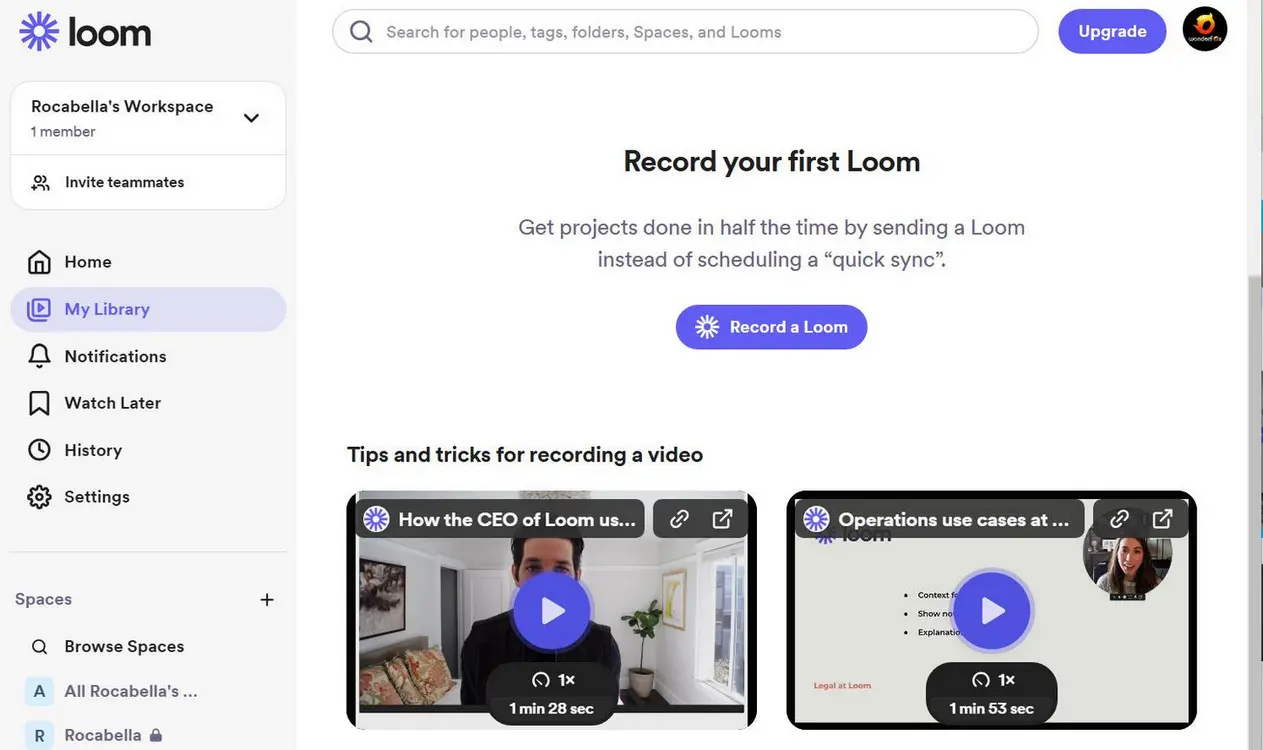
Below is a practical look at Loom’s current recording, editing, screenshot, workspace, branding, analytics, and integration features, including which capabilities require a paid plan.
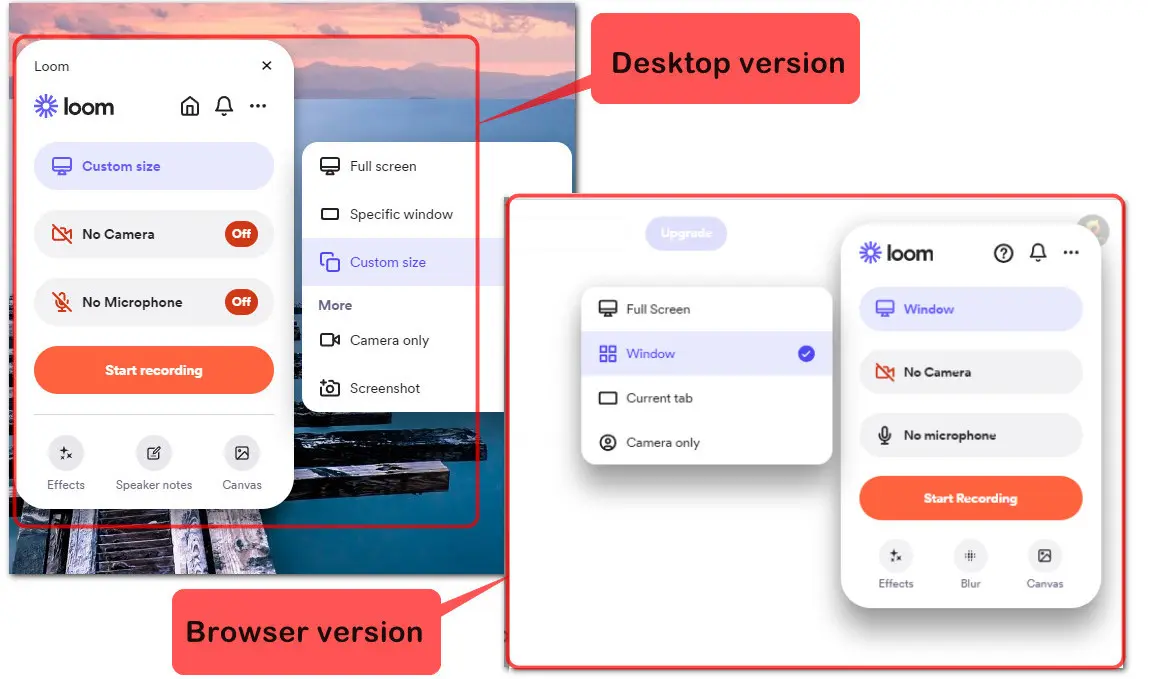
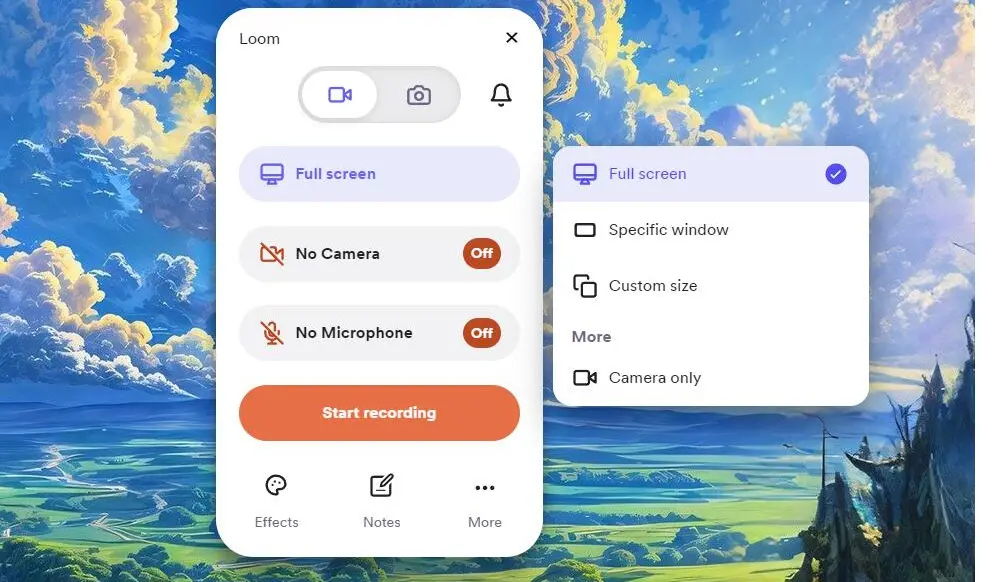
Loom can record your screen, camera, system sound, and microphone in several combinations. Its three main capture modes are Screen and Camera, Screen Only, and Camera Only. The desktop app can capture the full screen, a window, or a custom-sized area, although custom recording dimensions are reserved for paid plans. The Chrome extension can capture the full screen, a window, the current tab, or the camera only.
The recording process is straightforward: select a capture mode, choose the correct camera and microphone, decide whether to include system audio, and click ‘Start Recording’. A short countdown gives you time to prepare.
Recording quality depends on both your plan and platform. Loom Starter officially supports up to 720p. Paid users can record up to 4K with the Windows or Mac desktop app on compatible hardware, while the Chrome extension supports up to 1080p for paid users. Camera-only recordings may have lower limits depending on the platform and device.
Because Loom defaults to a quality suited to your screen, camera, device, and connection, the highest option may not always be available. You can check or change it under ‘More’ > ‘Settings’ > ‘Video & Audio’ before recording.

Tip: If a recording looks blurry, close unnecessary browser tabs and apps, connect the computer to power, confirm that your display supports the selected resolution, and test the Loom desktop app. The live preview may look softer than the final processed video.
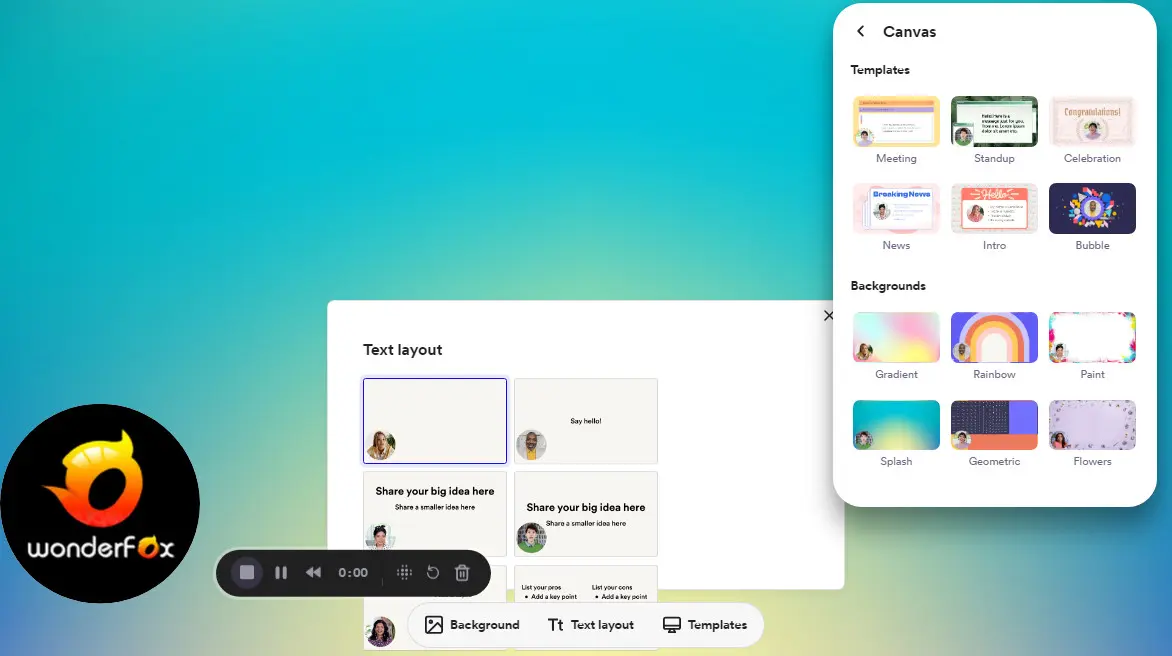
Despite these differences, Loom on all platforms provides you with a library of canvas that you can use to customize your Loom recordings. You can select a background color or background image, or choose a template designed for various scenarios such as meetings, news, celebration, or intro. You can also add a text layout to your canvas, making your text cooler.
Apart from these customizable options, the blur effect was one of my favorite features in my testing. With it, you can easily blur and hide any sensitive information on the screen before you start recording or during recording. However, the Blur effect is only available with the Loom Chrome extension.
If you’re like me and always get stuck or forget what you’re going to say every time you start recording, there is another recording feature you shouldn’t miss. That’s Loom’s Speaker notes. It's available even on the Starter plan and supports up to 10,000 characters. Just write your words, and you can move and resize the speaker notes by pressing and dragging. No need to worry about the speaker notes appearing in your recording; they’re only visible while you’re recording. They are helpful for presentations, scripted tutorials, and sales messages. Paid plans add tools such as custom recording dimensions, drawing, mouse emphasis, and blur for hiding sensitive information.
(⚠️ Speaker notes are only accessible on the Loom Desktop app for MacOS 12.3+ and Windows 10+.)
“Does Loom have drawing tools?” This is a question many users frequently ask. Yes! Loom provides you with a pen-like drawing tool that you can use to highlight information in different colors. However, keep in mind that the drawing will disappear after 5 seconds. This feature is intended, according to Loom’s official support, to keep your screen clear and uncluttered.
(⚠️ This feature is only available on Loom’s paid plans while recording on the Desktop app. If you’re using the Chrome extension, this feature will not be present.)
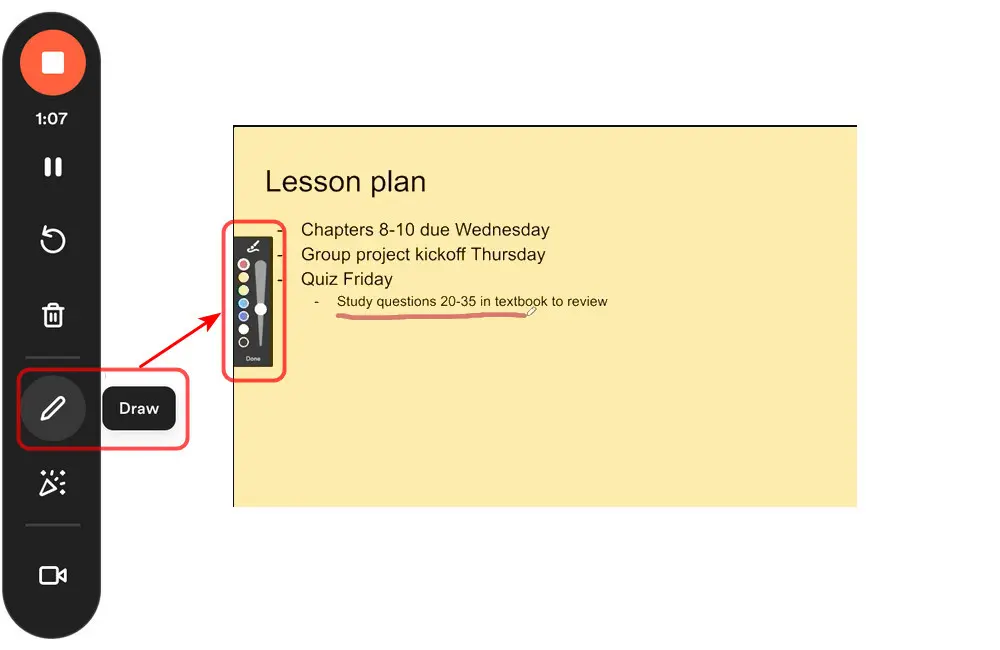
During recording, you can pause, restart, cancel, or finish the capture. The floating controls also let you turn the camera on or off and adjust the camera bubble while recording.
After recording, the video is uploaded to your Loom workspace and opens on a share page. Loom is suitable for quick cleanup, but it is not a full multi-track editor. Editing availability now varies clearly by plan.
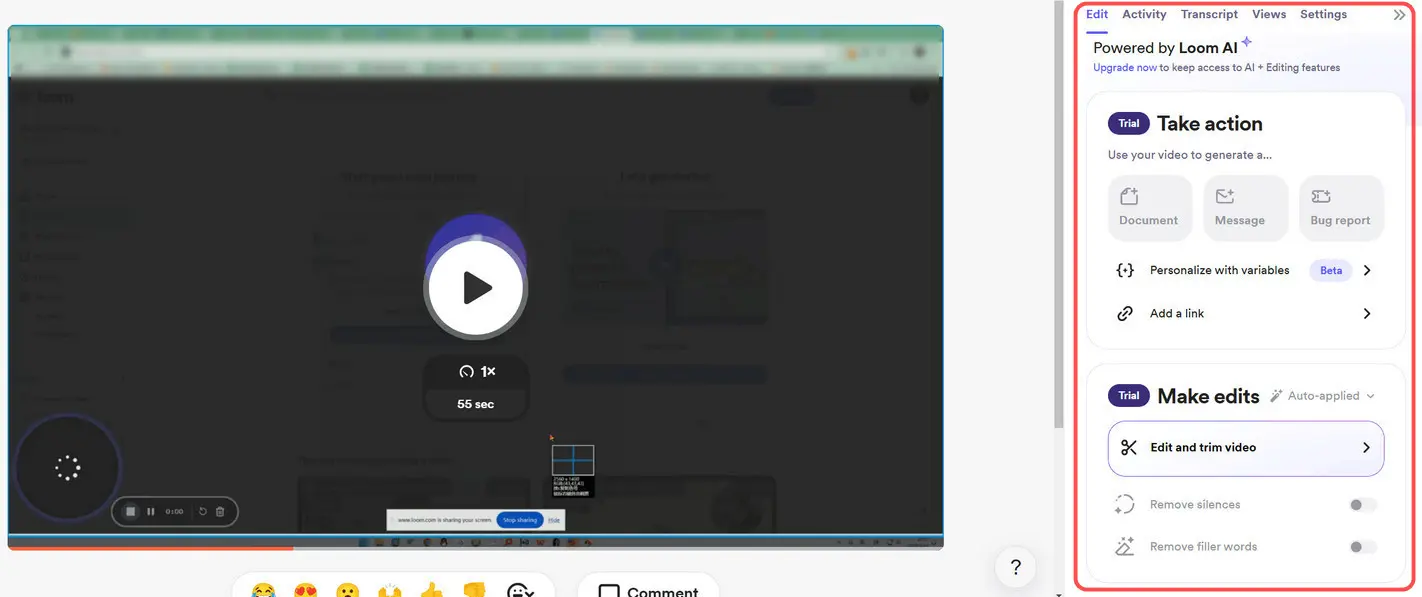
Loom AI can generate titles, summaries, chapters, tasks, calls to action, meeting notes and recaps, and reusable text workflows. It can also remove filler words or silences. Auto Titles are included across plans, while most advanced AI features require Business + AI or Enterprise.
These tools can save time when polishing a short update, but users creating long tutorials, marketing videos, or layered presentations will still get more control from a dedicated video editor.
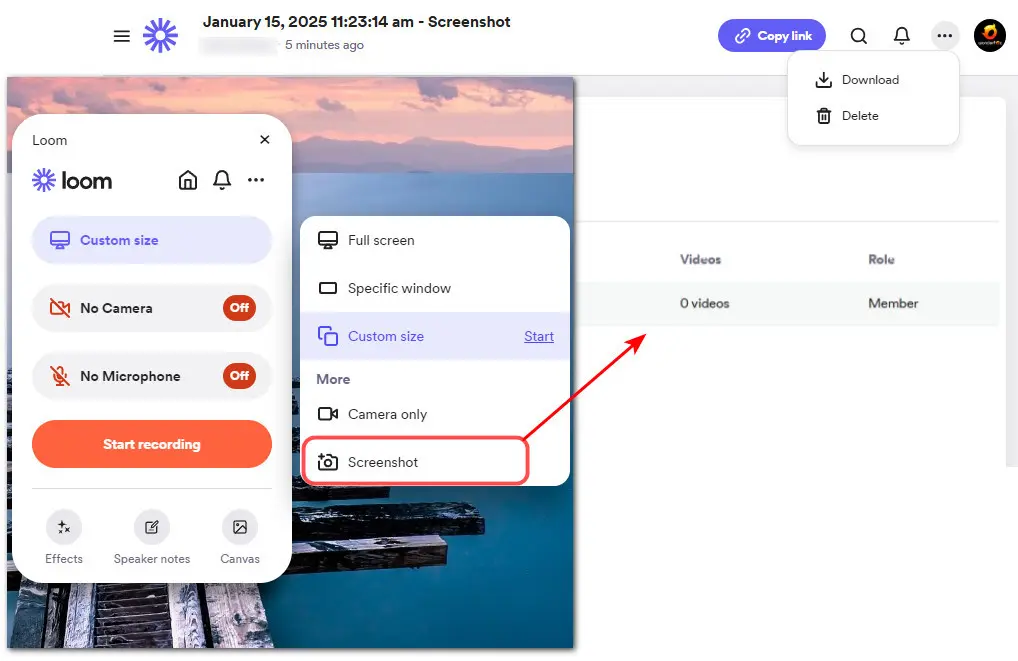
Loom includes unlimited screenshots on every plan. You can capture the full screen or a custom area with either the desktop app or Chrome extension. Each screenshot is stored in the Screenshot tab of your Loom Library and receives a shareable link.
Unlike the earlier version of this review, Loom now provides screenshot annotation tools. You can open ‘Edit Image’ to add visual annotations, change their colors, and then copy, download, embed, or share the result. Loom also generates screenshot titles automatically.
Recommended reading:
9 Best Free Snipping Tools for Windows (With Tutorials): Read this review article to learn about the 9 best free screenshot tools for Windows and explore their key features, pros, cons, and how-to guides to easily take screenshots or record videos.
Every standard Loom plan includes a workspace with Personal, Shared, and Team Libraries. The Starter plan can include up to 50 Creator Lite members, while paid plans remove the main member and video limits. The three library types are:
Folders, spaces, search, archiving, and video uploads help larger teams organize content, although storage and management options vary by plan.
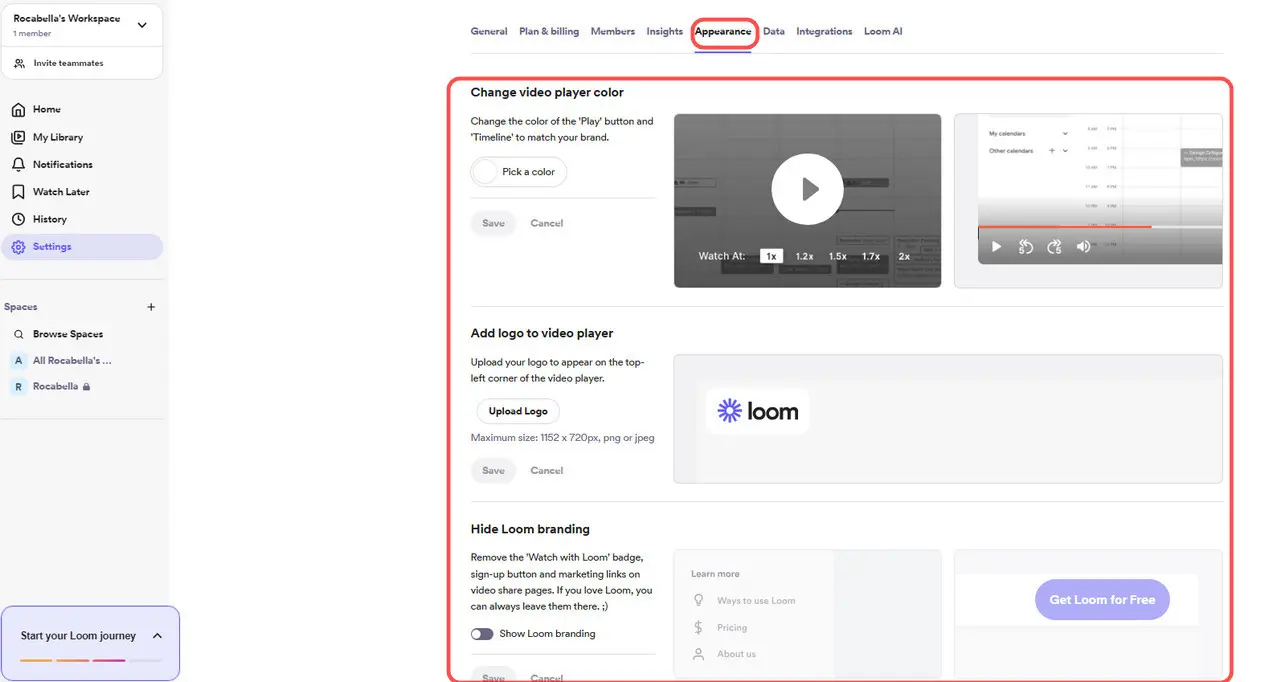
Business and higher plans can remove Loom branding, add a logo to the video page, and customize the video player colors. This is useful for customer-facing demos, training, sales, and support content. Starter users keep the standard Loom presentation.
Loom offers Viewer Insights on the Starter plan and more detailed Engagement Insights on paid plans. Business, Business + AI, and Enterprise users can see how viewers interact with a video, and eligible admins can export engagement data for a workspace. These analytics are practical for sales, onboarding, training, and support follow-ups.
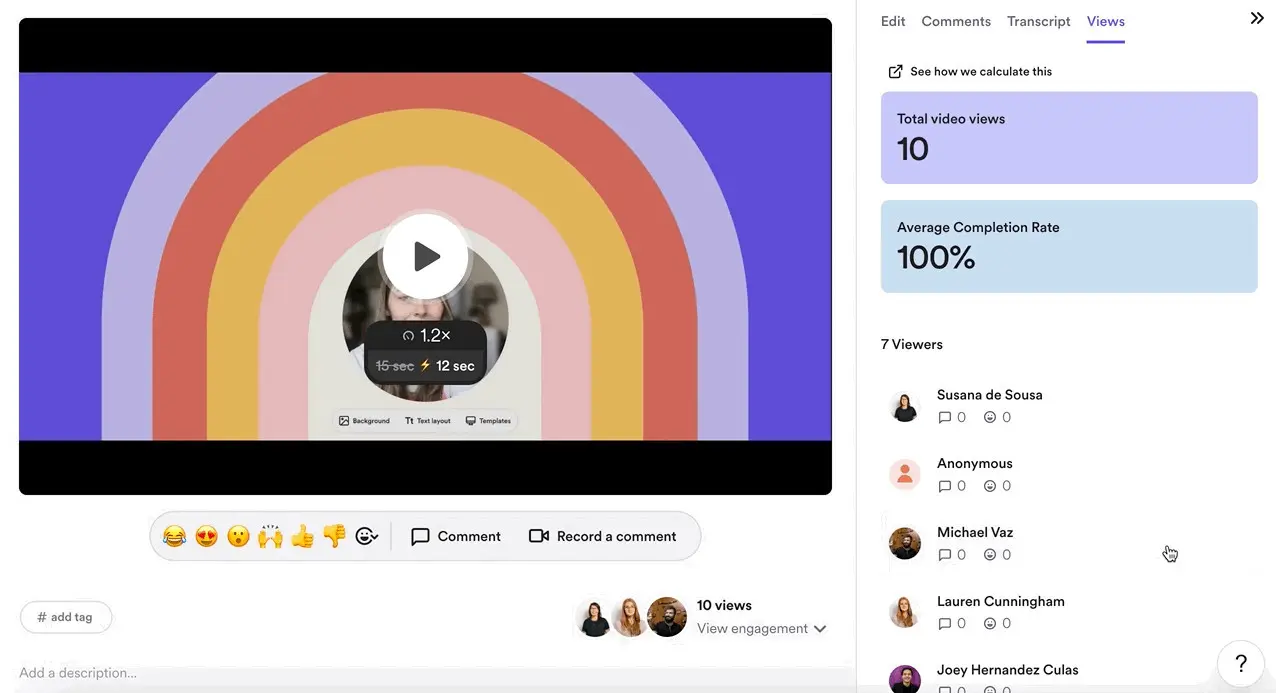
To encourage feedback and make a recording easier to follow, Loom supports:
Integrations are an important reason to choose Loom over a basic local recorder. Loom works especially well inside the Atlassian ecosystem and supports link expansion or embedding in services such as Slack, Jira, Jira Service Management, Confluence, GitHub, Gmail, Notion, FigJam, Intercom, Zendesk, Dropbox, and GitLab.
The exact behavior varies by service: some platforms display a playable preview, while others provide a rich link or embed. Enterprise plans also add organization-focused connections such as Salesforce and Zoom import. Check Loom’s current integration guide before adopting it for a specific workflow.
Yes. Loom uses a freemium model. Its current lineup includes Starter, Business, Business + AI, and Enterprise. Prices can change by billing cycle, region, tax, or purchase channel, so confirm the final amount on the official pricing page.
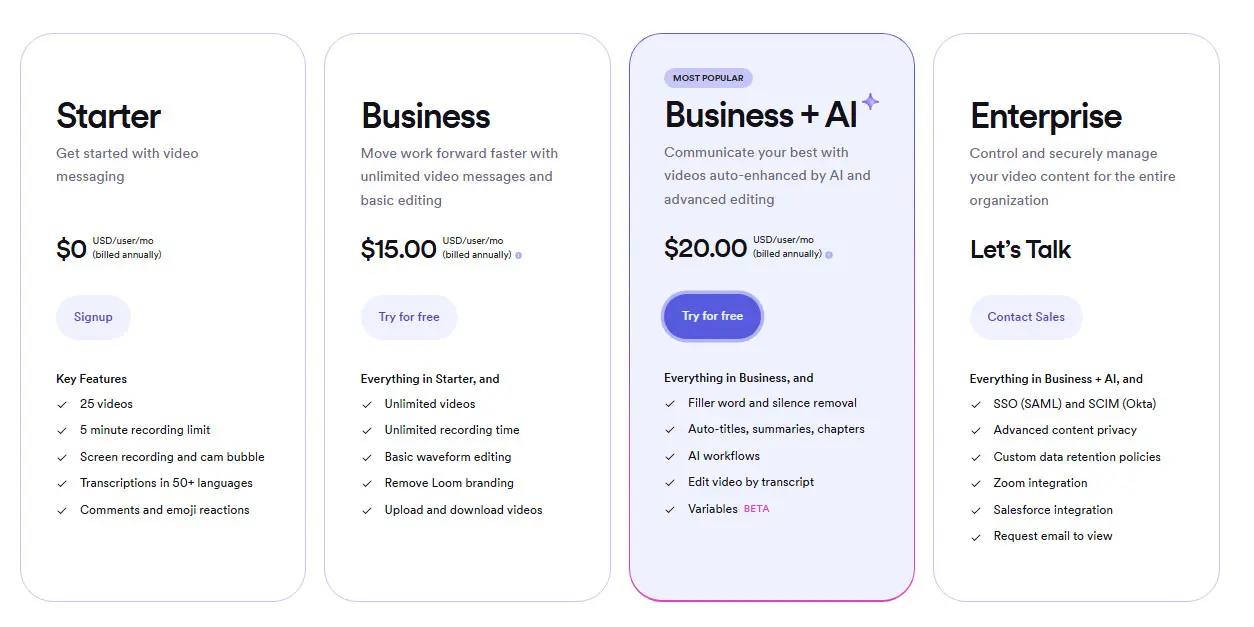
The free plan does not add a watermark, but its five-minute limit and 25-video cap can be restrictive. Contrary to some older Loom reviews, waveform trimming and video stitching now belong to Business and higher plans. Loom currently advertises a 14-day Business + AI trial.
Loom also distinguishes screen recordings from meeting recordings. Its pricing page currently lists unlimited meeting recording length even for Starter, while ordinary Starter screen recordings remain limited to five minutes.
For ordinary business and personal use, Loom provides standard security and privacy controls. Loom states that uploads use an SSL-encrypted connection, videos receive hard-to-guess unique IDs, and recordings are not searchable. Content can be archived to disable its public URL or deleted from Loom’s systems.
However, ‘Anyone with the link’ means exactly that: anyone who obtains the link can open the video without a Loom account. Review each video’s privacy setting before sharing sensitive material. Paid plans add password protection and workspace-level defaults, while Enterprise adds more advanced access and administration controls.
Loom only records when you start a capture, but it remains a cloud service. Avoid recording passwords, financial details, private messages, confidential customer data, or regulated information unless your organization has approved the workflow. Loom’s support documentation also states that Loom is not HIPAA compliant.
Here is a quick look at Loom’s practical strengths and limitations in 2026.
Pros:
Cons:
Loom is compatible with multiple platforms. The following steps show the Windows desktop app, whose controls may move slightly after an update:
Step 1. Visit Loom’s download page and download the Windows desktop app.
Step 2. Install Loom, open it, and sign in. The Starter plan requires a Loom account.
Step 3. Open the three-dot ‘More’ menu and choose ‘Settings’ to review video quality, camera, microphone, system audio, countdown, and other preferences. Keep in mind that quality above the Starter plan's 720p limit, mouse emphasis, drawing, and some other controls require a paid plan.
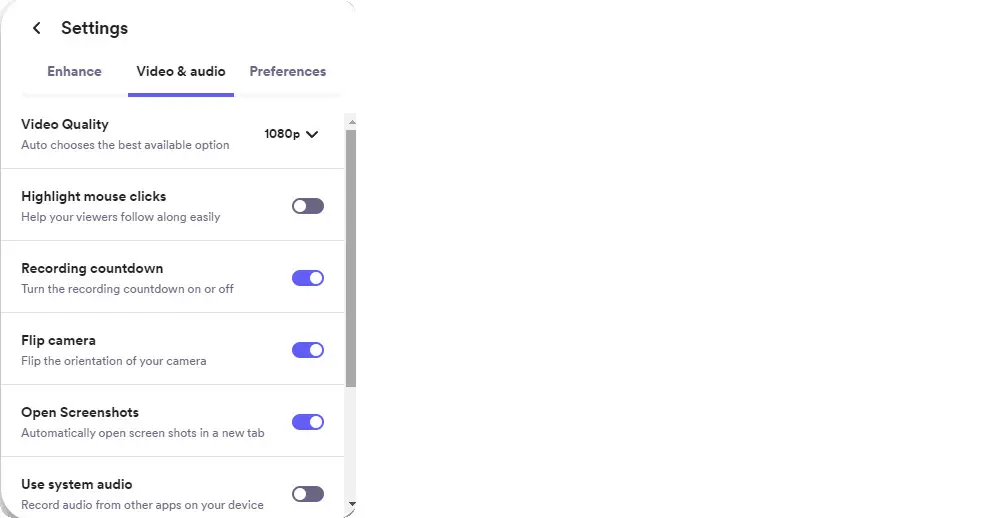
Step 4. Choose Screen and Camera, Screen Only, or Camera Only. Then select the full screen, a window, or a custom area. Custom recording dimensions require a paid plan.
Step 5. Select the correct camera and microphone, decide whether to include system audio, and preview the audio indicator.
Step 6. Click ‘Start Recording’. Use the floating controls or your shortcut to pause or stop.
Step 7. After you stop, Loom uploads and processes the video, opens its share page, and stores it in your workspace. Review the privacy setting before copying the link.
Loom is strongest when you need a quick cloud-hosted video message with comments, transcripts, and team collaboration. It is not automatically the best recorder for every task. The right alternative depends on whether you value local files, free recording, AI-personalized sales outreach, project-management integration, privacy-friendly browser capture, polished editing, instant sharing, macOS presentation effects, or live streaming.
| Alternative | Best For | Main Trade-off |
|---|---|---|
| WonderFox HD Video Converter Factory Pro | Local Windows recording, gameplay, audio-only capture, editing, conversion, compression, and GIF creation | Windows-only and does not provide Loom-style team hosting or comments |
| Jumpshare | Fast link sharing plus screen recording, screenshots, GIF capture, and annotations | Cloud storage and some advanced features depend on the plan |
| Sendspark | AI-personalized sales and outreach videos with voice cloning, dynamic backgrounds, thumbnails, and CRM integrations | A paid, sales-focused platform that is less suitable as a general-purpose free recorder |
| ScreenRec | Simple cross-platform recording and quick sharing with a low learning curve | Very limited video editing |
| ClickUp | Recording screen or voice messages directly inside tasks, comments, Docs, and an existing ClickUp workspace | Clips have plan-based usage limits, and the workflow is most useful for teams already using ClickUp |
| Tella | Branded product demos and presentation-style videos with flexible layouts | Less suitable when you need a permanently free recorder |
| Zight | Quick visual communication through screen and camera recordings, screenshots, GIFs, annotations, AI tools, and shareable links | The free Share plan limits recordings to five minutes, 720p, and access to the 25 most recent items |
| Screenity | Free, open-source, privacy-friendly browser recording with annotations, blur, zoom, editing, and local exports | Its extension-based workflow and collaboration features are less integrated than Loom's cloud workspace |
| Camtasia | Professional tutorials and training videos that need advanced editing | Paid and more resource-intensive than Loom |
| Screen Studio | Polished Mac product demos with automatic zoom and smooth cursor effects | macOS-only and paid |
| OBS Studio | Free advanced recording, multiple scenes and sources, and live streaming on Windows, macOS, or Linux | Steeper learning curve and no built-in editor |
If you do not need cloud comments, team libraries, or instant Loom links, WonderFox HD Video Converter Factory Pro offers a more flexible local workflow on Windows. It can record a selected area, the full screen, gameplay, or audio only. It supports system sound and microphone recording, up to 4K/60fps capture on suitable hardware, and local output without a five-minute limit after registration.
Its main advantage is what you can do after recording. The same program can trim, merge, crop, rotate, compress, convert formats, extract audio, and create GIFs. That makes it useful for tutorials, meetings, gameplay, presentations, streaming clips, and recordings that must be delivered in a specific local format.
✨ Feature highlights
Step 1. Click the Download button below to download and install WonderFox HD Video Converter Factory Pro on your Windows PC.
Step 2. Launch the program and select ‘Recorder’ from the startup interface.
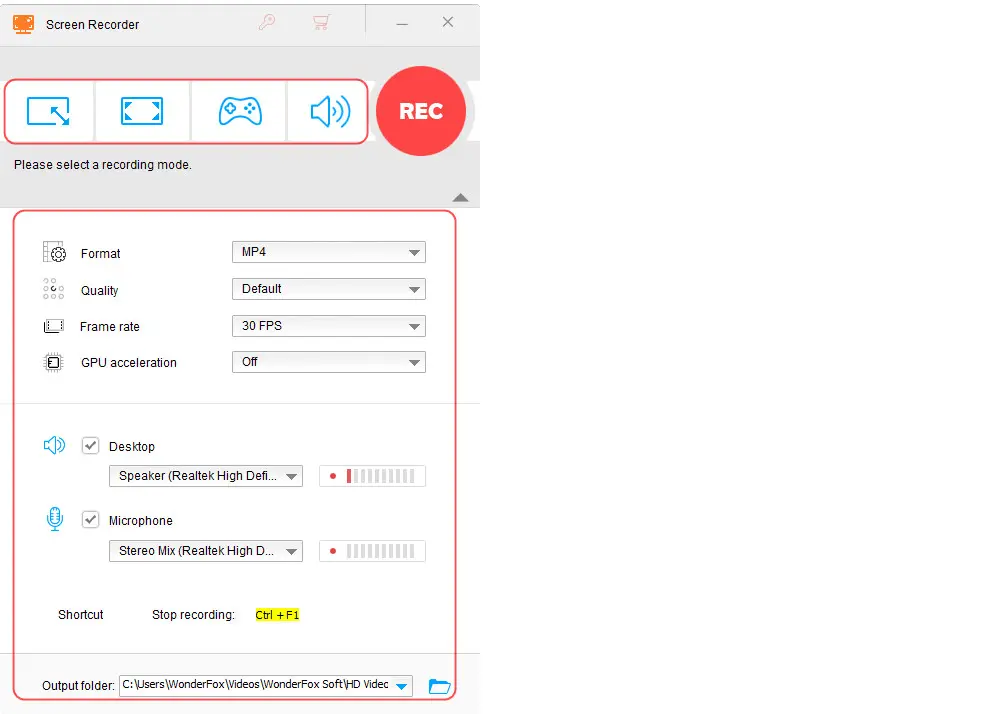
Step 3. Choose Custom, Full-screen, Game, or Audio-only mode at the top of the Recorder window.
Step 4. Set the recording format, quality, frame rate, system sound, microphone, and output folder. Enable GPU acceleration when supported by your NVIDIA graphics card or Intel CPU.
Step 5. Click the red ‘REC’ button. The recording starts after a five-second countdown. Press the stop shortcut (Ctrl + F1) when finished, then open the output folder to view or edit the local file.
Loom remains one of the easiest ways to record a short explanation and share it with a team. Its cloud workspace, comments, transcripts, integrations, screenshots, analytics, and AI tools make it more than a basic recorder. For asynchronous business communication, it is still a strong choice.
Its weaknesses are equally clear. The Starter plan is limited to five-minute, 720p screen recordings and 25 stored videos per person. Higher quality, trimming and stitching, branding, password protection, detailed analytics, and most AI features require a paid plan. It is also less suitable for users who prefer local files, advanced editing, Linux desktop capture, or live streaming.
Choose Loom when fast sharing and collaboration matter most. Choose an alternative based on the missing feature you actually need rather than looking for a tool that copies every part of Loom.
Loom is mainly used for asynchronous video communication. People use it for team updates, product demos, tutorials, bug reports, onboarding, sales outreach, customer support, classes, and visual feedback.
Loom provides encrypted uploads, unique video IDs, privacy controls, archiving, and deletion. Still, a video set to ‘Anyone with the link’ can be opened by anyone who obtains that link. Review permissions and avoid recording sensitive or regulated data without organizational approval.
The Starter plan limits ordinary screen recordings to five minutes and stores up to 25 videos per person. Business, Business + AI, and Enterprise support unlimited screen recording length and unlimited videos. Loom currently lists meeting recording length as unlimited across plans, including Starter.
Yes. Loom allows unlimited full-screen or custom-area screenshots on every plan. You can capture them with the desktop app or Chrome extension, annotate them, download them, and share them through an automatically generated link.
OBS Studio is the strongest completely free option for advanced local recording and live streaming, although it has a steeper learning curve and no built-in editor. ScreenRec is easier for quick cross-platform capture and sharing. Windows users who also need editing, conversion, compression, or audio-only recording can try WonderFox, but its unregistered recorder is limited to five free recordings.
WonderFox
HD Video Converter Factory Pro
 Download for FreeDownload for Free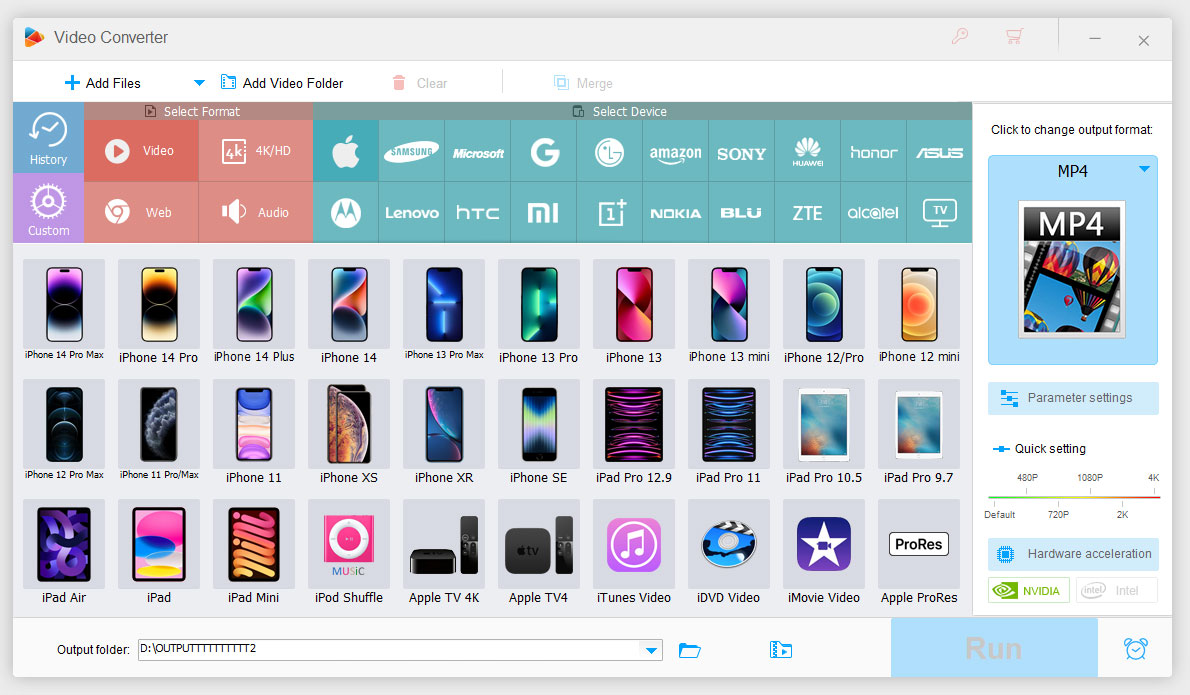

Kevincy joined the WonderFox team in 2014 and has been a senior columnist ever since. With over two decades of experience in the video editing industry, he shares tutorials, tips, and how-to guides on video/audio processing and personal DVD backups. Family-oriented and passionate about helping others, he is dedicated to making video and audio processing easier for readers.


Kevincy joined the WonderFox team in 2014 and has been a senior columnist ever since. With over two decades of experience in the video editing industry, he shares tutorials, tips, and how-to guides on video/audio processing and personal DVD backups. Family-oriented and passionate about helping others, he is dedicated to making video and audio processing easier for readers.

Terms and Conditions | Privacy Policy | License Agreement | Copyright © 2009-2026 WonderFox Soft, Inc. All Rights Reserved.



 Download for Free
