

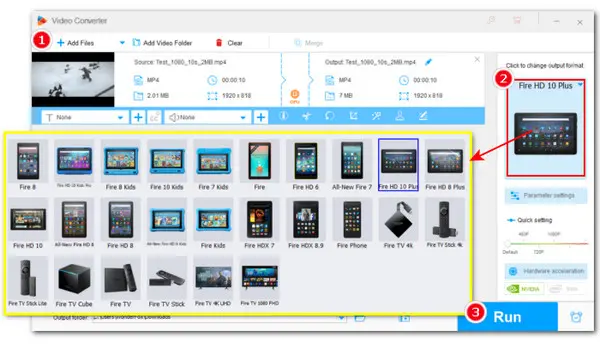
Can’t play MP4 on Kindle Fire? Blame unsupported codecs! And get HD Video Converter Factory Pro to fix it instantly:
√ convert video to Fire-compatible formats
√ switch codecs to universal H264, AAC, etc.
√ customize settings like resolution/fps/bitrate…
√ easy & fast & high-quality conversion


According to Amazon’s developer documentation, Kindle Fire tablets support the MP4 format natively. However, MP4 is only a container, and it can use many different video and audio codecs. The Fire-supported codecs also vary by model. In general, most Kindle Fire models can play MP4 videos encoded with H.264, MPEG2, MPEG4, and audio codecs like MP3, EAC3, and AAC.
If your Kindle Fire doesn’t support the codec used in your video, the file won’t play even though it’s an MP4. In that case, the only solution is to convert the video to a compatible format. To do this smoothly, you’ll need a reliable video codec converter.
With wide format and codec support, WonderFox HD Video Converter Factory Pro can help you fix incompatible format/codec issues handily so that you enjoy music or movies on any device without hassle.
 Download for Free
Download for Free
Download for Free
When the required codecs aren’t supported, you may encounter MP4 playback issues on your Kindle Fire, such as a black screen, no audio, or audio-video sync problems. Fortunately, this can be easily fixed with WonderFox HD Video Converter Factory Pro, a powerful Kindle Fire video converter on Windows.
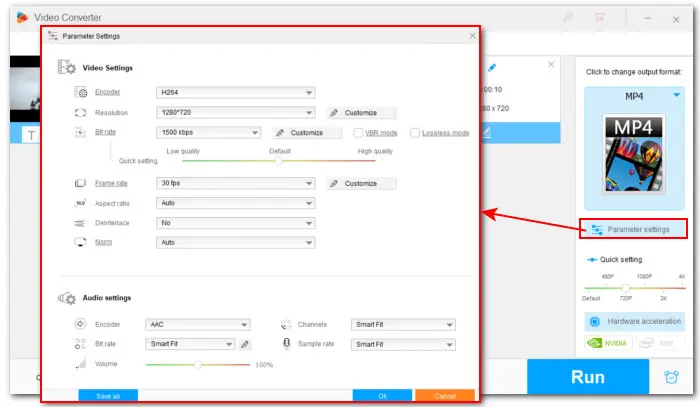
This tool offers 500+ output profiles, including popular formats like MP4, MKV, WebM, OGG, 3GP, H.265, and more, plus a full set of Kindle Fire presets. You can convert incompatible MP4 files to Fire-friendly formats such as H264, or simply choose the Kindle Fire model you own. Moreover, you can also manually adjust the video and audio codecs, frame rate, resolution, etc. in the Parameter settings for personalized results.
Free download this MP4 to Kindle Fire converter to make your MP4 playable on Kindle Fire tablets now.
Download for Free
Download for Free
Launch HD Video Converter Factory Pro and open Converter. Click the + Add Files button to import your MP4 file into the program.
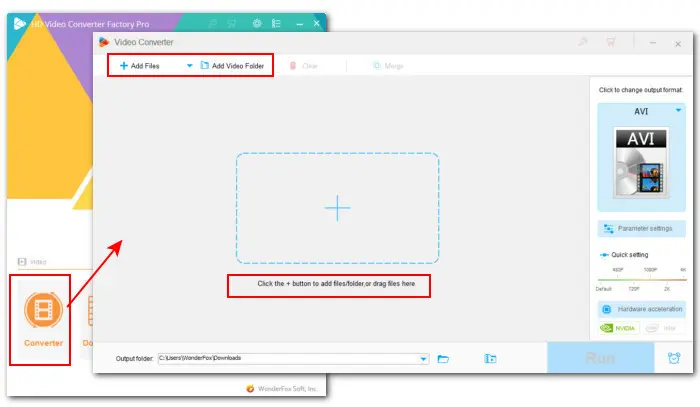
This converter includes 3 easy ways to help you play MP4 on Kindle Fire error-free:
Option 1 - On the right side of the conversion window, click on the format image to enter the output format library. Under the Device tab, tap on the Amazon icon and choose the Fire tablet model you’re using.
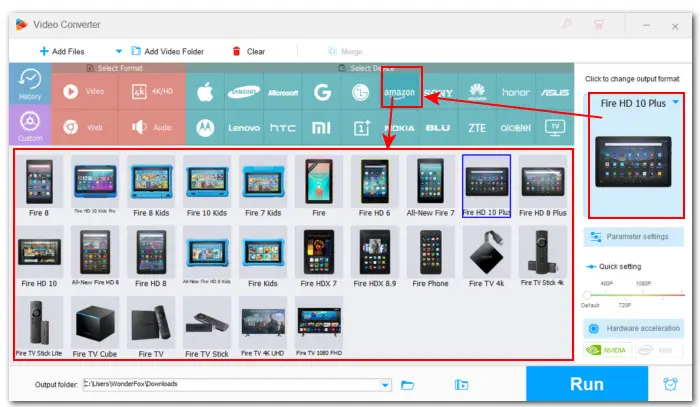
Option 2 - If the model you have is not here, navigate to the Video category and choose a video format that Kindle Fire supports, such as H264.
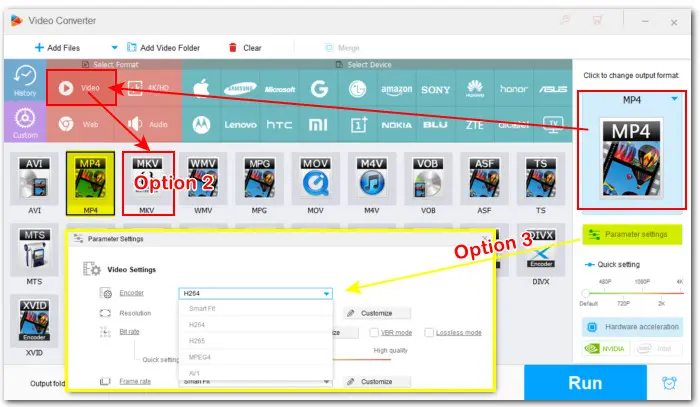
Option 3 - Select the same MP4 format in the Video category and then go to Parameters settings to change the video codec to H.264 or MPEG4 and audio codec to AAC or MP3. Don't forget to click OK to save the changes.
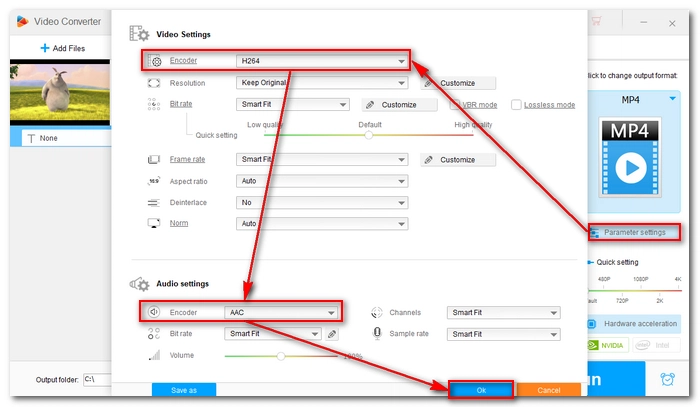
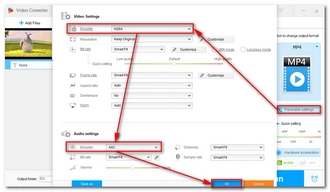
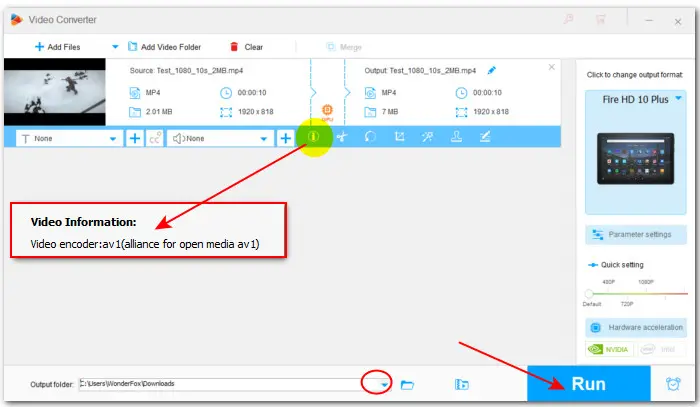
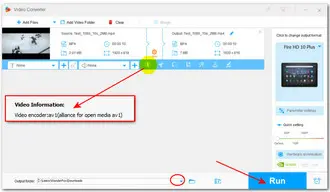
Finally, hit the ▼ button at the bottom to set a new output folder or leave it as default. Click Run to start the conversion at once.
Once done, you can transfer the converted videos from your PC to Kindle Fire and enjoy them trouble-free.
 Download for Free
Download for Free
Download for Free
If converting to the right codec or format does not work, consider the following factors:
Always check for file corruption first when you run into a playback issue. Try opening the video on another device to see if it works. If it still won't play, it's likely broken and you may need to use a video repair tool to fix it.
If your video uses newer codecs like AV1, an outdated player may fail to open it. Update your Kindle Fire’s video player to the latest version, or try a player with broader codec support. For example, VLC Media Player and MX Player are both good options.
As mentioned earlier, incompatible video settings can also cause MP4 files to stop playing on Kindle Fire. You can still use WonderFox HD Video Converter Factory Pro to fix it:
You can also try simple device fixes like restarting your Kindle Fire, clearing the app cache, or removing any suspicious apps.
That’s all the tips I have for playing MP4 videos smoothly on your Kindle Fire. If you run into playback issues, try the methods above. I hope you find this guide helpful. Thanks for reading!

Terms and Conditions | Privacy Policy | License Agreement | Copyright © 2009-2026 WonderFox Soft, Inc.All Rights Reserved