

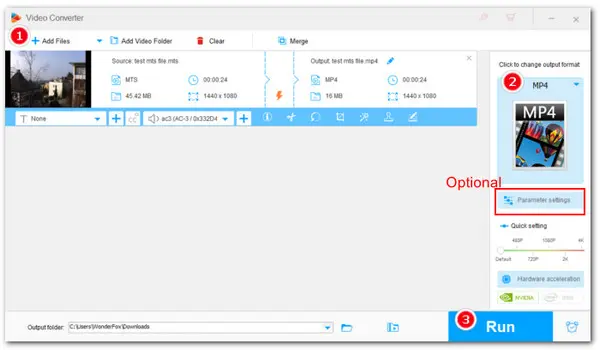
Best MTS Converter for Windows: WonderFox HD Video Converter Factory Pro


If you want to convert some AVCHD MTS videos recorded by your Sony or Panasonic HD camcorder to a more shareable or editable format, you've landed on the right page. Follow this article to get some excellent video converters to convert your MTS files to MP4, MOV, and more formats on Windows, Mac, and online.
Due to wide format and codec support, WonderFox HD Video Converter Factory Pro enables you to import virtually any video and convert it into common file types ready for sharing and editing.
With this tool, you can convert MTS files into distributional formats such as MP4, MOV, and AVI, into editing formats like ProRes and H.264, or even into device presets that can ensure perfect compatibility between your videos and your specific devices. Also, it can extract audio from videos like MTS to MP3, WAV, and more. Best of all, you can batch convert multiple files at a time.
As an HD video converter, it can convert MTS files without compromising quality. Thanks to its support for hardware acceleration, the conversion speed is also fast. The conversion process is simple, and you can download this program now to convert your MTS files:
 Download for Free
Download for Free
Download for Free
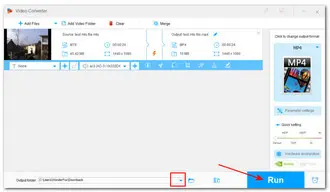
Step 1: Launch HD Video Converter Factory Pro and enter Converter. Click Add Files or Add Video Folder to import your MTS videos. You can also simply drag and drop them into the program.
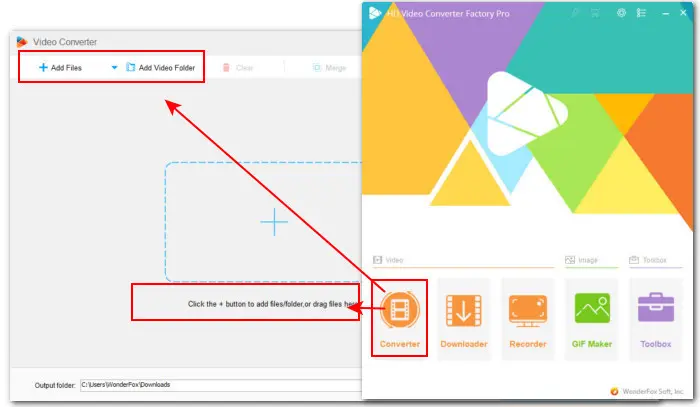
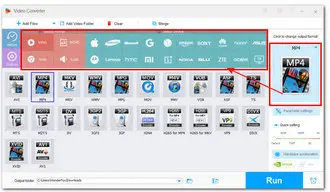
Step 2: Click the format image on the right side to open the format library. Go to the Video category and select the needed format. You can explore other sections to find more output options.
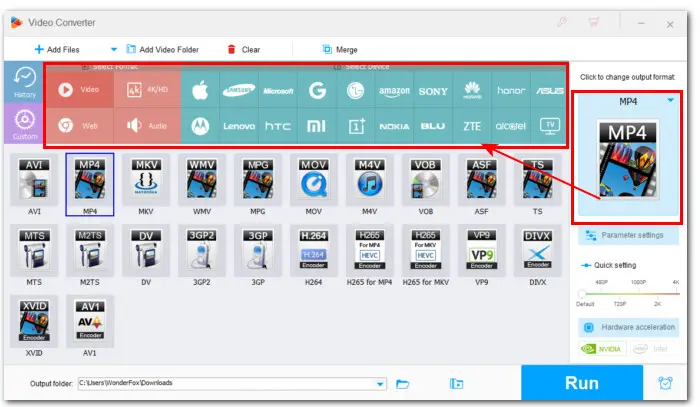
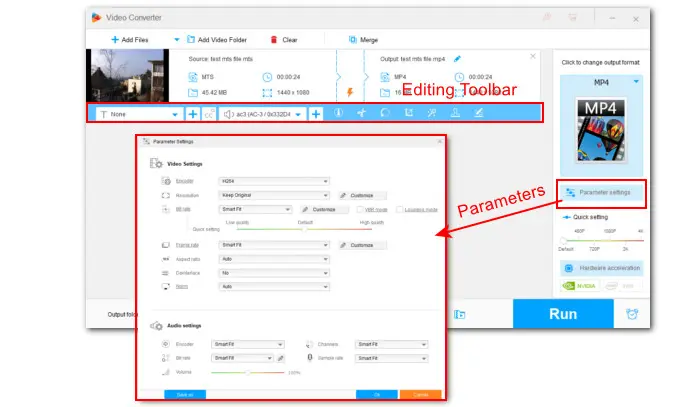
💡 If you have specific requirements on encoding settings, you can enter Parameter setting to modify encoder, resolution, bitrate, fps, sample rate, audio channel, etc. Enable Deinterlace if the original MTS video has horizontal motion lines.
You can also use the editing toolbar to trim, crop, rotate, watermark, add effects, attach subtitles, and do more.
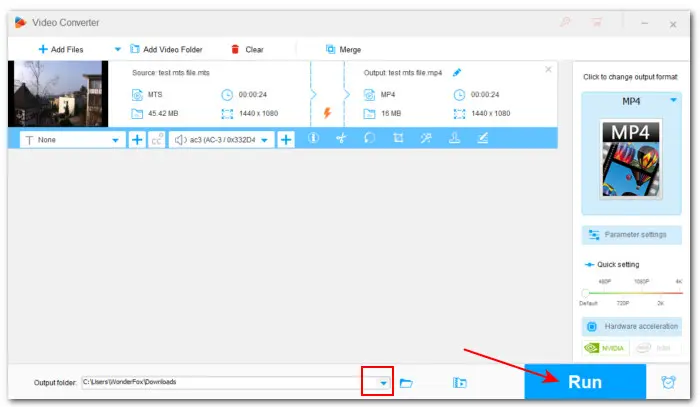
Step 3: Hit the ▼ button at the bottom of the program to choose an output folder. Finally, click Run to start converting MTS videos to the selected format.
Permute is a high-quality video converter designed for Mac. It's very powerful yet extremely easy to use. You can simply drag and drop your MTS files into its interface to start converting.
The export formats include MP4 (H.264 and HEVC), MOV (ProRes, H.264, and HEVC), MKV, and AVI, as well as a variety of presets tailored for different Apple devices. At the same time, it ensures that the final video output remains crisp and sharp after converting your MTS files.
Let's see how you can convert an MTS files in Permute:
Step 1: Download Permute here: https://software.charliemonroe.net/.
Step 2: Open the app and drag your MTS file into the interface.
Step 3: Click the Video drop-down menu and select the needed format or device.
Step 4: Click the Start button to begin the conversion process.
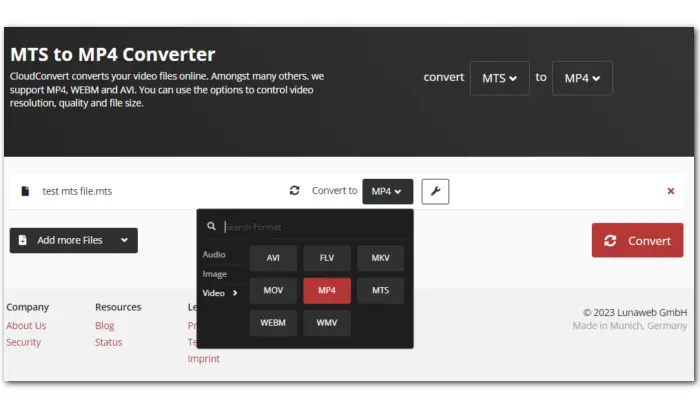
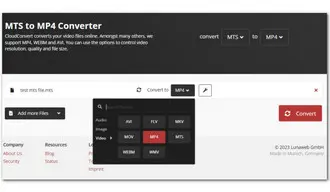
CloudConvert is a popular online platform that provides fast and easy solutions to convert different types of files including video, audio, image, document, PDF, archive, e-book, and more.
With this online converter for MTS files, you can convert .mts video files to 3GP, AVI, MKV, MOV, MP4, WMV, Android, iPad, iPhone, etc. Moreover, you can upload files up to 1GB in total for conversion. Let's see how to convert MTS files with CloudConvert below:
Step 1: Visit CloudConvert: https://cloudconvert.com/mts-converter
Step 2: Click the arrow icon near the Select File button to load the video file from local drive, Google Drive, Dropbox, OneDrive, or URL.
Step 3: Click the wrench icon to adjust the output settings and click OK to confirm the changes.
Step 4: Hit the Convert button to start converting MTS files online.
Step 5: Once the conversion is done, download the converted file to a local drive.
If you're looking for an open source solution, HandBrake is the answer. This is an awesome video transcoder that supports a wide range of input sources, provides optimized device presets, and offers features like subtitles, video filters, live static and video preview, etc. With this program, you can convert your MTS videos to MP4, MKV, or WebM. That said, it does not have an intuitive user interface like other video converters listed here. So it'll require a few extra clicks to complete the conversion. On the plus side, the program is completely free to use and is available on Windows, Mac, and Linux. Let's see how to convert MTS to MP4 using HandBrake below.
Step 1: Install HandBrake and launch it.
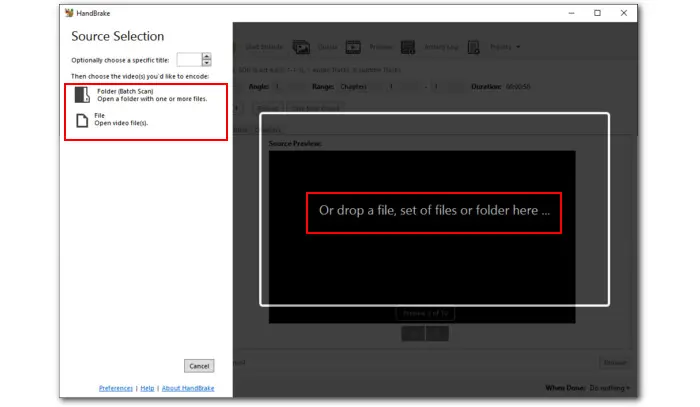
Step 2: Click File to open a single video file or Folder to batch scan multiple files. Or you can simply drag and drop to import.
Step 3: Go to Summary and change the Format to MP4. Optionally, you can modify other options provided. For example, you can open the Dimensions tab to crop the video, switch to the Video tab to specify the video codec, frame rate, and quality, and the Audio tab to control the output channels, etc.
Step 4: Click Browse in the bottom right corner to choose an output path.
Step 5: Finally, press the Start Encode icon in the top menu bar. The encoding progress will show at the bottom of the program. Once done, it will automatically export the final MP4 video to your computer.
💡 Note: HandBrake has a steeper learning curve and is prone to errors. If HandBrake is slow or produces out-of-sync audio, WonderFox HD Video Converter Factory Pro offers a faster, one-click alternative solution.


With the video conversion tools above, you should have no problem converting MTS files to your wanted format. These tools can also be useful converting other formats in your daily life. So just choose your suitable tool to get started. For Windows users, you can get HD Video Converter Factory Pro right here:
Download for Free
Download for Free
MTS (AVCHD) is a video format used mainly by Sony, Panasonic, and Canon HD camcorders. Despite high quality, MTS files are often difficult to play on mobile phones, PCs, Smart TVs, or editing software like iMovie. So it's recommended to convert MTS to MP4 or MOV to achieve the best compatibility.
You can keep the original video resolution and frame rate to maintain maximum quality. And to do this, you can use WonderFox HD Video Converter Factory Pro, which allows you to control the output settings including resolution and frame rate as needed.
Yes. HandBrake can take MTS/M2TS input and export to MP4.
Most camcorders shoot MTS video in interlaced mode (1080i), which will display horizontal lines during playback. To avoid this, be sure to enable the Deinterlace option during conversion. Tools like WonderFox HD Video Converter Factory Pro can help you with that.

I write about multimedia topics, including video and audio conversion, compression, editing, and downloading. I joined WonderFox in 2020, and my goal is to help readers solve everyday tech problems more easily. In this article, I shared with you four solutions to convert MTS files on Windows, Mac, and online separately. You should have no problem turning your MTS video to your wanted format now!


I write about multimedia topics, including video and audio conversion, compression, editing, and downloading. I joined WonderFox in 2020, and my goal is to help readers solve everyday tech problems more easily. In this article, I shared with you four solutions to convert MTS files on Windows, Mac, and online separately. You should have no problem turning your MTS video to your wanted format now!
 Download for Free
Download for Free
Download for Free

Terms and Conditions | Privacy Policy | License Agreement | Copyright © 2009-2026 WonderFox Soft, Inc.All Rights Reserved