


Due to advanced encoding and high bitrate, modern video formats like MP4, MKV, and AVI are often hard to play on older mobile phones or low-end portable devices. Converting them to small-sized, high-transmission-efficiency 3GP or 3G2 format is a good solution. In the following, you'll learn exactly how to convert videos to 3GP/3G2 on Windows 11/10/8/7. Keep reading!
💡 Want to learn more about 3GP and 3G2 formats? Jump to Knowledge Base >>
For a hassle-free conversion experience, we will use WonderFox HD Video Converter Factory Pro, a powerful yet easy-to-use video converter for Windows.
The software has excellent format support and can convert virtually any video to 3GP, 3G2, and a wide range of other popular formats and presets. It also supports batch processing, so you can convert multiple files at a time. For advanced needs, you are allowed to tweak parameters as needed before exporting.
Thanks to hardware acceleration support, the conversion is very fast. Next, you can download and installdownload and install the software to convert your videos to 3GP/3G2 with the steps below:
 Download for Free
Download for Free
Download for Free
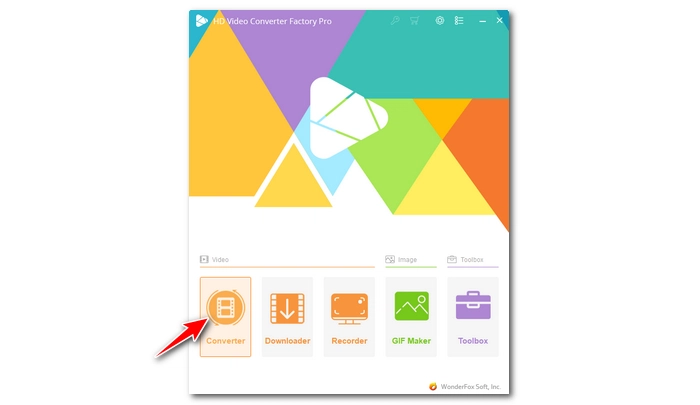
Double-click on the app to launch it. Then click Converter to open the video converter.
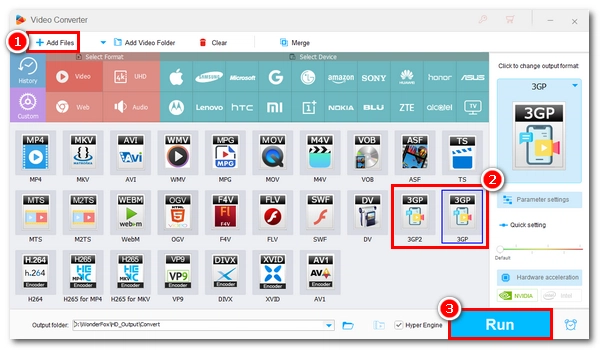
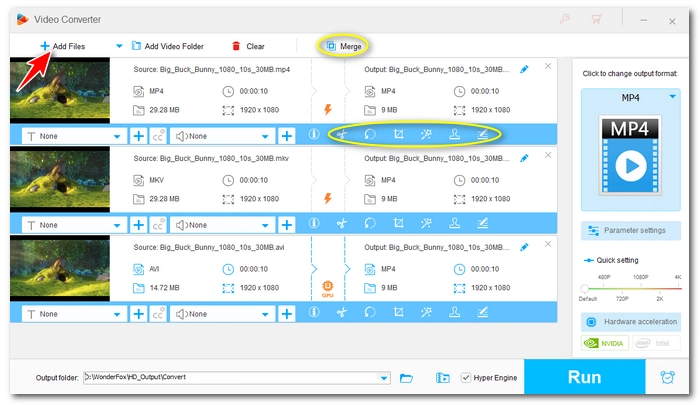
Click +Add Files to add the video files you want to convert to the program. Alternatively, you can drag them directly into the interface to import.
💡 After loading the file, you can use the toolset below the video to edit the file as you see fit.
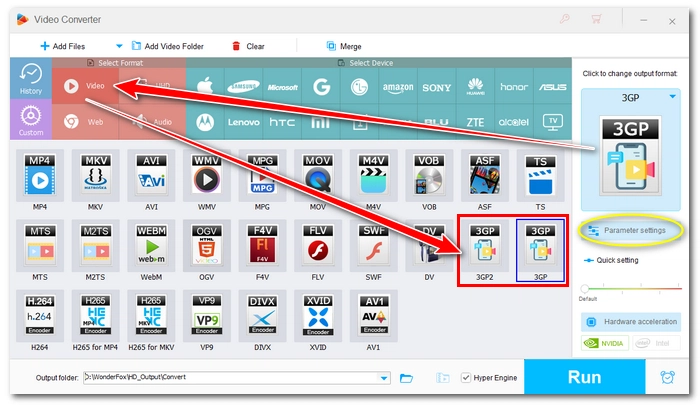
Open the Output Format section on the right and click the Video tab. Then select 3GP or 3GP2 as the output format.
Optionally, you can open Parameter Settings to adjust the video and audio settings (encoder, resolution, bitrate, etc.) as needed.
💡 3GP and 3GP2 use low resolutions and low bitrates by default. So the output quality will be degraded if you're converting from high-definition files. To learn how to balance the quality and size, you can see our knowledge base.
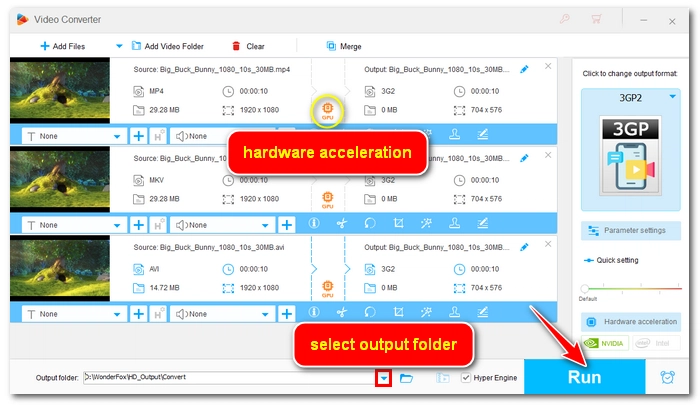
Click the ▼ icon in the Output Folder box and choose a destination folder. Finally, press the Run button to start the conversion process.
💡 Hardware acceleration will be enabled during the conversion process if you're converting video to 3G2 using the H264 encoder.
Here are some format-specific tips to help you achieve the best playback on your portable device:
MP4 files usually store high-definition videos, and when converting to 3G2, which supports only low resolutions and bitrates, the output image may look pixelated, especially on larger screens. To reduce compression artifacts, it's recommended to use H264 as the encoder in the Parameter settings, as H264 can provide much clearer image details at lower bitrates than MPEG-4.
If your MKV movie has multiple audio tracks or subtitles, you can keep your preferred one before exporting. After selecting the output format, you can simply unfold the Subtitle and Audio Track drop-down menus beneath your loaded video to select the desired language.
Due to legacy encoders like DivX or Xvid, your mobile phone may not be able to play AVI format. A simple AVI to 3GP format conversion is an easy and quick fix.
Let WonderFox HD Video Converter Factory Pro turn your videos into your desired formats, sizes, and quality in no time!
Download for Free
Download for Free
In case you just need to convert a few small files occasionally, we also prepared some online tools that can handle your needs without installing any software. The workflow is generally the same:
Here are the 5 video-to-3GP online converters we picked for you:
⚠️ Your files will be processed on third-party servers. For security reasons, do not upload any personal or private files.
1. FreeConvert: This is suitable for larger files up to 1GB and allows customizable parameter adjustments. But remember, the larger the file, the longer the processing time. A stable network connection is required.
2. Convertio: It has an intuitive interface and fast conversion speed. But the max file size for upload is capped at 100MB.
3. Free File Convert: This web-based tool supports converting files up to 500MB and allows you to upload 5 files at a time.
4. Zamzar: A classic MP4 to 3GP/3G2 converter, but only for files under 50MB.
5. MKV.to: A dedicated MKV to 3GP converter with no sign-in or complex settings.
| Desktop Software | Online Tools | |
|---|---|---|
| Best For | Large files, batch processing, advanced customization | Short videos |
| Max. File Size | Unlimited | Usually limited to 50MB – 1GB on free plans |
| Batch Conversion | Supported | Often limited |
| Processing Speed | Fast & Stable (hardware accelerated) | Relatively slower (rely on internet speed) |
| Privacy & Security | 100% Safe (All files are processed locally and offline on your PC) | Medium (Files need to be uploaded to third-party servers) |
| Parameter Control | Advanced (Fine-tune H.264/MPEG-4 codecs, resolution, bitrate, audio) | Basic |
Verdict: If you only have small clips (less than 100MB), an online tool is a convenient way to do a quick conversion. But for large files, multiple videos, or parameter tweaking, a dedicated desktop converter like WonderFox HD Video Converter Factory Pro is far faster, safer, and more reliable.
Just like MP4, MKV, and AVI, 3GP and 3G2 are just containers that can contain different codecs and use different resolutions. But the 3GP and 3G2 formats were designed for early 2.0–2.8-inch micro-screens and low-performance chips, so their supported codecs and resolution efficiency are relatively low. That said, you can still choose the optimal output settings within the range of these formats.
| Container Format | Recommended Codec | Recommended Resolution | Quality & File Size | Target Devices | |
|---|---|---|---|---|---|
| 1st Choice | .3gp,.3g2 | H.264 | 480x320, 320x240 | Best quality, smallest size | Touchscreen 3G phones or early smartphones supporting H.264 |
| 2nd Choice | .3gp,.3g2 | MPEG-4 | 320x240, 352x288 | Moderate quality and size | Older 3G phones |
| 3rd Choice | .3gp | H.263 | 176x144, 320x240 | Lower quality, visible pixelation | Ancient devices (100% playback success) |
MKV is a high-quality video format designed for delivering video, audio, and subtitles with high flexibility, and such flexibility makes most devices, especially older mobile phones, difficult to handle.
3GP is commonly used in GSM phones, while 3G2 is designed for CDMA phones.
Yes. You can batch convert an unlimited number of videos to 3GP with the help of WonderFox HD Video Converter Factory Pro.
Yes. Because 3GP is designed for small screens and low bandwidth, it only supports low resolution and bitrates, so quality loss is expected when you convert from HD videos to this format.

I write about multimedia topics, including video and audio conversion, compression, editing, and downloading. I joined WonderFox in 2020, and my goal is to help readers solve everyday tech problems more easily. In this article, you can learn the best way to convert any video, MP4, MKV, AVI, etc., to 3GP and 3G2 formats easily and quickly. Hope you find this article helpful!


I write about multimedia topics, including video and audio conversion, compression, editing, and downloading. I joined WonderFox in 2020, and my goal is to help readers solve everyday tech problems more easily. In this article, you can learn the best way to convert any video, MP4, MKV, AVI, etc., to 3GP and 3G2 formats easily and quickly. Hope you find this article helpful!
 Download for Free
Download for Free
Download for Free

Terms and Conditions | Privacy Policy | License Agreement | Copyright © 2009-2026 WonderFox Soft, Inc.All Rights Reserved