
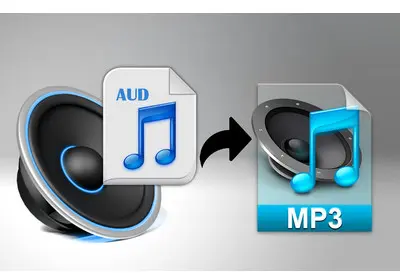
Files with the .aud extension can be associated with different applications. This article will explore their origins and show you how to open or convert AUD files to MP3 for smooth playback on your device.
Best AUD Music File Converter: HD Video Converter Factory Pro
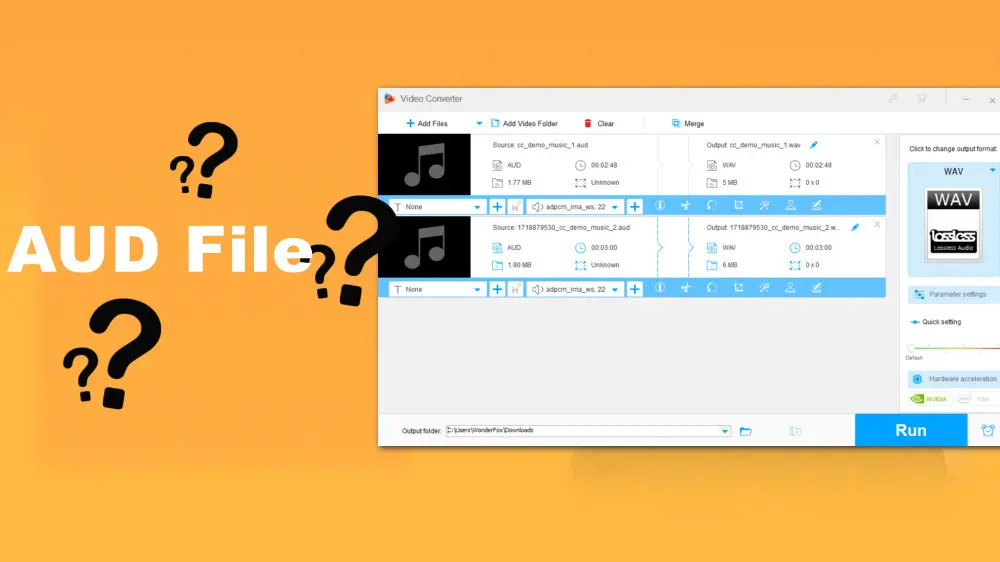

"AUD" is short for "audio." In most cases, it refers to a game music format developed by Westwood Studios. This format often uses the IMA-ADPCM compression standard for 16-bit for. You might find such .aud files in early video games like Command & Conquer and Dune 2000.
Additionally, AUD files can refer to WeChat audio files created by Tencent. This specific AUD format utilizes SILK compression to store voice messages with a smaller file size.
In either case, files with the .aud extension are uncommon and generally cannot be opened directly in standard media players or devices.
AUD files usually cannot be opened natively in media players like Windows Media Player or QuickTime. You need more powerful programs to open an AUD file. For instance:
📎 Westwood Studios AUD files: You can play these files using foobar2000, Winamp, or VLC Media Player.
📎 WeChat AUD audio files: These can be opened with Audacity.
Make sure to use the appropriate software based on the type of AUD file you have.
Since many media players and devices don't support AUD audio files, it's a good idea to convert AUD to MP3, WAV, or other common formats to avoid compatibility issues. Try the following two tools for a quick conversion:
Built-in with wide input and output support, WonderFox HD Video Converter Factory Pro allows you to convert Westwood Studios AUD files to any audio format you need, including MP3, WAV, M4A, FLAC, ALAC, DTS, and more. Besides, you have options to trim and merge the .aud file and adjust audio settings, such as encoder, bitrate, sample rate, channel, and volume.
Free download and install this converter to process your AUD game audios in bulk effortlessly:
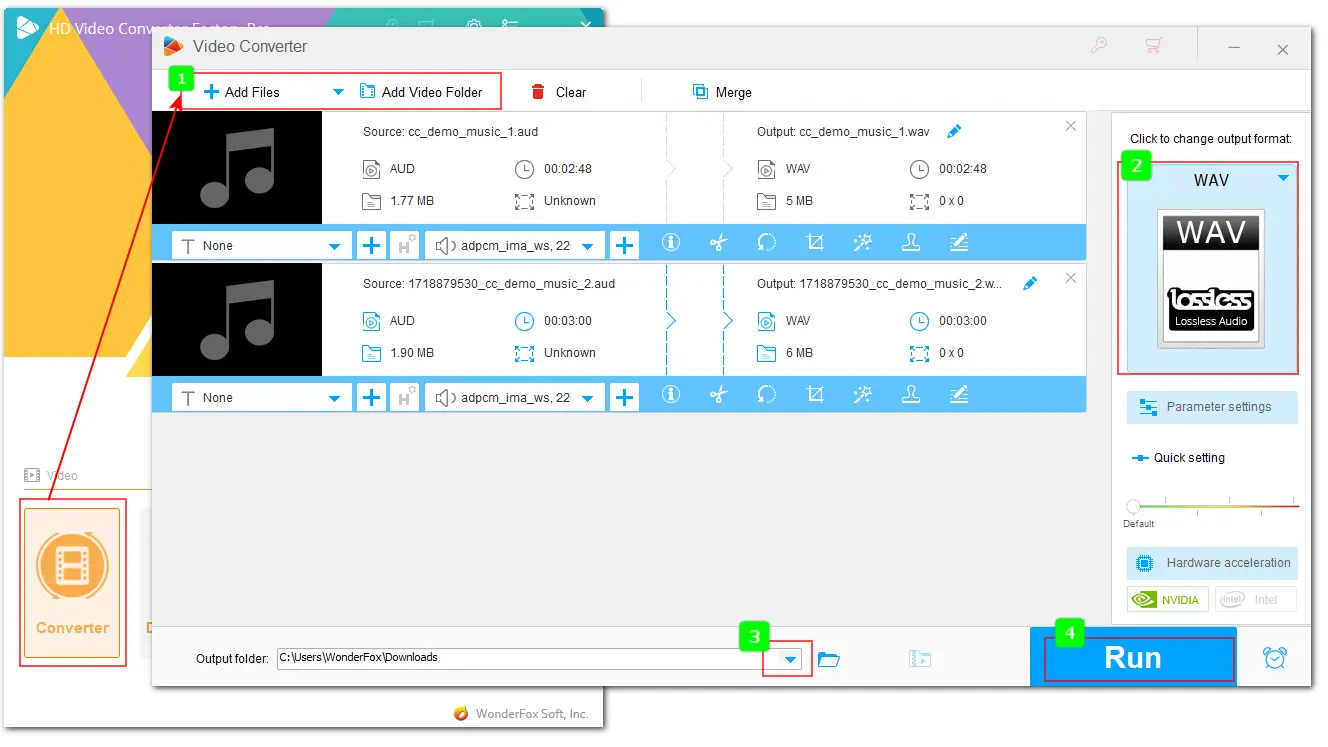
Step 1. Launch the program and open the Converter.
Step 2. Click + Add Files to import the .aud files you want to convert. Also, you can drag and drop them into the workspace for batch conversion. You can play the AUD files using the built-in player.
Step 3. Expand the output format list on the right and select the desired audio format, such as MP3, under the Audio tab.
Step 4. Click on the ▼ icon to set an output folder.
Step 5. Click Run to start the conversion.
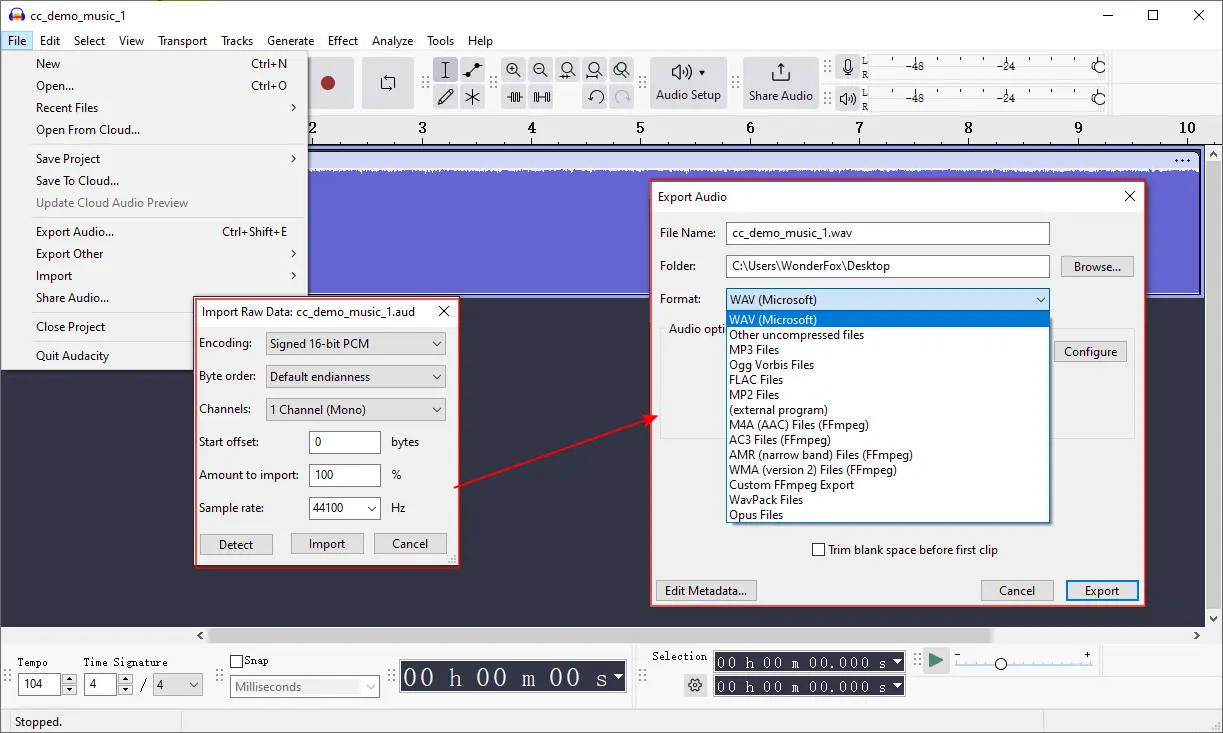
Audacity is a handy free audio editing and recording application. It also includes a conversion feature. You can use it to edit and export the .aud recordings to WAV, OGG Vorbis, MP3, WMA, M4A, AC3, or other audio formats. Follow our instructions below to start the conversion:
Step 1. Download and install this open-source tool on your device. It can work with multiple systems, including Windows, Mac, and Linux.
Step 2. Launch Audacity and go to File > Import > Audio. Browse and choose the target .aud files to import them. If you receive an error message saying Incorrect filetype when importing files in this way, try the Import Raw Data option.
Step 3. After importing, you can edit it with Audacity to your preference.
Step 4. To export AUD to other audio formats, head to File > Export Audio.
Step 5. Then choose to share your result to audio.com or export it to your computer.
Step 6. If you choose to store it locally, an Export Audio window will pop up, in which you can choose the output format, change the filename, and set an output folder.
Step 7. You are presented with options to configure the export settings, such as channel, sample rate, metadata, and more.
Step 8. Finally, hit Export to complete the editing and conversion.
.AUD can refer to various audio file formats, the most common of which include the game music format used by Westwood Studios and the voice message format used by Tencent's WeChat.
To play AUD audio files, you can use a powerful media player such as VLC or Winamp. Alternatively, you can convert them to more widely compatible formats. If the AUD file is a voice message, you can use the WeChat app or the open-source software Audacity to play it.
Unfortunately, AUD is not a native format for Windows Media Player 12. To play AUD files in WMP, you must convert them to a compatible format such as MP3, WMA, or AAC. Depending on the type of AUD file you have, choose an appropriate conversion tool. For AUD game audio, you can use WonderFox HD Video Converter Factory Pro, while for WeChat audio files, Audacity would be a suitable option.

I write about multimedia topics, including video and audio conversion, compression, editing, and downloading. I joined WonderFox in 2020, and my goal is to help readers solve everyday tech problems more easily. In this guide, I explained the AUD format and showed you the way to open and convert an AUD audio file for smooth playback.


I write about multimedia topics, including video and audio conversion, compression, editing, and downloading. I joined WonderFox in 2020, and my goal is to help readers solve everyday tech problems more easily. In this guide, I explained the AUD format and showed you the way to open and convert an AUD audio file for smooth playback.
WonderFox
DVD Ripper Pro
WonderFox DVD Ripper Pro is a trusted tool for effortlessly converting any DVD – homemade or commercial – into popular formats like MP4, MKV, MP3, and others. Edit and compress your DVD videos efficiently for optimal results. Download now for seamless conversion.
 Download for FreeDownload for Free


Terms and Conditions | Privacy Policy | License Agreement | Copyright © 2009-2026 WonderFox Soft, Inc. All Rights Reserved.



 Download for Free
