Free Download
Best WAV to MP3 Free Converter - Convert WAV Files to MP3 Efficiently
AuthorRecommended by the author

SoftwareHow to & Tips

Video FormatsConvert Video

Resources

How to Convert WAV to MP3 for Free on Your Computer (Windows & Mac)

Author by Michelle

Updated on Jun 18, 2026

WAV is an uncompressed, lossless audio format that preserves the highest sound quality but requires more storage space than lossy formats like MP3. This also makes WAV files less convenient to transfer over the internet compared to MP3s. You can convert WAV files to MP3 to achieve smaller file sizes and easier transfer.

This article introduces several practical methods for converting WAV files to MP3 for free on your computer, including batch conversion.


📌 Windows users can download the fast WAV to MP3 converter here to get started:

Best Free Way to Convert WAV to MP3 on Windows

If you want to convert WAV to MP3 on Windows with details preserved, I highly recommend WonderFox Free HD Video Converter Factory. It provides customizable settings, and you can select the output bitrate, such as 320kbps for optimal audio quality. Meanwhile, you can adjust audio channels, sample rates, and volume levels to suit your specific needs.

Besides WAV to MP3 conversion, it can perform various video and audio conversions commonly encountered in daily life. It also features built-in editing tools that let you cut and merge audio files before exporting.

This software is simple and efficient to use, supports batch conversion so you can process multiple files with just a few clicks. You can free downloadfree download this WAV to MP3 converter right now and follow the guide below to learn how to convert your WAV files to MP3 format:

Free Download Free Download

How to Convert WAV to MP3 Free within Simple Steps

Add WAV Files

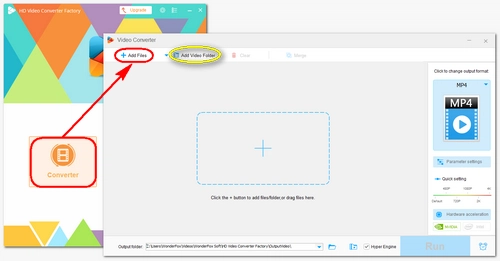
Step 1: Add WAV Files

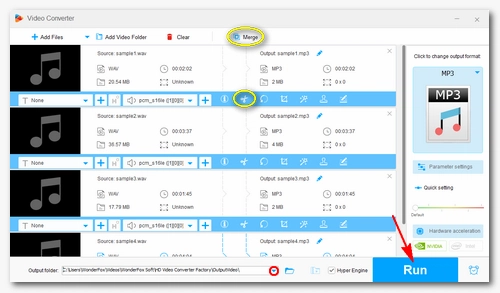
Launch Free HD Video Converter Factory and open Converter. Next, click + Add Files to add your WAV files to the program. You can also directly drag and drop the files into the interface.

💡 You can click Add Video Folder to import an entire folder of WAV files all at once.

Select MP3 as Output Format

Step 2: Select MP3 as Output Format

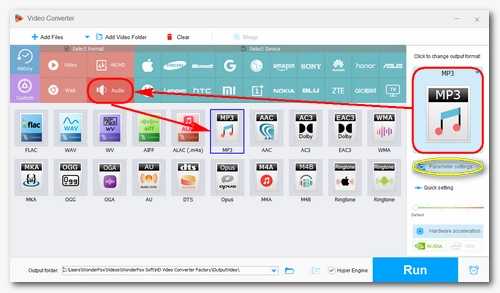
Open the Output Format list on the right side and choose MP3 under the Audio tab.

(Optional) Open Parameter settings and set the audio bitrate to 320 kbps to preserve the best sound quality. Then click OK. For regular listening needs, you can also use 192 kbps or 256 kbps.

Start the WAV to MP3 Conversion

Step 3: Start the WAV to MP3 Conversion

Click the ▼ button at the bottom to choose an output folder. Finally, click Run to start the conversion immediately.

💡 Before conversion, you can use the editing tools to edit the audio as needed.

Best Free Way to Convert WAV to MP3 on Mac

There is good news for Mac users: you can convert WAV files to MP3 format without installing any additional software. The preinstalled Music app (formerly iTunes) is up to the task, although some simple setup is required first. Also, with the Music app, you can also process multiple WAV files at once.

You can follow the instructions below to safely convert your WAV files to MP3 in the Music app.

Open PreferencesOpen Preferences

Step 1: Open the Music app.

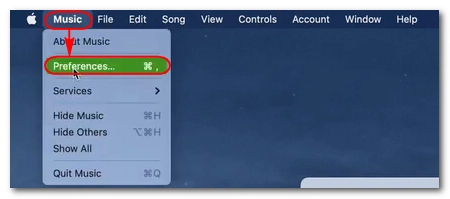
Click the Music menu at the top and select Preferences.

Set MP3 EncoderSet MP3 Encoder

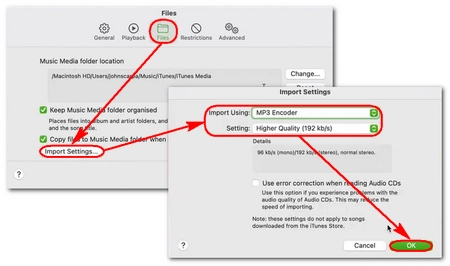
Step 2: Click the Files tab, and then click on Import Settings.

Step 3: Select MP3 Encoder from the Import Using drop-down.

If you want to save the MP3 file in a specific quality, you can click the Setting and choose a preferred quality or set a custom one.

Click OK to confirm the settings.

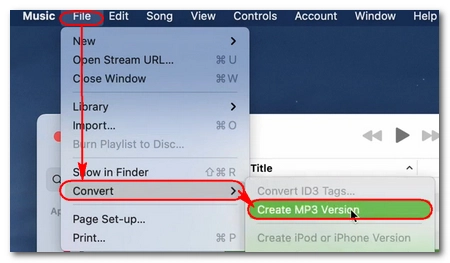
Create MP3 VersionCreate MP3 Version

Step 4: Drag your WAV file into the Music app and select it.

Step 5: Go to File > Convert > Create MP3 Version.

The conversion will start right away, and the converted MP3 file will be placed right under the original WAV file.

Alternative Ways to Convert WAV to MP3

There are plenty of ways for converting WAV to MP3, and you can also try the following free tools. While they are not standard audio converters, they can still help you perform the conversion and achieve more purposes.


- Use Audacity (Best for Audio Editing)

Audacity is a free, open-source, and cross-platform audio editing and recording app. It’s a good choice if you want to edit audio before converting. Here is how:
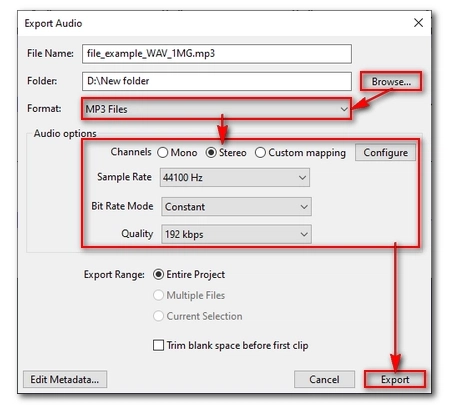
Convert WAV to MP3 in AudacityConvert WAV to MP3 in Audacity

Step 1: Download Audacity from https://www.audacityteam.org/ and install it on your computer.

Step 2: Open it. Go to File > Open, then import your WAV audio.

Step 3: Edit, mix, and enhance your audio as needed. Then click File > Export Audio.

Step 4: Click Browse to select an output path. Then select MP3 Files from the Format dropdown box.
Optionally, you can modify the audio options, like channels, sample rate, bitrate mode and quality. For a regular WAV to MP3 conversion, you can use the following options:
• Channels: Stereo • Sample rate: 44100 Hz • Bit Rate Mode: Constant • Quality: 192 kbps (use 320 kbps if you want the best quality)

Step 5: Click Export to start the conversion process.
💡 If you want to convert multiple .wav into .mp3 at once, you’ll need to drag all the WAV files into Audacity. Then repeat Step 3 and Step 4 and select Multiple Files as the Export Range.


- Use FFmpeg (Best for Advanced Users & Commands)

If you prefer a CLI-based solution, FFmpeg is what you’re looking for. But since it performs conversions via the command line, it’s best suited for advanced users.

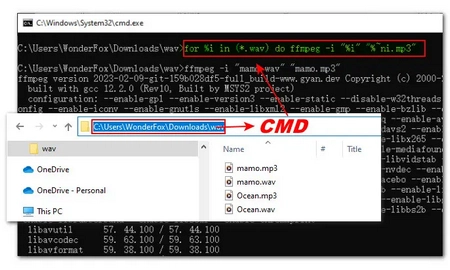
Convert WAV to MP3 with FFmpegConvert WAV to MP3 with FFmpeg

Step 1: Download FFmpeg from https://ffmpeg.org/ and add it to your system’s PATH.

Step 2: Navigate to the folder containing your WAV files. Replace the file path with CMD, press Enter to bring up the Command Prompt in the selected directory.

Step 3: Run the following commands:
ffmpeg -i input.wav output.mp3
🔔 Replace “input” with your WAV filename and create a different name for the MP3 output.
Then press Enter to start the conversion.

💡 If you want to batch convert WAV to MP3 in FFmpeg, use this commands:
for %i in (*.wav) do ffmpeg -i "%i" "%~ni.mp3"


- Use Online Audio Converters (Best for Quick, One-Off Files)

Online audio converters are recommended when you need fast and casual file conversions.

There are many online tools that can deal with WAV file to MP3 conversion, and CloudConvert is one of the best options. It allows you to have 10 free conversions every day and convert files as big as 1 GB. The workflow is simple:
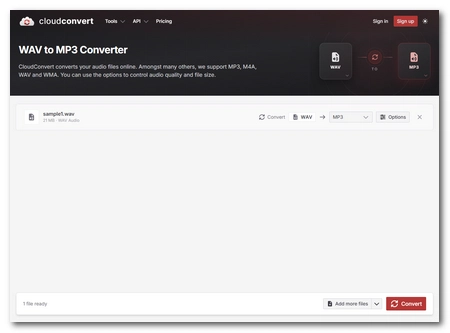
Convert WAV to MP3 OnlineConvert WAV to MP3 Online

Step 1: Visit https://cloudconvert.com/wav-to-mp3.

Step 2: Click Select File to upload your WAV file or directly drop a file onto the website.

Step 3: Click Options if you need to adjust the output settings. This step is optional.

Step 4: Click Convert to start the conversion.

Step 5: Once the conversion is complete, download the converted MP3 file to your device.

🗨️ The biggest advantage of online converters is that you can use it on any device without installing any software. But there are clear downsides: they require a stable internet connection, the file involve waiting times for file uploads, have limits on free usage, and raise concerns regarding data privacy. Therefore, this method is recommended only for quick, one-off file conversions. For a more secure and robust conversion experience, it’s better to use the desktop programs.

These are all I wanted to share about how to convert WAV to MP3. The tools mentioned here are all high quality WAV to MP3 converters that can maintain the highest quality for the converted MP3 files. Best of all, they are completely free to use. Hope you find this article helpful. Thanks for reading!

FAQs


1. Why convert WAV files to MP3?

WAV files are typically large in size. By converting WAV to MP3, you can significantly reduce file size and also achieve broader device compatibility.


2. Does converting WAV to MP3 reduce quality?

Yes. Because MP3 is a lossy format, any conversion to MP3 will cause some loss of audio quality. In other words, it’s impossible to convert WAV to MP3 without losing quality.


3. How do I convert WAV to MP3 with high quality?

Lossy conversion doesn’t mean you don’t get good output quality. In fact, converting WAV to MP3 at a bitrate of 320 kbps will have a higher quality output than regular MP3. The tools mentioned in this article can all help you easily achieve high-quality WAV to MP3 conversion.


4. How can I convert a folder of WAV files to MP3?

The easiest way to convert all WAV files from a folder to MP3 format is by using a dedicated audio converter software, such as WonderFox Free HD Video Converter Factory on Windows. It allows you to import all the WAV files and process them in batches.


Michelle

Michelle O'Brien

I write about multimedia topics, including video and audio conversion, compression, editing, and downloading. I joined WonderFox in 2020, and my goal is to help readers solve everyday tech problems more easily. In this article, I’ve provided five ways to convert WAV to MP3 format. Follow the steps above and you should have no problem handling the conversion.

Email

Michelle

Michelle O'Brien

I write about multimedia topics, including video and audio conversion, compression, editing, and downloading. I joined WonderFox in 2020, and my goal is to help readers solve everyday tech problems more easily. In this article, I’ve provided five ways to convert WAV to MP3 format. Follow the steps above and you should have no problem handling the conversion.

Email

Advanced Audio & Video Converter

Professional audio converter

WonderFox HD Video Converter Factory Pro

1. Convert WAV to MP3 in high quality, e.g. MP3 320kbps;

2. Support lossless conversion between WAV, FLAC, AIFF, and ALAC;

3. Change video/audio parameters, such as bitrate, codec, volume, etc.

4. Change video to MP4, MP3, and 500+ formats and device profiles;

5. Edit and compress video and audio files before conversion;

6. Easy operation and lightning-fast conversion speed.

Free Download HD Video Converter Factory Pro Free Download HD Video Converter Factory Pro

More Related Articles

Four Good Methods to Convert OMA to MP3 Free How to Convert DAT to MP3 on Windows and Online? How to Convert 24-bit to 16-bit WAV?
How to Merge TS Files to MP4 Easily and Quickly? The Best SHN Converter Helps You Convert SHN to MP3, FLAC, WAV, Etc. How to Convert DFF/DSF to FLAC | Best 2 Ways