HD Video Converter Factory Pro is powerful High Definition Video Converter and it builds in 150 video format, it can easily support Multi-track HD video M2TS, MKV, AVCHD, HDTV BDAV and MPEG-TS video movies. HD Video Converter Factory Pro provide powerful video editing function and video effect. It's a real all-in-one video converting tool.
You can convert video to AVI, FLV, WMV, MPEG, MP4 and multimedia devices such as Apple iPad, iPhone, iPod, iTouch, Sony PSP, PS3, PDA, Zune, Mobile phone, etc. Below is a HD video converter guide which will show you how to use HD Video Converter Factory Pro.
Step1: Import video.
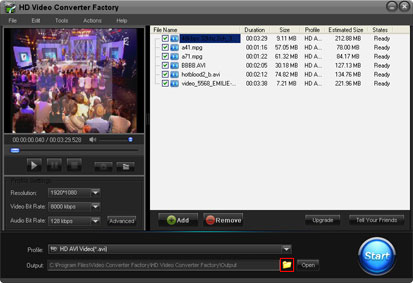
Launch HD Video Converter Factory Pro, Click 'Add' button to import video(s), click 'Remove' button to delete video.
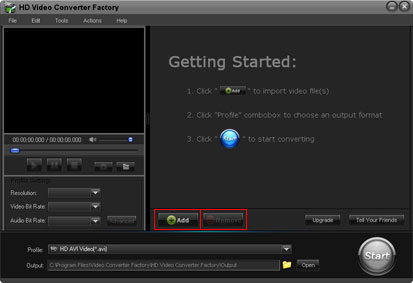
Step2: Choose an output format.
1,Click 'Profile' combo box to choose an output format.
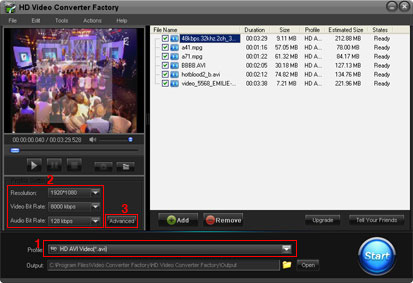
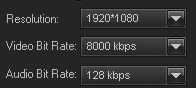
2, Common profile settings, In most cases, we provide multi-options for each setting.
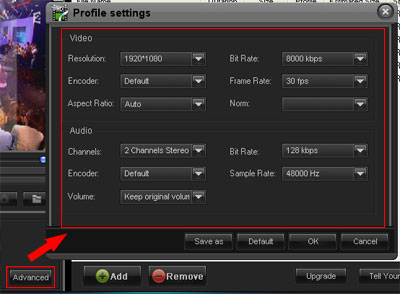
3, More advanced settings.
Step3: Rich Extra Entertainment Functions
Step3-1(Optional): Merge videos
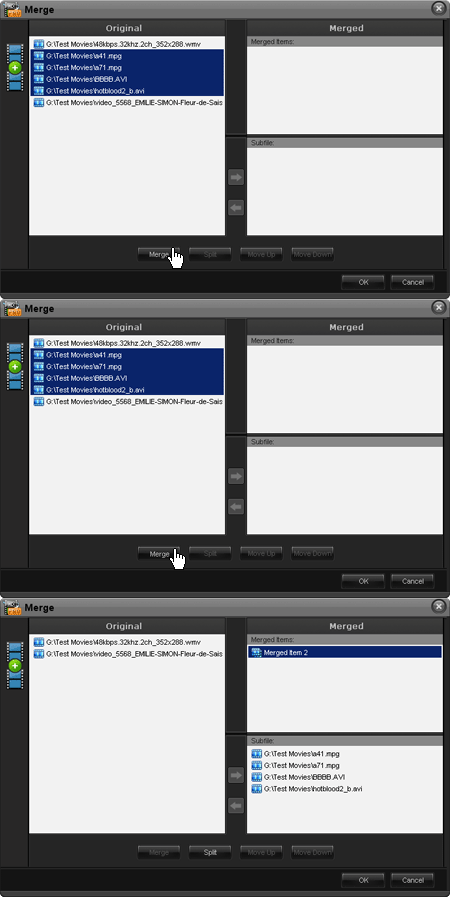
Press 'Shift' bond to select multiple files, click 'Merge' button, and then click 'Ok' button.
Step3-2(Optional): Cut Video.
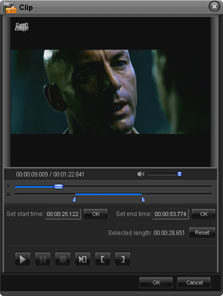
Click 'Clip' button to the interface. Drag the bar or input a times to select output clip. And then click 'button' to apply.
Step3-3(Optional): Video Cropping.
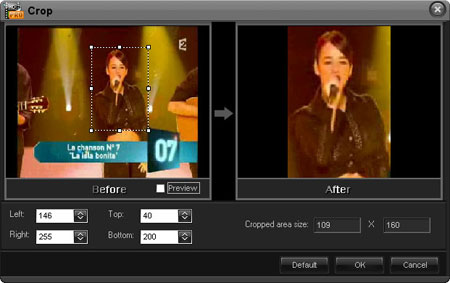
Click 'Crop' button to the interface. Drag the selection box to select output area that your want.
Step3-4(Optional): Video Effect.
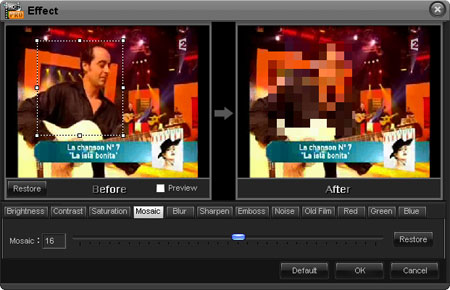
Click 'Effect' button to the interface. Drag the selection box to select a area to apply effects.
Step4: choose an output folder.
Click the 'folder' button in output setting area, select an output folder in the dialog box that opens, and then click 'OK'.
Step5: Converting.
After finishing the above settings, check the files needed to convert in the file list, and click 'Start' button on the main interface, to start converting the movie.
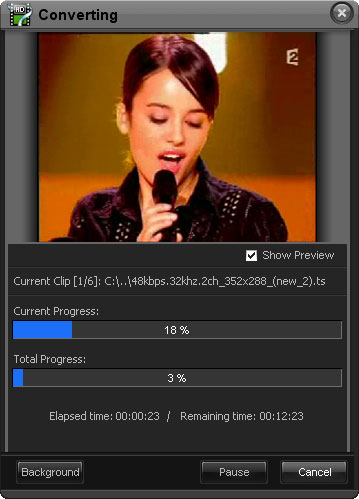
You can choose whether to display the preview.
You can pause/resume the converting at anytime.
You can click 'Background' button to set the interface minimize to taskbar.

 Related Software
 Related Article